Open your Databricks workspace.
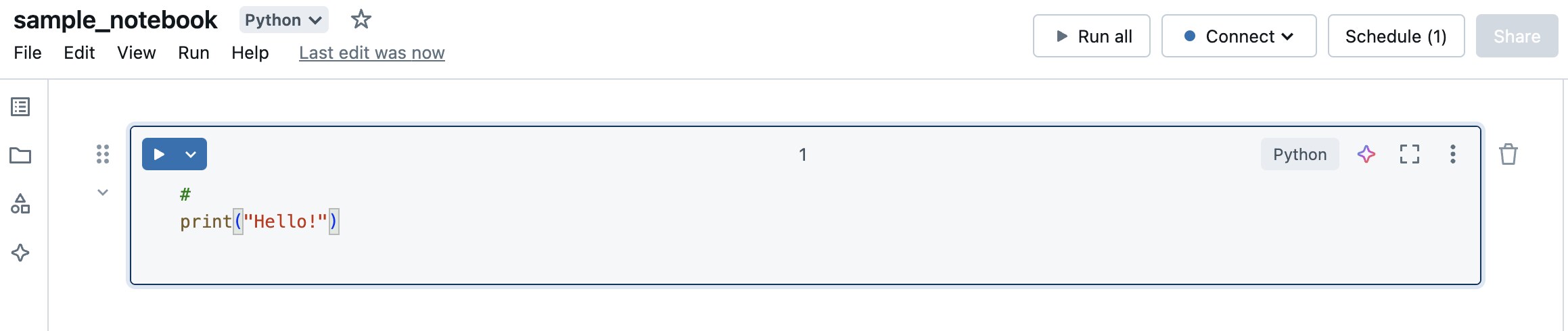
Navigate to the Workspace section and click Create → Notebook.
Give the notebook a name (e.g., sample_Notebook) and select the language (Python, Scala, SQL, etc.).
Write your code in the notebook.
Go to Jobs in the Databricks workspace.
Click Create Job.
Provide the Job name (e.g., Sample_Job).
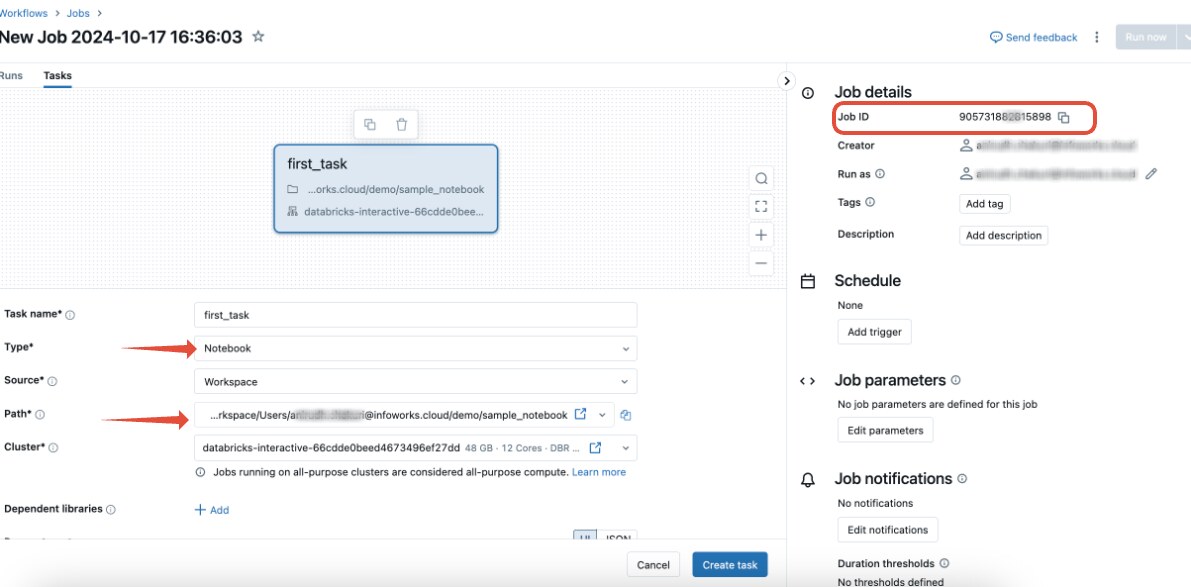
Under Tasks, click Add task:
Task name: Notebook Task
Type: Notebook
Notebook path: Select the notebook you created (e.g., /Workspace/Users/your-notebook).
Optional: Add parameters if required by the notebook.
Choose the appropriate cluster configuration to run your notebook.
Click Create to save the job.
Note the Job ID. You will need this to trigger the job from the Infoworks Bash node.
Databricks requires authentication to trigger jobs via API. We will use Azure Service Principal credentials for this purpose.
Ensure you have the following:
client_id: Application ID of your Azure Service Principal.
tenant_id: Azure tenant ID.
client_secret: Azure client secret. Note: Please store the client secret in Azure Key Vault and create the secret name on Infoworks to use the 'client_secret' securely in bash node.
Databricks workspace URL: E.g., https://.azuredatabricks.net.
Job ID: From the Databricks job created in Part 1.
Copy the below bash script to Infoworks Bash Node. The script will,
Authenticate with Azure.
Trigger the Databricks Job.
Poll for the job status until it completes.
Handle token expiry if needed.
#!/bin/bash
# Set Azure and Databricks variables from parameters
client_id="{{ params.runtime.client_id }}"
tenant_id="{{ params.runtime.tenant_id }}"
client_secret="$secret_val" # Replace with env variable mapped to the secret name
databricks_url="{{ params.runtime.databricks_url }}"
job_id="{{ params.runtime.job_id }}"
poll_interval=30 # Poll job status every 30 seconds
# Function to authenticate and obtain a new access token
function get_access_token() {
echo "Authenticating with Azure..."
token_response=$(curl -s -X POST \
-d "grant_type=client_credentials" \
-d "client_id=${client_id}" \
-d "client_secret=${client_secret}" \
"https://login.microsoftonline.com/${tenant_id}/oauth2/token")
# Extract the access token
access_token=$(echo "$token_response" | jq -r '.access_token')
if [[ -z "$access_token" || "$access_token" == "null" ]]; then
echo "Error: Failed to obtain access token."
echo "Response: $token_response"
exit 1
fi
echo "Successfully authenticated with Azure."
}
# Function to check job status
function check_job_status() {
local run_id="$1"
status_response=$(curl -s -X GET "${databricks_url}/api/2.1/jobs/runs/get?run_id=${run_id}" \
-H "Authorization: Bearer ${access_token}")
# Check if the API request was successful
if [[ $? -ne 0 ]]; then
echo "Error: Failed to get job status. Refreshing token..."
get_access_token
return 1
fi
echo "$status_response"
}
# Authenticate initially to get the access token
get_access_token
# Trigger the Databricks job
echo "Triggering Databricks job (ID: $job_id)..."
trigger_response=$(curl -s -X POST "${databricks_url}/api/2.1/jobs/run-now" \
-H "Authorization: Bearer ${access_token}" \
-H "Content-Type: application/json" \
-d "{\"job_id\": ${job_id}}")
# Extract run ID and check for errors
run_id=$(echo "$trigger_response" | jq -r '.run_id')
if [[ -z "$run_id" || "$run_id" == "null" ]]; then
echo "Error: Failed to trigger job."
echo "Response: $trigger_response"
exit 1
fi
echo "Job triggered successfully. Run ID: $run_id"
# Poll for the job status until it completes
while true; do
echo "Checking job status..."
job_status_response=$(check_job_status "$run_id")
# Check if the job status API call was successful
if [[ $? -ne 0 ]]; then
# Retry fetching job status if the access token was refreshed
job_status_response=$(check_job_status "$run_id")
fi
# Extract the job state and result state
life_cycle_state=$(echo "$job_status_response" | jq -r '.state.life_cycle_state')
result_state=$(echo "$job_status_response" | jq -r '.state.result_state')
echo "Job is in state: $life_cycle_state"
# Check if the job is completed
if [[ "$life_cycle_state" == "TERMINATED" ]]; then
if [[ "$result_state" == "SUCCESS" ]]; then
echo "Job completed successfully!"
echo "Job URL: $databricks_url/jobs/$job_id/runs/$run_id"
exit 0
else
echo "Job failed or was cancelled. Result state: $result_state"
echo "Job URL: $databricks_url/jobs/$job_id/runs/$run_id"
exit 1
fi
elif [[ "$result_state" == "FAILED" || "$result_state" == "CANCELED" ]]; then
echo "Job failed with result state: $result_state"
echo "Job URL: $databricks_url/jobs/$job_id/runs/$run_id"
exit 1
fi
# Sleep for the polling interval before checking again
echo "Job is still running. Checking again in ${poll_interval} seconds..."
sleep $poll_interval
done
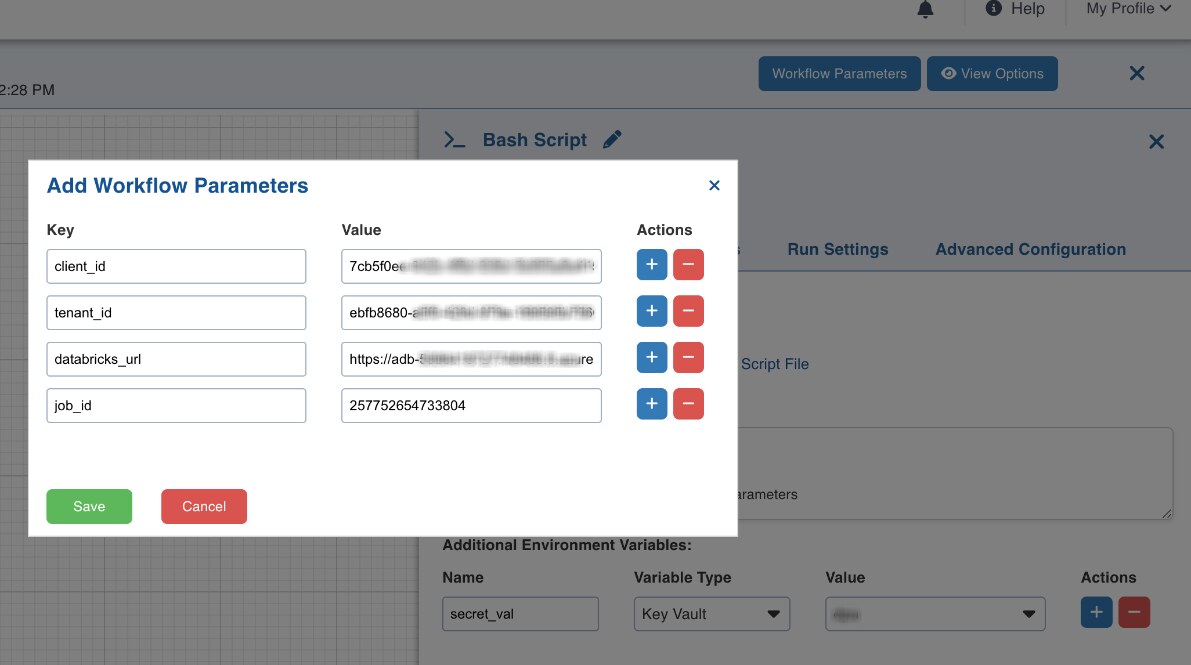
client_id
tenant_id
3.databricks_url
4.job_id
Replace secret_val within the bash script on with the env variable name mapped to 'secret name'
client_secret="$secret_val"
Hit Save and Run the workflow.
If you would like to use PAT token to authenticate to Databricks API instead of Azure Service Principal, please use the below script
The workflow parameters required are databricks_url and job_id.
For the PAT toke use Azure key vault use env variable to refer the secret
#!/bin/bash
# Set Databricks variables from parameters
databricks_url="{{ params.runtime.databricks_url }}"
job_id="{{ params.runtime.job_id }}"
pat_token="$pat_token"
# If pat_token is set as workflow parameter , uncomment below and comment above env variable reference
#pat_token="{{ params.runtime.pat_token }}"
poll_interval=30 # Poll job status every 30 seconds
# Function to check job status
function check_job_status() {
local run_id="$1"
status_response=$(curl -s -X GET "${databricks_url}/api/2.1/jobs/runs/get?run_id=${run_id}" \
-H "Authorization: Bearer ${pat_token}")
if [[ $? -ne 0 ]]; then
echo "Error: Failed to get job status."
return 1
fi
echo "$status_response"
}
# Trigger the Databricks job
echo "Triggering Databricks job (ID: $job_id)..."
trigger_response=$(curl -s -X POST "${databricks_url}/api/2.1/jobs/run-now" \
-H "Authorization: Bearer ${pat_token}" \
-H "Content-Type: application/json" \
-d "{\"job_id\": ${job_id}}")
# Extract run ID and check for errors
run_id=$(echo "$trigger_response" | jq -r '.run_id')
if [[ -z "$run_id" || "$run_id" == "null" ]]; then
echo "Error: Failed to trigger job."
echo "Response: $trigger_response"
exit 1
fi
echo "Job triggered successfully. Run ID: $run_id"
# Poll for the job status until it completes
while true; do
echo "Checking job status..."
job_status_response=$(check_job_status "$run_id")
if [[ $? -ne 0 ]]; then
echo "Error: Retrying job status check..."
job_status_response=$(check_job_status "$run_id")
fi
life_cycle_state=$(echo "$job_status_response" | jq -r '.state.life_cycle_state')
result_state=$(echo "$job_status_response" | jq -r '.state.result_state')
echo "Job is in state: $life_cycle_state"
if [[ "$life_cycle_state" == "TERMINATED" ]]; then
if [[ "$result_state" == "SUCCESS" ]]; then
echo "Job completed successfully!"
echo "Job URL: $databricks_url/jobs/$job_id/runs/$run_id"
exit 0
else
echo "Job failed or was cancelled. Result state: $result_state"
echo "Job URL: $databricks_url/jobs/$job_id/runs/$run_id"
exit 1
fi
elif [[ "$result_state" == "FAILED" || "$result_state" == "CANCELED" ]]; then
echo "Job failed with result state: $result_state"
echo "Job URL: $databricks_url/jobs/$job_id/runs/$run_id"
exit 1
fi
echo "Job is still running. Checking again in ${poll_interval} seconds..."
sleep $poll_interval
done