Prerequisites for Unity Catalog enabled environments
Ensure that the credential (Databricks token for user or service principal) used to access Databricks has permissions for all policies in compute and that the service principals used in the profile section.
Environment level Staging area catalog, schema and volume should be accessible to all users/service_principal defined in Environment profiles.
Below are the profile specific access required for required catalog, schema, volumes each profile to run jobs successfully in shared mode for respective entities source/pipeline.
Catalog: All Privileges
Schema: All Privileges
Volume: All Privileges
Staging Catalog: All Privileges
Staging Schema: All Privileges
Metastore: Manage allowlist permissions
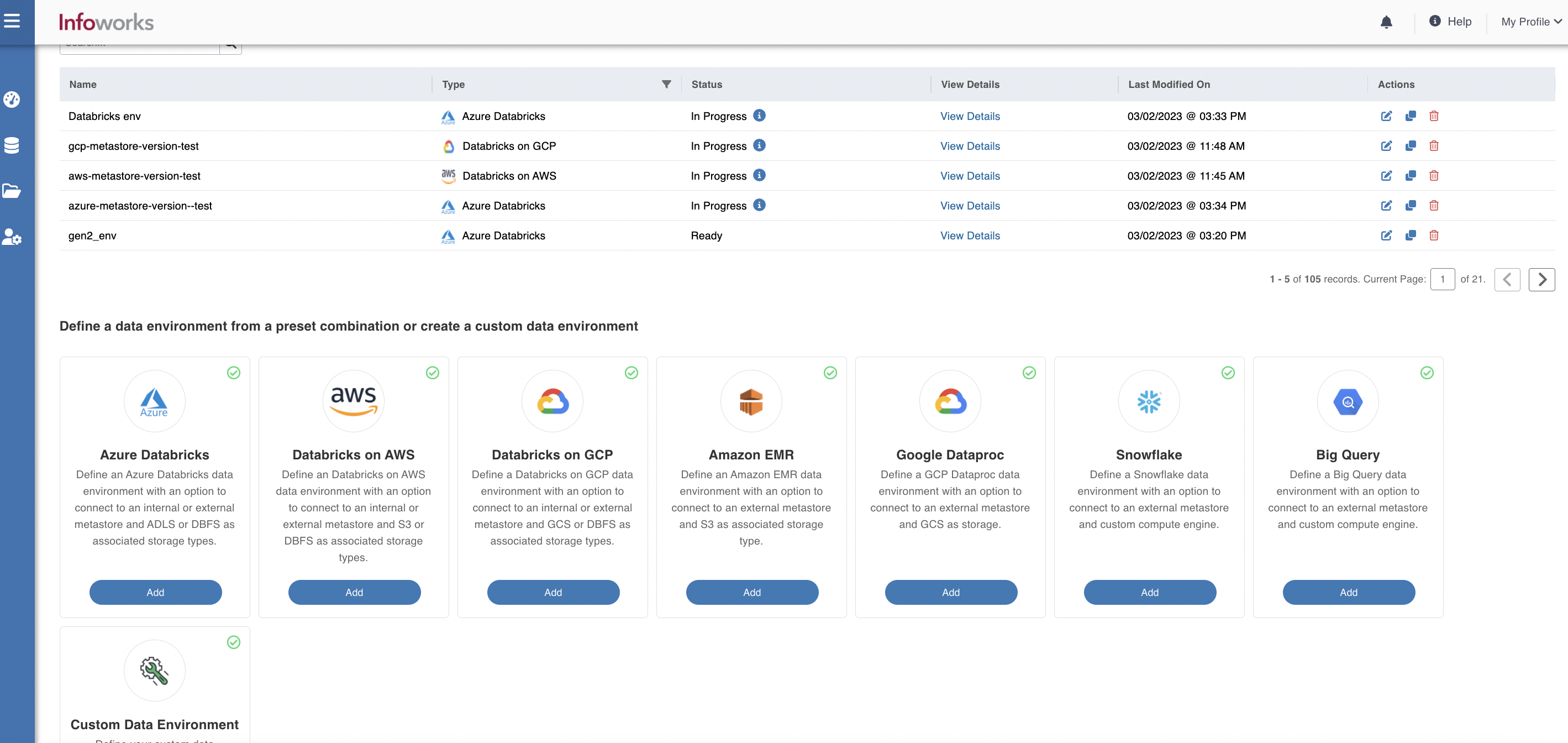
To configure and connect to the required Databricks on AWS instance, navigate to Admin > Manage Data Environments, and then click Add button under the Databricks on GCP option.
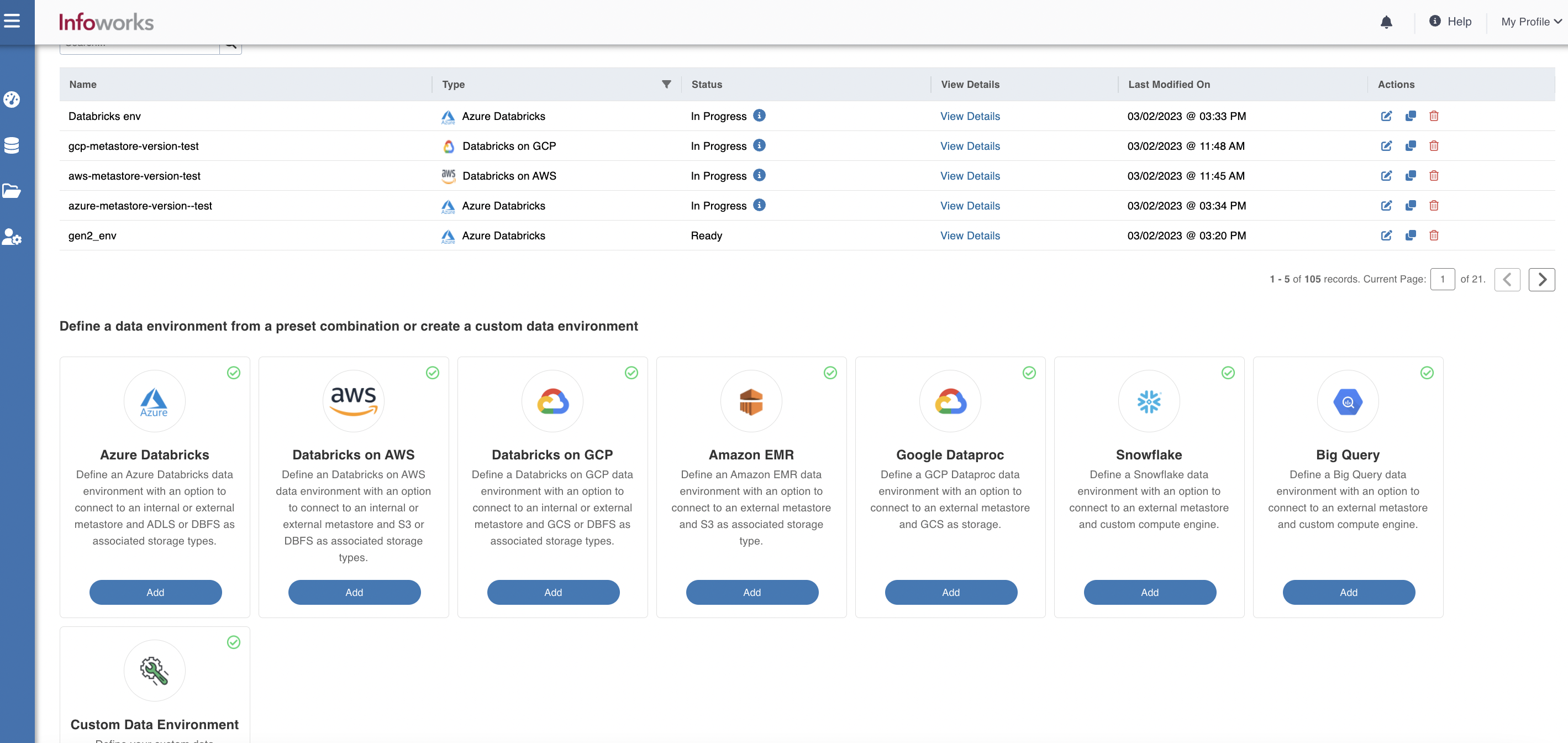
The following window appears.
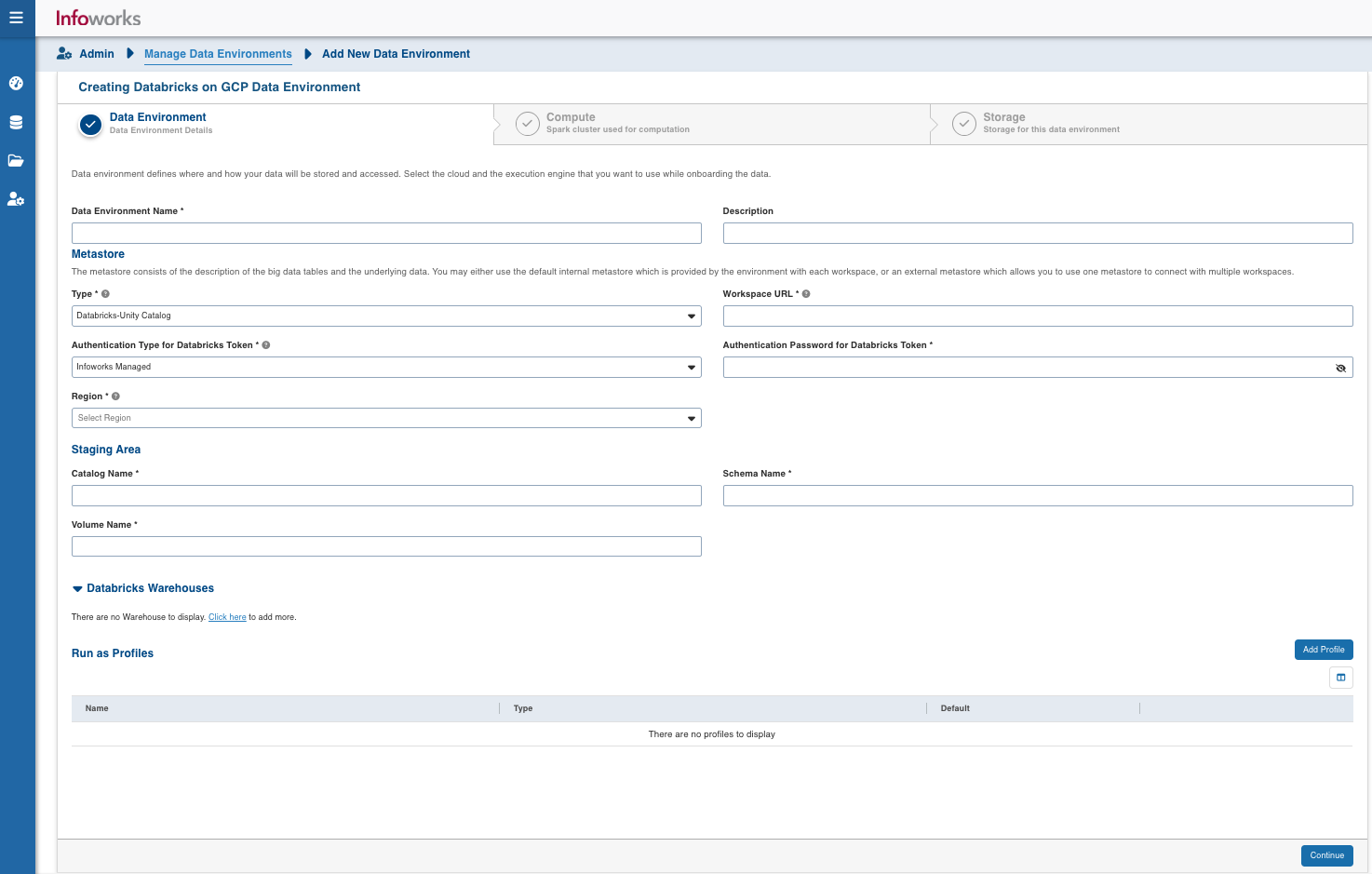
There are three tabs to be configured as follows:
Data Environment
To configure the environment details, enter values in the following fields. This defines the environmental parameters, to allow Infoworks to be configured to the required Databricks on GCP instance:
Field | Description | Details |
|---|---|---|
Data Environment Name | Data environment defines where and how your data will be stored and accessed. Data environment name must help the user to identify the environment being configured. | User-defined. Provide a meaningful name for the data environment being configured. |
Description | Description for the environment being configured. | User-defined. Provide required description for the environment being configured. |
Section: Metastore | ||
Type | Storage type for the environment. | Select Databricks-Internal or Databricks-External. |
Workspace URL | URL of the Databricks workspace that Infoworks must be attached to. | Provide the required workspace URL. |
Databricks Token | Access token of the user who uses Infoworks. The user must have permission to create clusters. | Provide the required Databricks token. |
Region | Geographical location where you can host your resources. | Provide the required region. For example: US East (N. Virginia) |
Connection URL | URL of the Databricks on GCP account. | User-defined. Provide the required Databricks on GCP account URL. NOTE: This field appears only when the storage type is Databricks-External. |
JDBC Driver Name | The JDBC driver class name to connect to the database. | Provide the required JDBC driver class name. NOTE: This field appears only when the storage type is Databricks-External. |
Username | Username of Databricks on GCP account | Provide the username required to connect to Databricks on GCP. NOTE: This field appears only when the storage type is Databricks-External. |
Password | Password of Databricks on GCP account | Provide the password required to connect to Databricks on GCP. NOTE: This field appears only when the storage type is Databricks-External. |
After entering all the required values, click Continue to move to the Compute tab.
NOTE In case of update in any metastore details, please terminate all the existing interactive cluster associated to the environment and start them again.
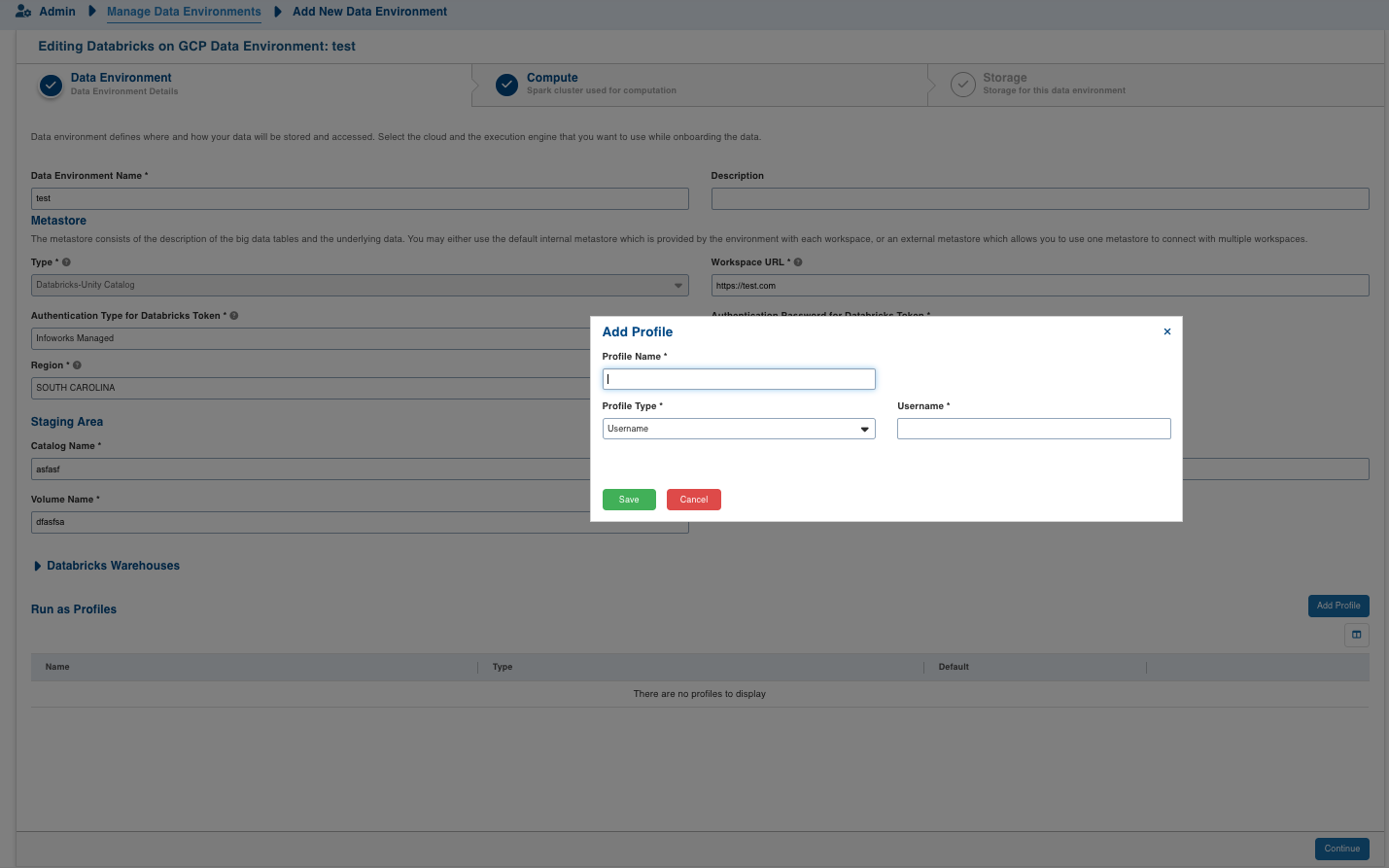
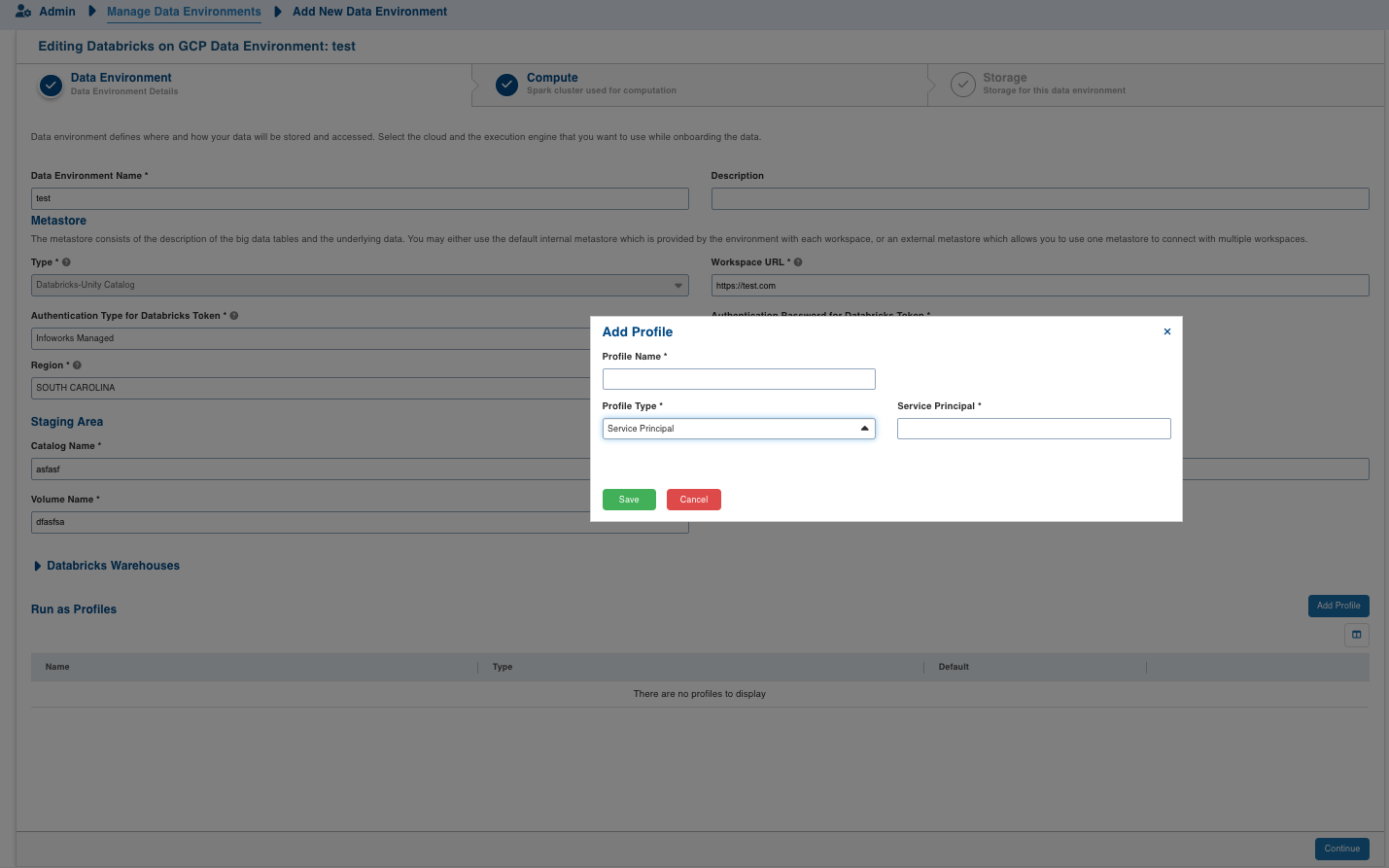
Field | Description | Details |
|---|---|---|
Profile Name | Name required for the Datarbricks Profile that you want to use for the jobs. | User-defined. Provide a meaningful name for the databricks profile being configured. |
Profile Type | Type of Databricks Profile you want to create. | Chooses Type from Username/Service Principal. |
Username | Username of databricks profile (email of databricks user). | Username of databricks profile required if Username is selected as Profile Type. |
Service Principal | Service Principal is the Databricks Service Principal Id. | Service Principal Id of databricks profile required if Service Principal is selected as Profile Type. |
Compute
A Compute template is the infrastructure used to execute a job. This compute infrastructure requires access to the metastore and storage that needs to be processed. To configure the compute details, enter values in the following fields. This defines the compute template parameters to allow Infoworks to be configured to the required Databricks on GCP instance.
You can define ephemeral and persistent clusters to execute jobs. Please ensure that the cluster has access to the metastore and storage that needs to be processed.
Infoworks supports creating multiple persistent clusters in a Databricks on GCP environment, by clicking the Add button.
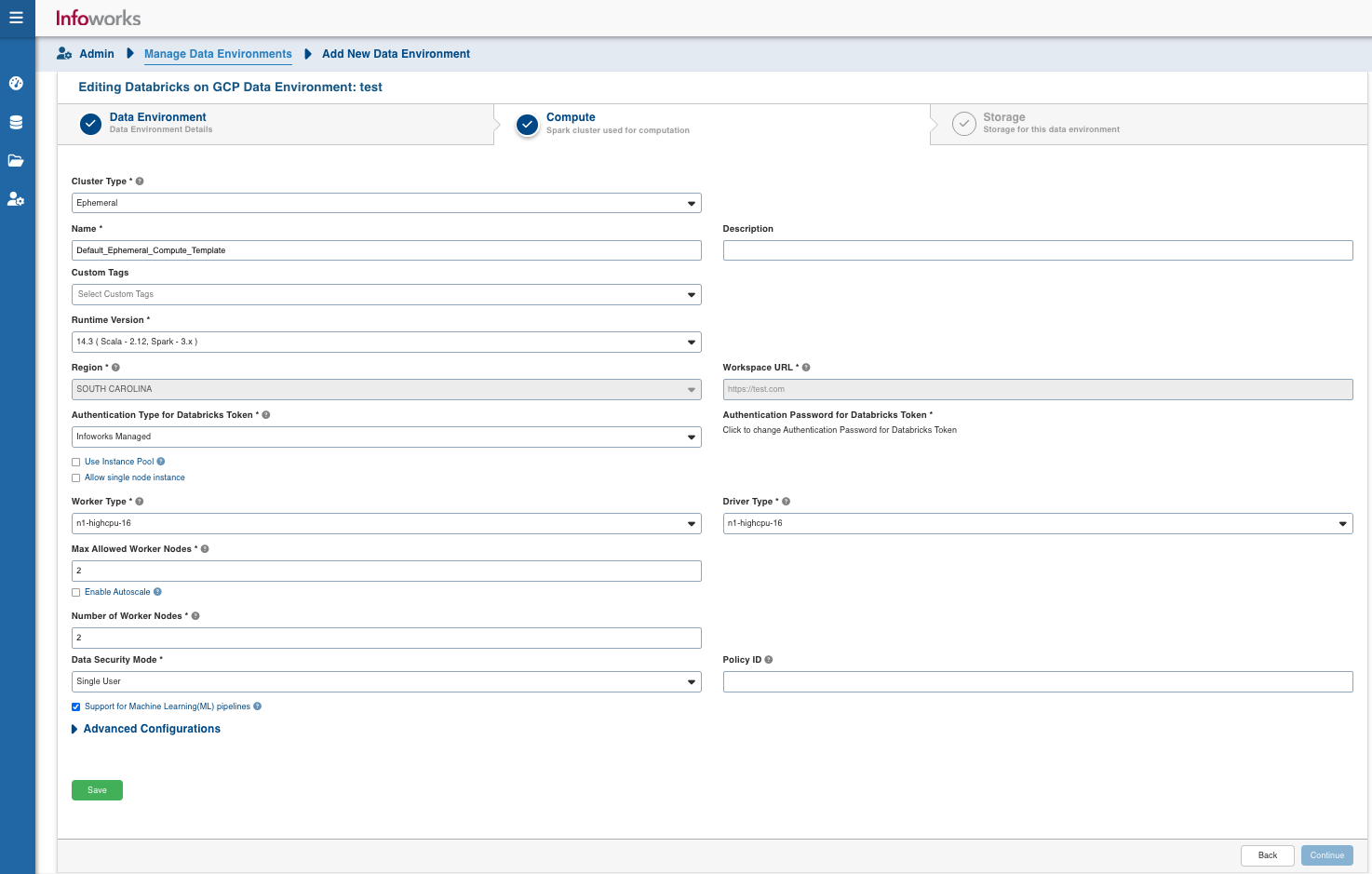
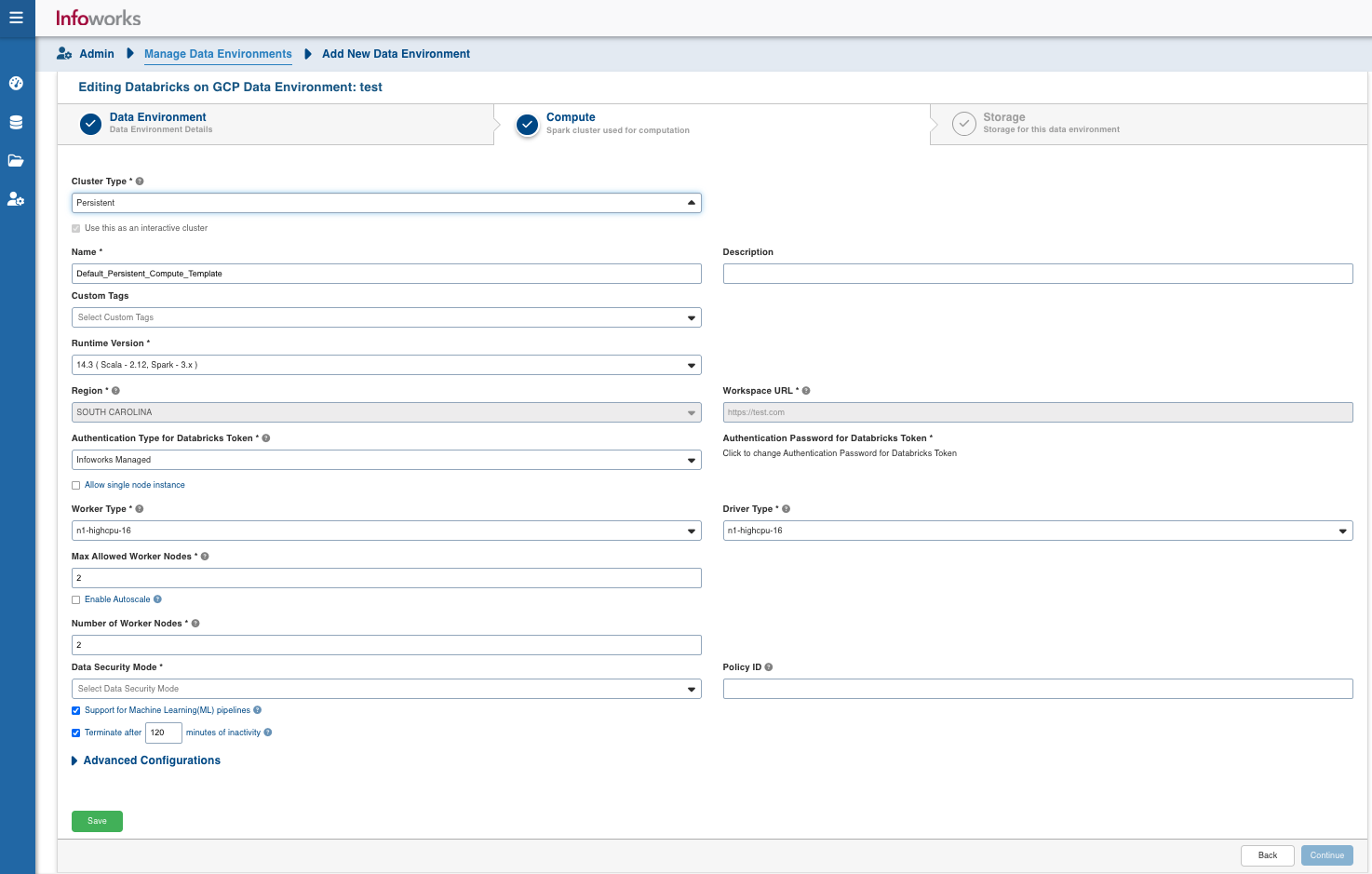
Field | Description | Details |
|---|---|---|
Cluster Type | The type of compute cluster that you want to launch. | Choose from the available options: Persistent or Ephemeral. Jobs can be submitted on both ephemeral as well as persistent clusters. |
Use this as an interactive cluster | Option to designate a cluster to run interactive jobs. Interactive clusters allows you to perform various tasks such as displaying sample data for sources and pipelines. You must define only one Interactive cluster to be used by all the artifacts at any given time. | Select this check box to designate the cluster as an interactive cluster. NOTE: This check box appears only in the case of persistent cluster. |
Name | Name required for the compute template that you want to use for the jobs. | User-defined. Provide a meaningful name for the compute template being configured. |
Description | Description required for the compute template. | User-defined. Provide required description for the compute template being configured. |
Runtime Version | Select the Runtime version of the compute cluster that is being used. | Select the Runtime version as 9.1 from the drop-down, for Databricks on GCP. Infoworks supports Spark 3 and Scala 2.12 configurations as the runtime version. |
Metastore version | Select the Metastore version of the compute cluster that is being used. | This field appears only if the Type field under the Metastore section in the Data Environment tab is set to Databricks-External. For the Runtime Version 9.1, the Metastore Version is automatically set to 2.3.7. NOTE You can change the default Metastore Version, but it must be compatible with the selected Runtime Version. |
Region | Geographical location where you can host your resources. | Provide the required region. For example: East US. NOTE: This field is pre-populated from the Data Environment page, and cannot be edited. |
Workspace URL | URL of the workspace that Infoworks must be attached to. | Provide the required workspace URL. For example: https://adb-xxxxx474xx93xxxxxx.x.azuredatabricks.net NOTE: This field is pre-populated from the Data Environment page, and cannot be edited. |
Databricks Token | Databricks access token of the user who uses Infoworks. | Provide the required Databricks token. |
Allow single node instance | Option to run single node clusters | A single node cluster is a cluster consisting of an apache spark driver and no spark workers. |
Use Instance Pool | Option to use a set of idle instances which optimizes cluster start and auto-scaling times. | If the Use Instance pool check box is checked, provide the ID of the created instance pool in the additional field that appears. |
Worker Type | Worker type configured in the edge node. | This field appears only if the Use Instance pool check box is unchecked. Provide the required worker type.For example: Standard_L4 |
Driver Type | Driver type configured in the edge node. | This field appears only if the Use Instance pool check box is unchecked. Provide the required driver type. For example: Standard_L8 |
Instance Pool Id | The ID of the created Instance Pool. | This field appears only if Use Instance pool check box is selected. |
Max Allowed Worker Nodes | Maximum number of worker instances allowed. | Provide the maximum allowed limit of worker instances. |
Enable Autoscale | Option for the instances in the pool to dynamically acquire additional disk space when they are running low on disk space. | Select this option to enable autoscaling. |
Min Worker Nodes | Minimum number of workers that Databricks workspace maintains. | This field appears only if Enable Autoscale check box is checked. |
Max Worker Nodes | Maximum number of workers that Databricks workspace maintains. | This field appears only if Enable Autoscale check box is checked. This must be greater than or equal to Default Min Worker value. |
Number of Worker Nodes | Number of workers configured for availability. | This field appears only if the Enable Autoscale check box is unchecked. |
Support for Machine Learning (ML) Pipelines | Option to enable support for Machine Learning workflows. | Select this option to support ML pipelines. |
Advanced Configurations | Add advanced configurations by clicking the Add button. | More than one advanced configuration can be added. |
Policy ID | Databricks Cluster Policy Id to be used for compute creation. | Optional field Policy Id for compute if databricks policy to be used. NOTE This field will be available for all Unity Catalog environments. |
Data Security Mode | Data security mode to be used at the time of cluster creation. | Single User/Shared Access Data security mode to be used for cluster. NOTE This field will be available for all Unity Catalog environments. |
NOTE If an admin edits the interactive cluster, the cluster restarts, and hence the job running on that cluster fails.
After entering all the required values, click Continue to move to the Storage tab.
NOTE You can configure custom spark configurations for Databricks clusters by setting up the following advanced configuration: iw_environment_cluster_spark_config = spark.driver.extraJavaOptions=-DIW_HOME=dbfs://infoworks -Djava.security.properties=; spark.executor.extraJavaOptions=-DIW_HOME=dbfs://infoworks -Djava.security.properties=
By default, semi-colon will be used as a separator. To use a custom separator in place of semi-colon (;), use the following advanced configuration: advanced_config_custom_separator = <custom_separator_symbol>.
LIMITATION In Databricks persistent clusters, to set spark configurations on cluster level, the user will need to set the spark configurations on cluster and then restart the cluster with these configurations set. This is limitation from Databricks side.
LIMITATION In Unity-enabled environments, if staging area properties are updated, all libraries must be uninstalled and existing computes restarted to apply the new location.
Storage
To configure the storage details, enter values in the following fields. This defines the storage parameters, to allow Infoworks to be configured to the required Databricks on GCP instance:
NOTE To configure a new storage after the first time configuration, click the Add button on the UI.
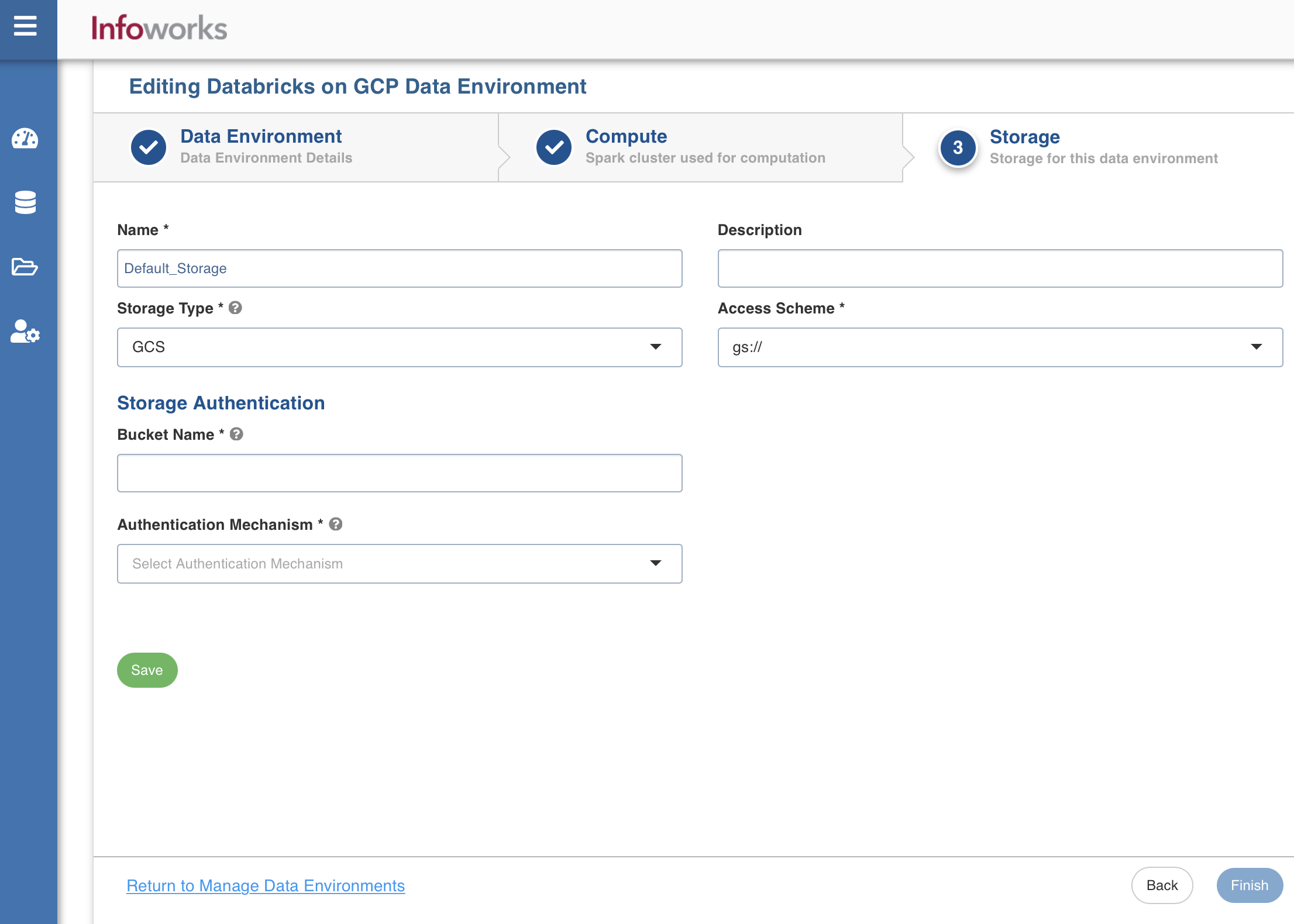
Enter the following fields under the Storage section:
Field | Description | Details |
|---|---|---|
Name | Storage name must help the user to identify the storage credentials being configured. | User-defined. Provide a meaningful name for the storage set up being configured. |
Description | Description for the storage set up being configured. | User-defined. Provide required description for the environment being configured. |
Storage Type | Type of storage system where all the artifacts will be stored. | Select the required storage type from the drop-down menu. The available options are DBFS and GCS. |
Access Scheme | Scheme used to access GCS. | This field appears only when the storage type is selected as GCS. |
Storage Authentication | This section appears only when the storage type is selected as GCS. | |
Bucket Name | Buckets are the basic containers that hold, organise, and control access to your data. | Provide the storage bucket key. Do not use gs:// for storage bucket. |
Authentication Mechanism | Specifies the authentication mechanism using which the security information is stored. Includes the following authentication mechanisms:
| The System role credentials option uses the default credentials of the instance to identify and authorize the application. The Service account credentials uses the IAM Service Account to identify and authorize the application. |
Service Credentials | Option to select the service credential which authenticate calls to Google Cloud APIs or other non-Google APIs. | This field appears only when the Authentication mechanism is selected as Use service account credentials. Available options are Upload File or Enter File Location. |
After entering all the required values, click Save. Click Return to Manage Environments to view and access the list of all the environments configured. Edit, Clone, and Delete actions are available on the UI, corresponding to every configured environment.