
Let's now build the pipeline!
In this chapter, we will be performing Join and Aggregate transformations on the source created and build the target using a pipeline.
Building a data model includes the following steps:
Creating the Domain
To create the domain:
Click the Admin menu.
Click the Domains icon and click the New Domain button.
In the Create New Source page, enter the source details and click Save.
Sample Values
Name: Getting_Started_Domain
Adding the Source to the Domain
To add the source to the domain:
Click the Admin menu.
Click the Domains icon and click Manage Artifacts for the domain from which the source created will be accessible. You can also create a new domain and add the source to the domain.
Click Add Source, select the source you created and click the Add Source button.
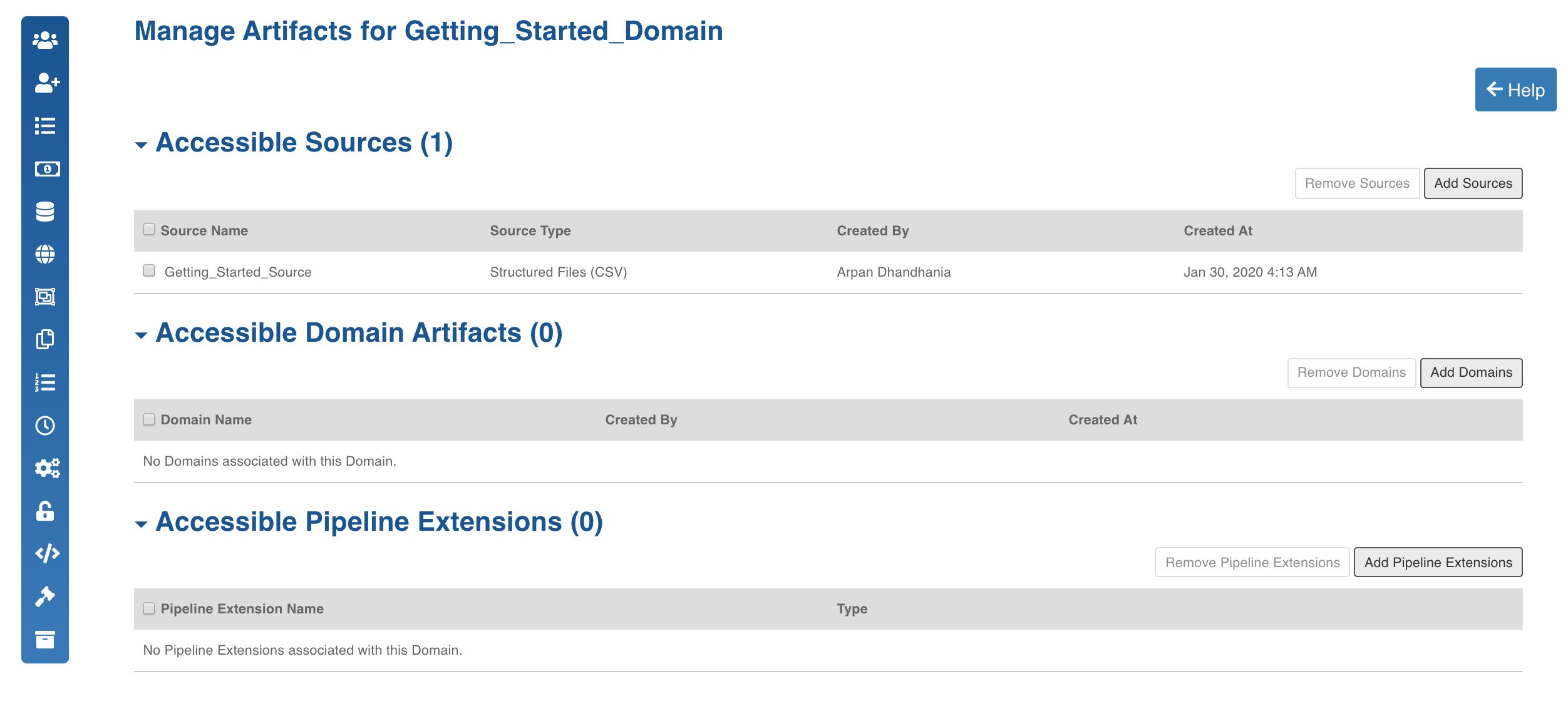
The source will be added to the domain.
Creating the Pipeline
To create the Pipeline:
Click the Domains menu and click the domain to which the source is added.
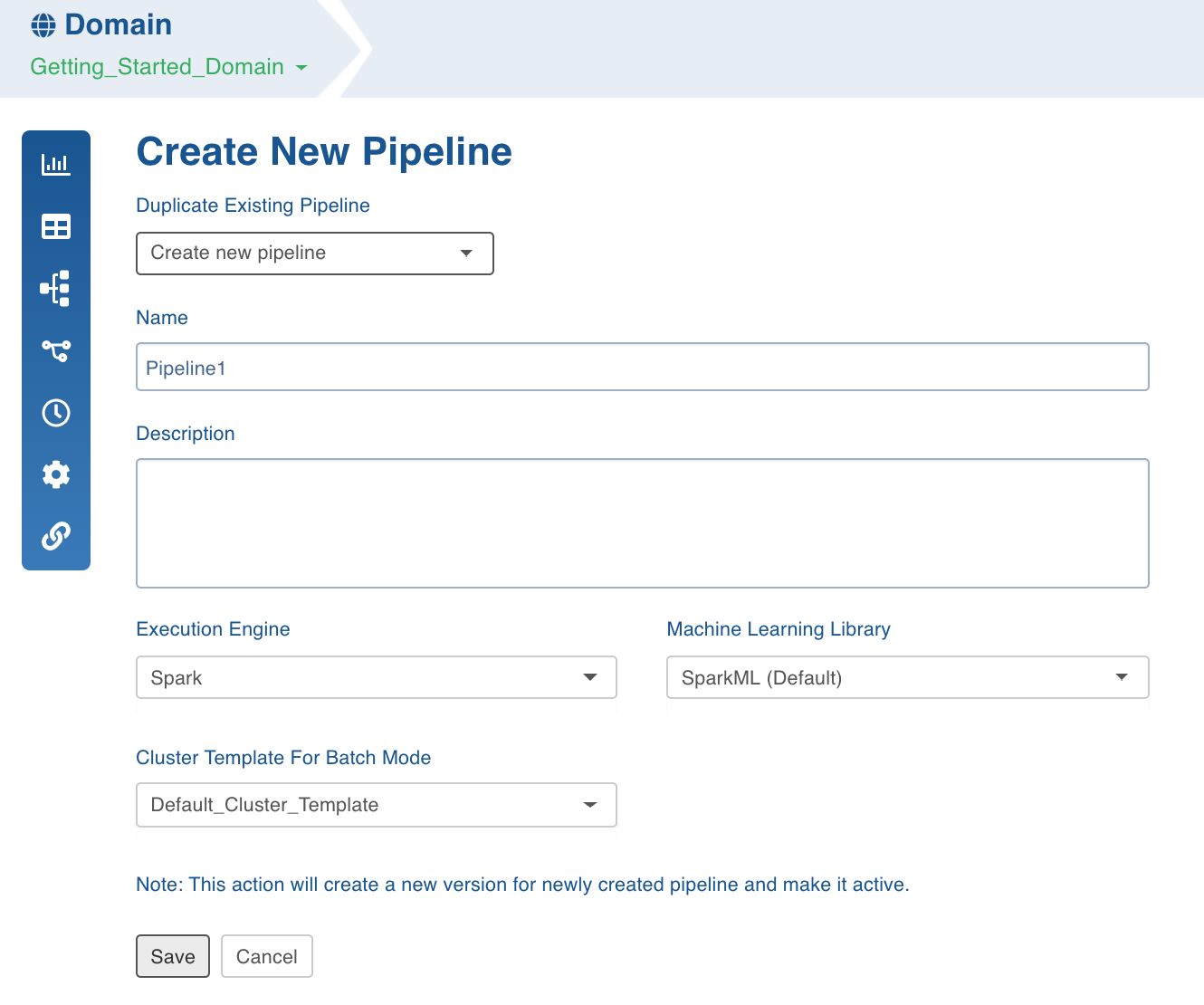
Click the Pipelines icon and click the New Pipeline button.
In the Create New Pipeline page, provide the pipeline details and click Save.
Designing the Pipeline
To design the Pipeline:
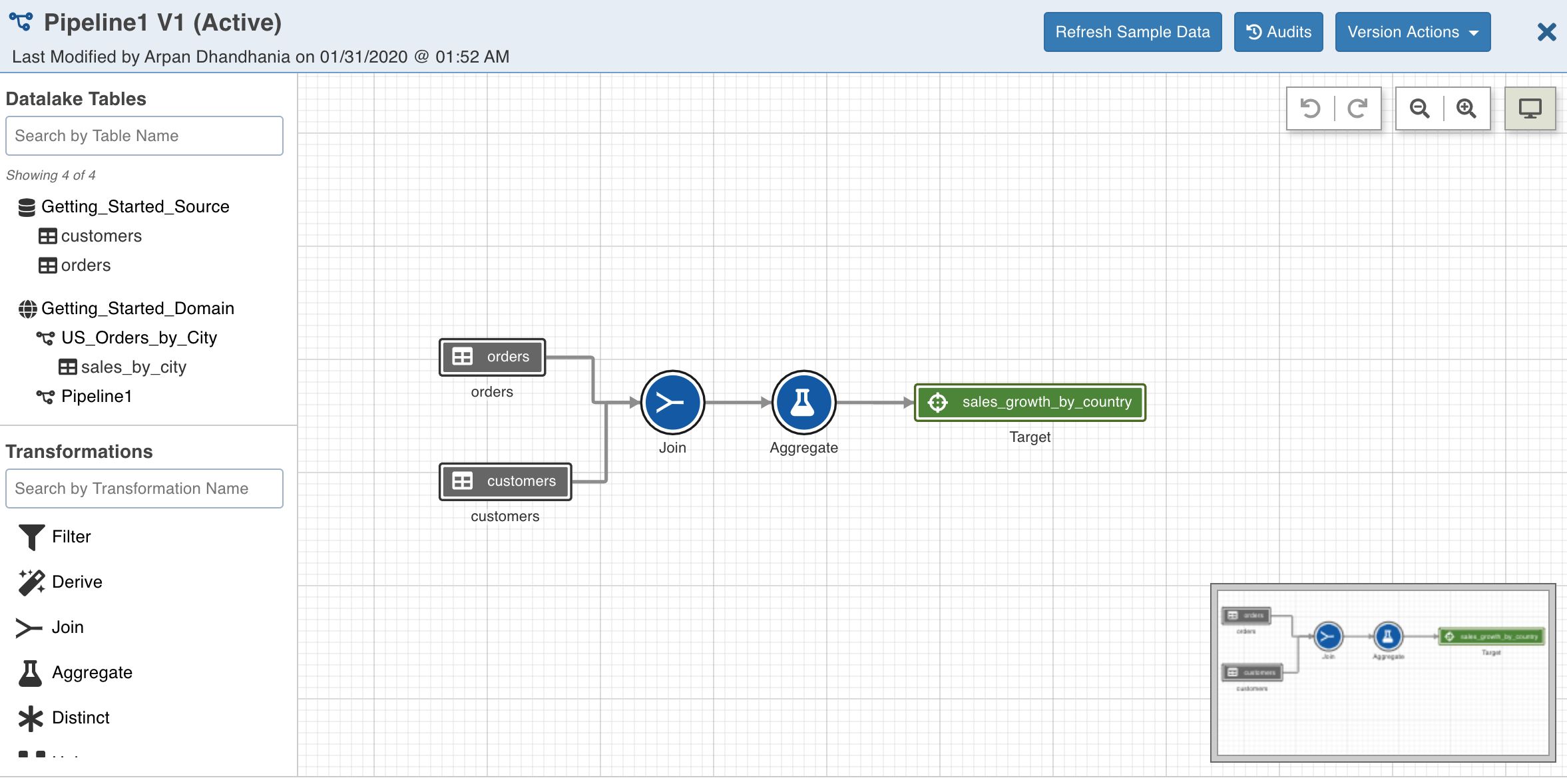
Click the pipeline created and open the pipeline editor.
Drag and drop the source tables, orders and customers.
Drag and drop the Join transformation node and connect the sources to this node.
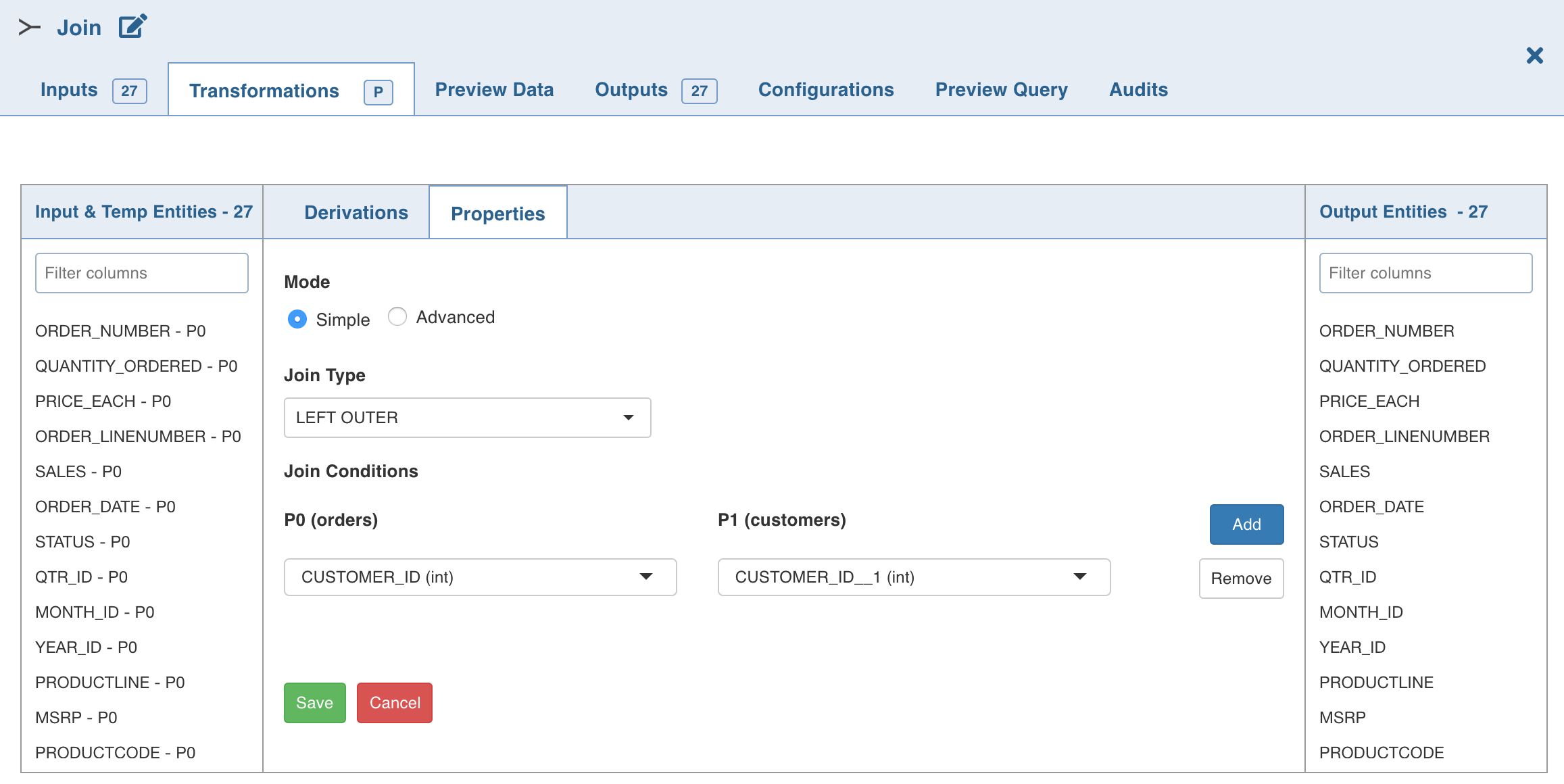
Double-click the Join node.
In the Properties page, provide the join properties and click Save.
Drag and drop the Aggregate transformation node and connect the Join node to this node.
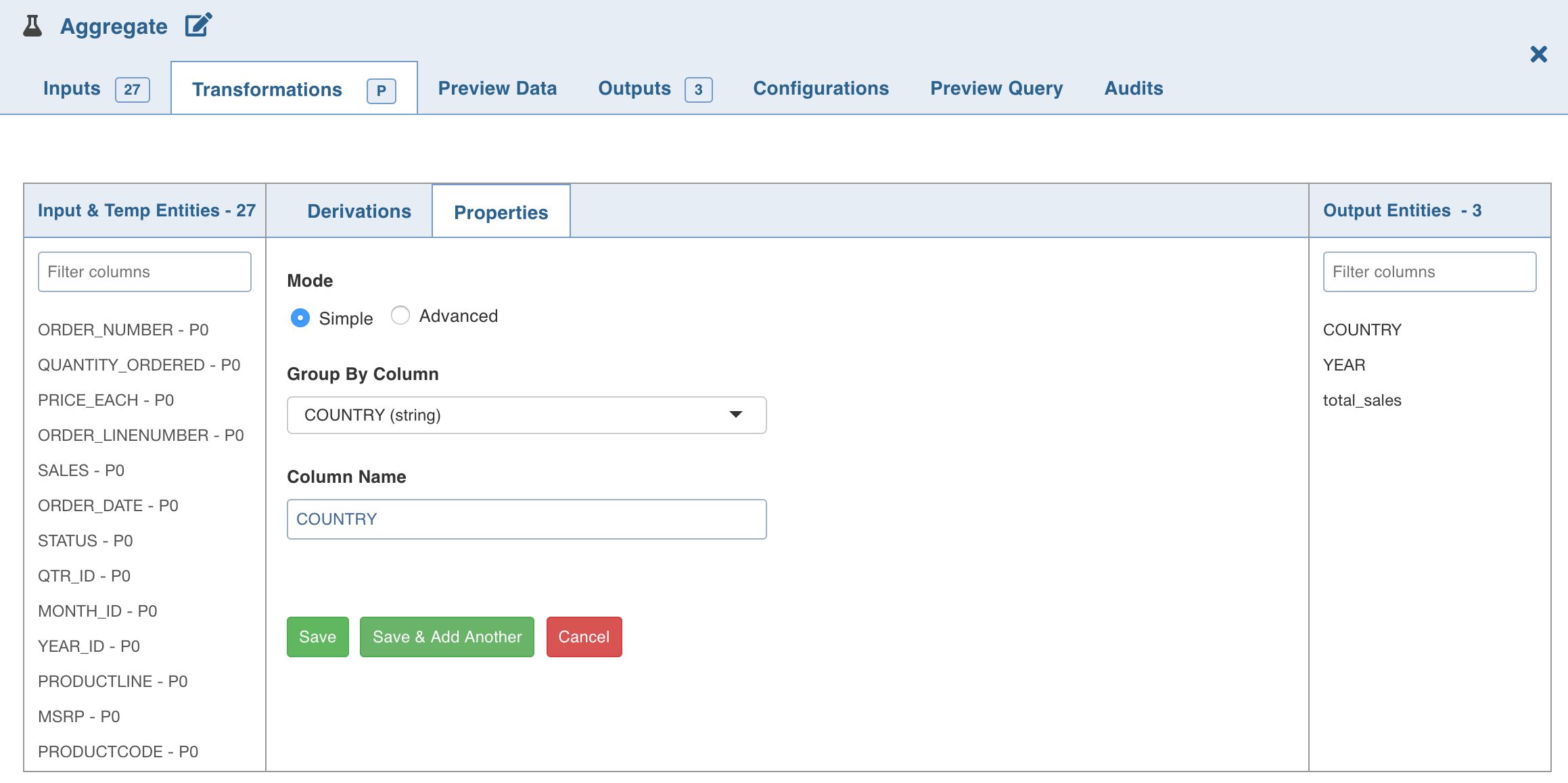
Double-click the Aggregate node.
In the Properties page, click Add Group By, provide the group details and click Save.
Click Add Aggregate, provide the aggregate properties and click Save.
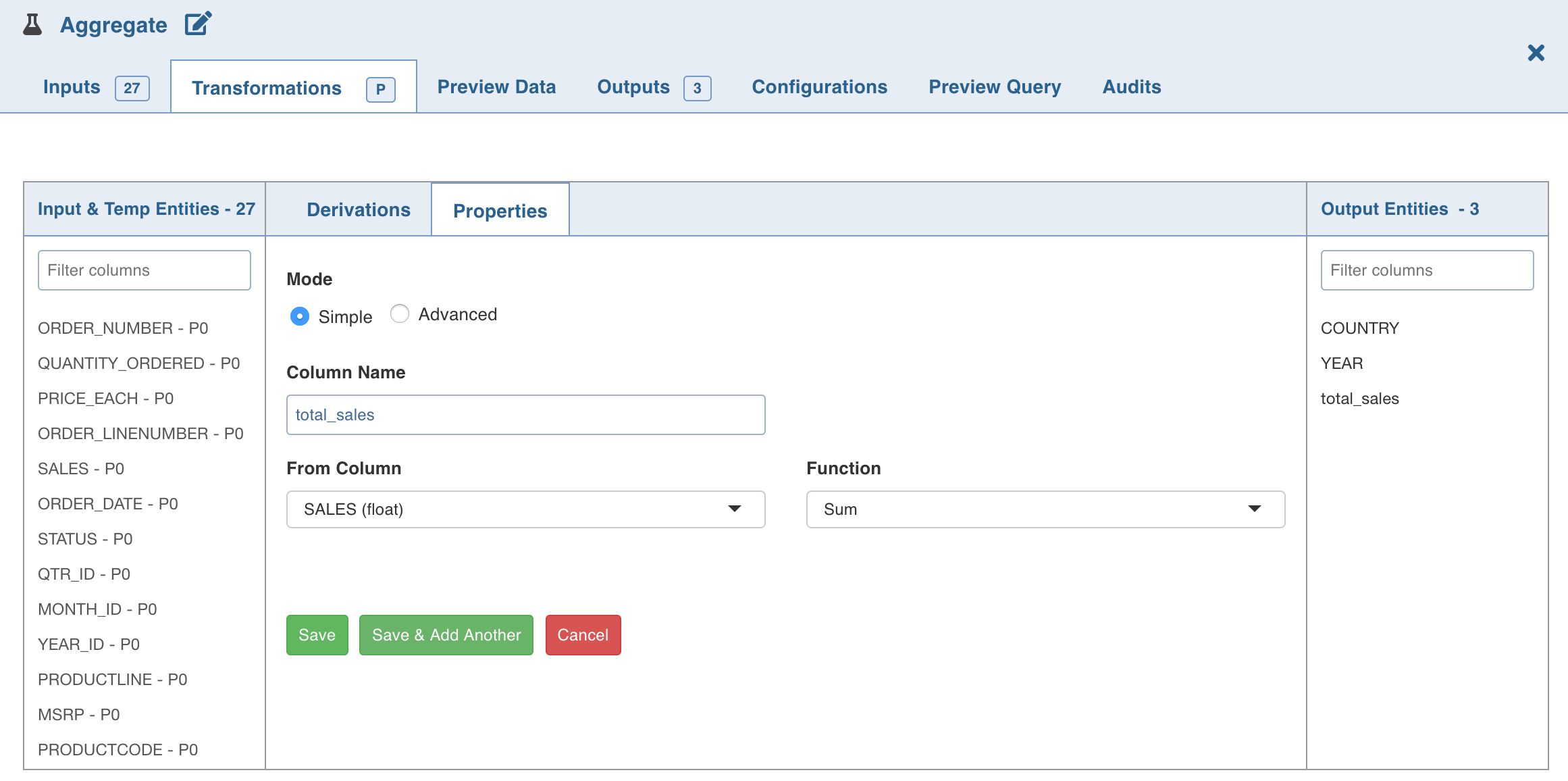
Drag and drop the Target node and connect the Aggregate node to this node.
Double-click the Target node.
In the Properties page, provide the target properties and click Save.
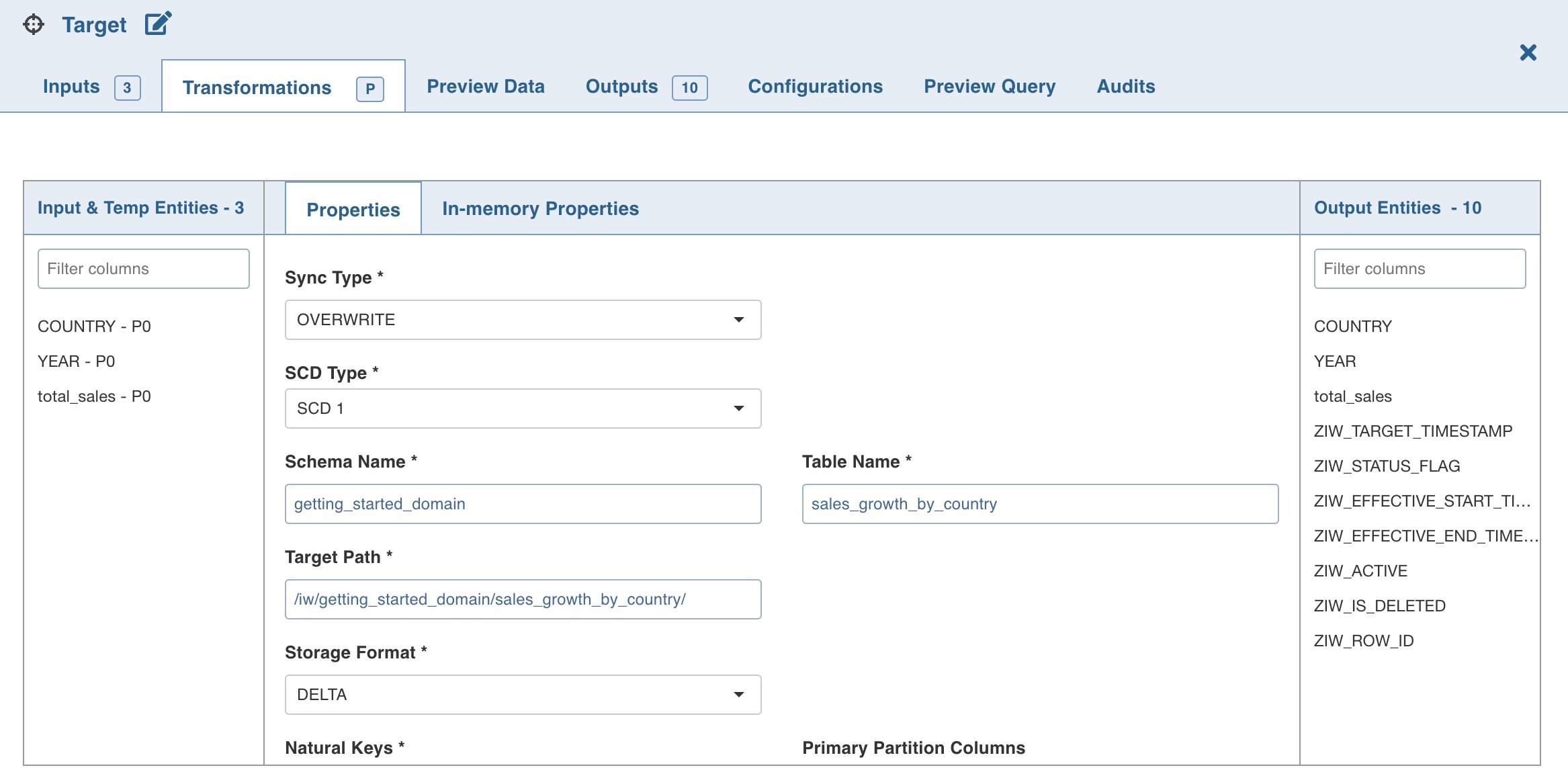
You have now designed the pipeline successfully!
Building the Pipeline
To build the Pipeline:
Close the pipeline editor.
Click the Build icon and click the Build Pipeline button. The pipeline build will be initiated and the progress of the job will be displayed.
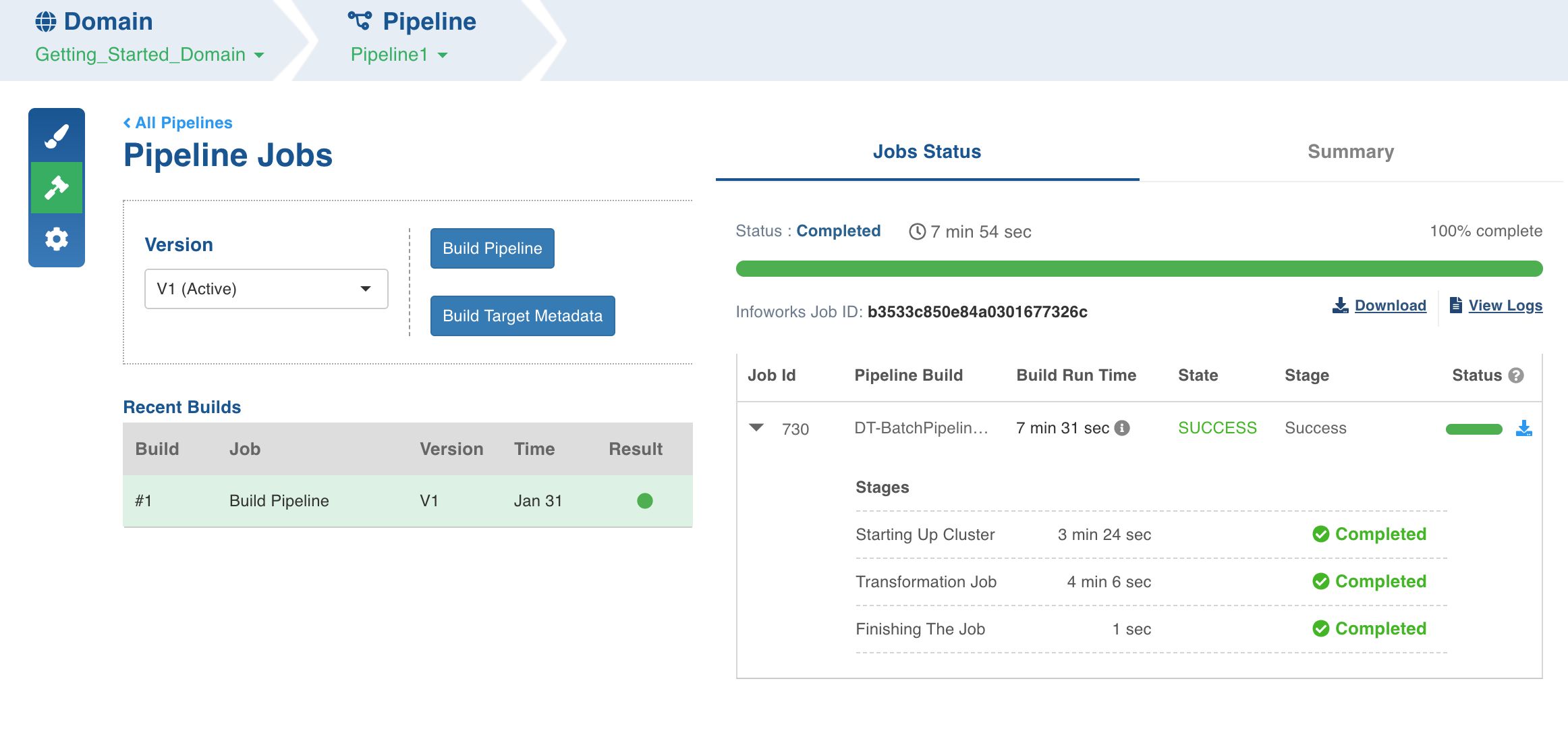
Once the build is completed, you can proceed to run the ingestion and pipeline builds together by creating a workflow.