
Prerequisites for Unity Catalog enabled environments
Ensure that the credential (Databricks token for user or service principal) used to access Databricks has permissions for all policies in compute and that the service principals used in the profile section.
Environment level Staging area catalog, schema and volume should be accessible to all users/service_principal defined in Environment profiles.
Below are the profile specific access required for required catalog, schema, volumes each profile to run jobs successfully in shared mode for respective entities source/pipeline.
Catalog: All Privileges
Schema: All Privileges
Volume: All Privileges
Staging Catalog: All Privileges
Staging Schema: All Privileges
Metastore: Manage allowlist permissions
To configure and connect to the required Databricks on AWS instance, navigate to Admin > Manage Data Environments, and then click Add button under the Databricks on AWS option.
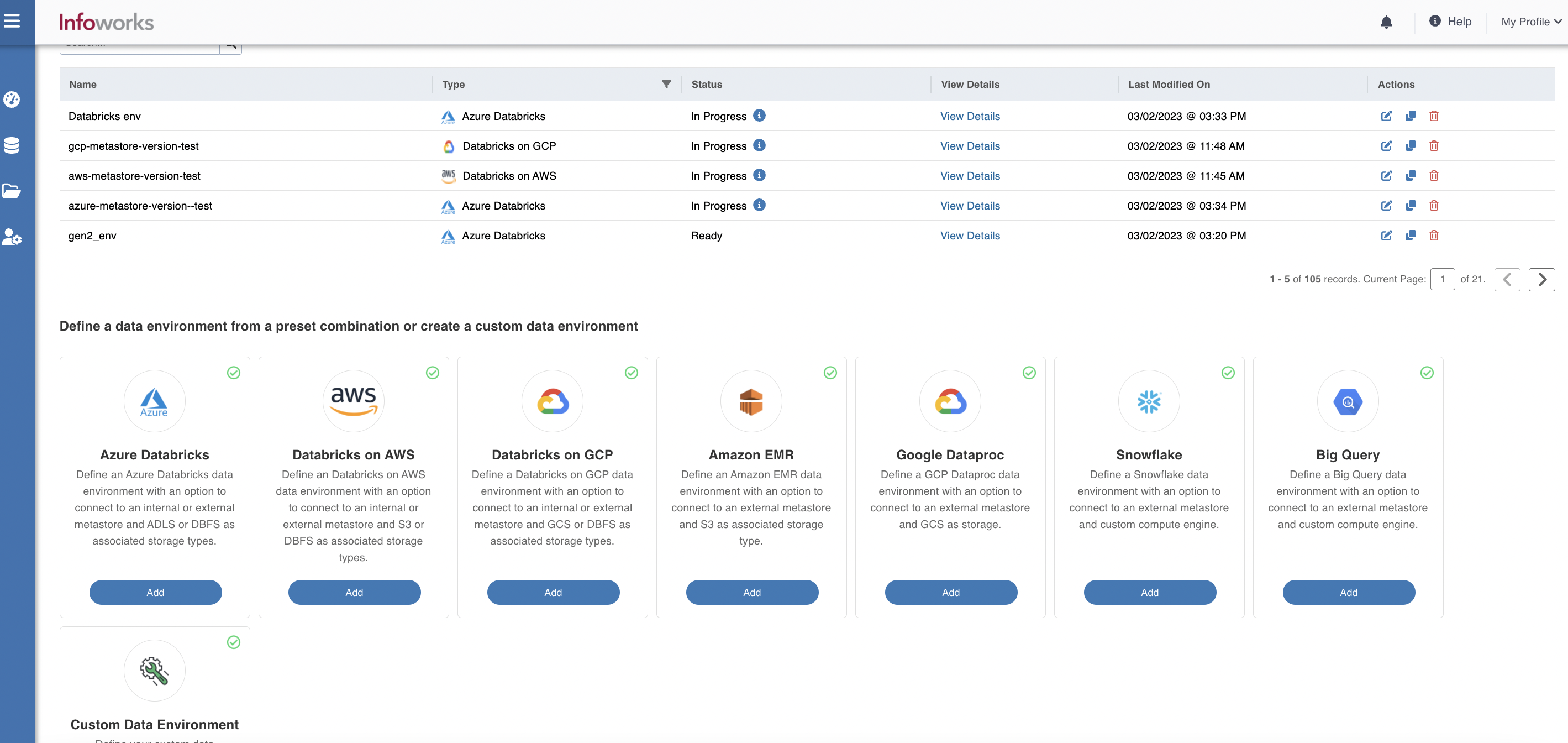
The following window appears.
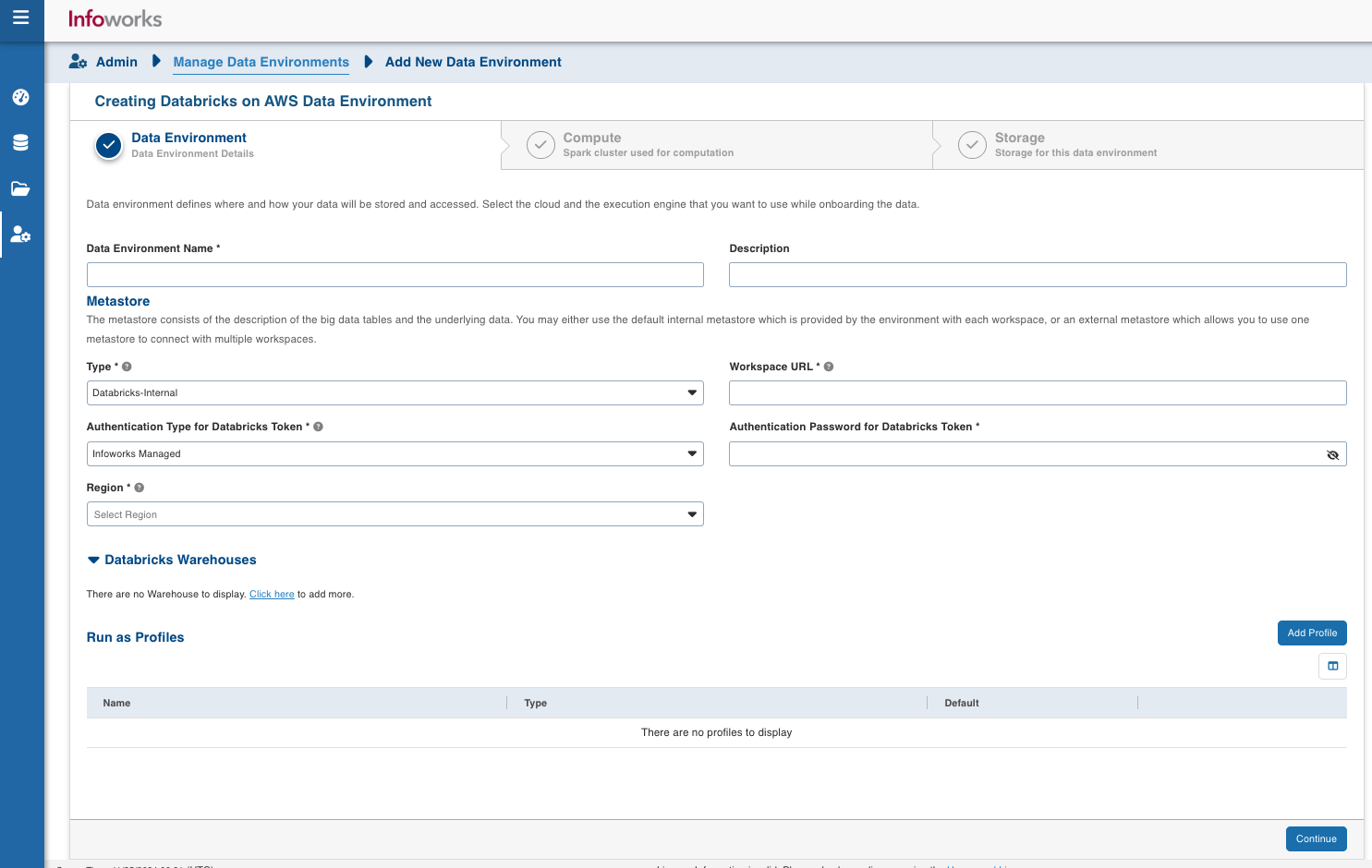
There are three tabs to be configured as follows:
Data Environment
To configure the data environment details, enter values in the following fields. This defines the environmental parameters, to allow Infoworks to be configured to the required Databricks on AWS instance:
Field | Description | Details |
|---|---|---|
Environment Name | Environment defines where and how your data will be stored and accessed. Environment name must help the user to identify the environment being configured. | User-defined. Provide a meaningful name for the environment being configured. |
Description | Description for the environment being configured. | User-defined. Provide required description for the environment being configured. |
Section: Metastore | Metastore consists of the description of the big data tables and the underlying data. The user may either use the default internal metastore which is provided by Databricks with each workspace, or an external metastore which allows you to use one metastore to connect with multiple workspaces. | Provide the required values for the following four fields listed in the rows below, corresponding to the metastore being configured. NOTE In case of update in any metastore details, please terminate all the existing interactive cluster associated to the environment and start them again |
Type | Type of the metastore. The valid values are Databricks-Internal and Databricks-External. Default value is Databricks Internal. | Select the required value for the metastore type, from the available values. |
Workspace URL | URL of the workspace that Infoworks must be attached to. | Provide the required workspace URL. |
Databricks Token | Access token of the user who uses Infoworks. The user must have permission to create clusters. | Provide the required Databricks token. |
Region | Geographical location where you can host your resources. | Provide the required region. For example: US East (N. Virginia) |
Field | Description | Details |
|---|---|---|
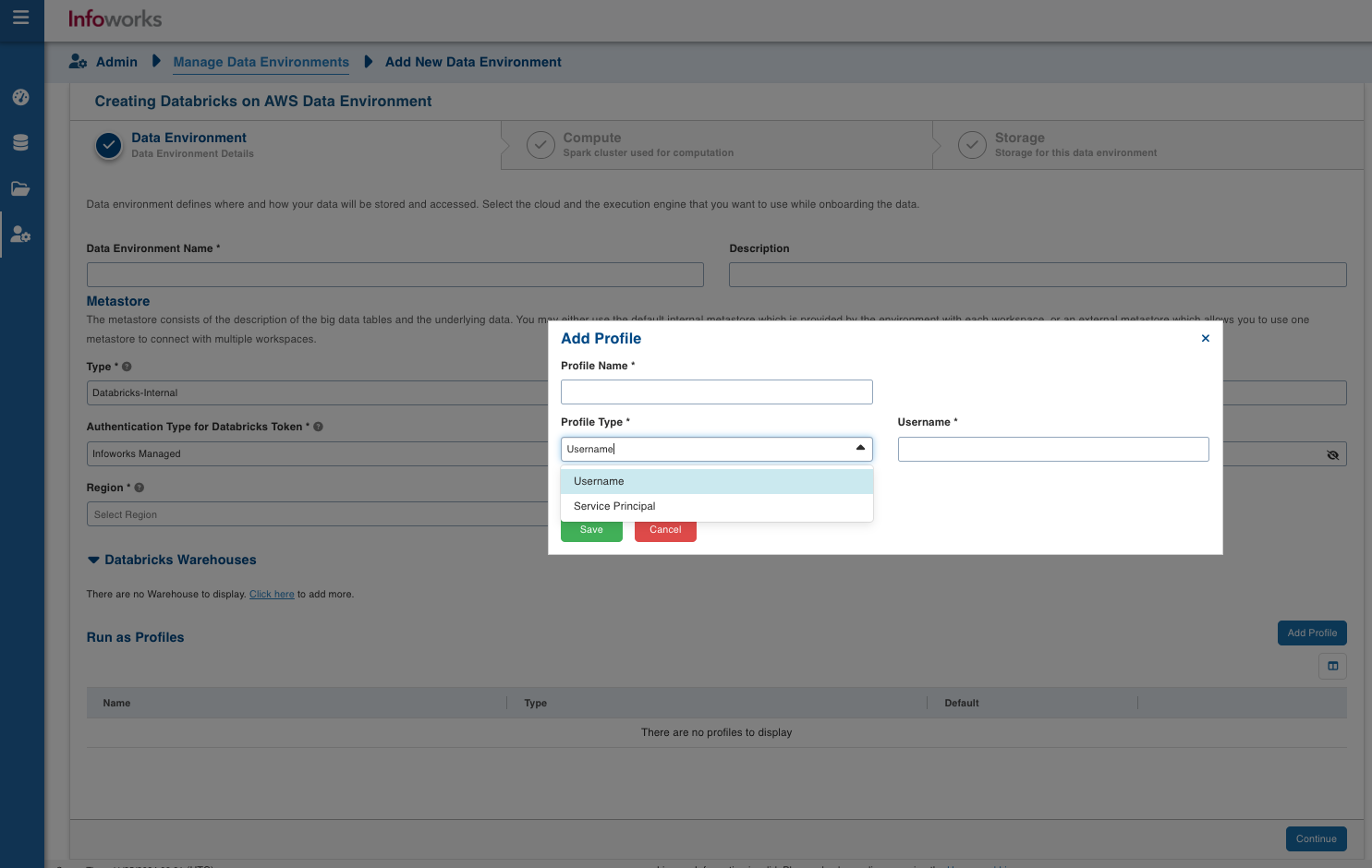
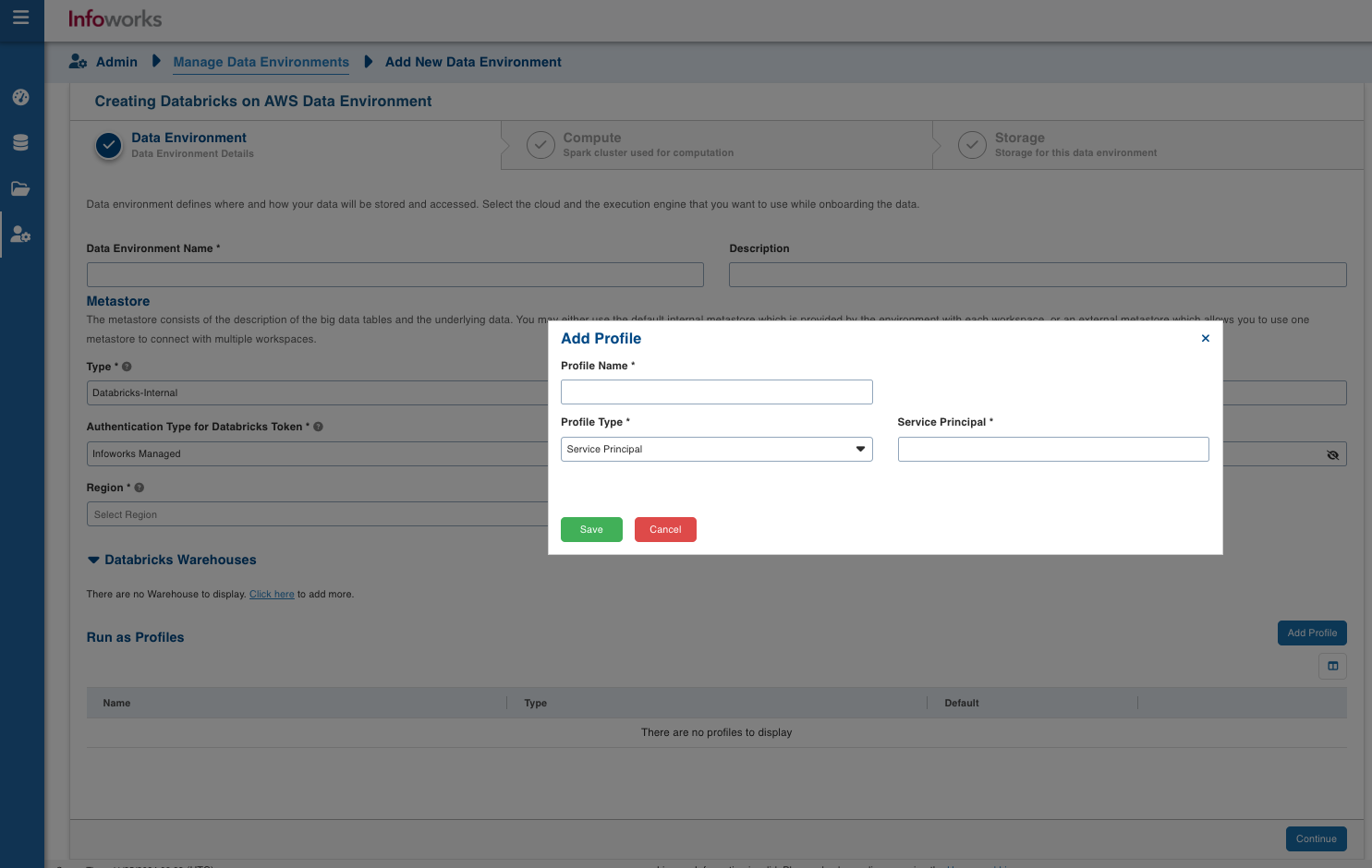
Profile Name | Name required for the Datarbricks Profile that you want to use for the jobs. | User-defined. Provide a meaningful name for the databricks profile being configured. |
Profile Type | Type of Databricks Profile you want to create. | Chooses Type from Username/Service Principal. |
Username | Username of databricks profile (email of databricks user). | Username of databricks profile required if Username is selected as Profile Type. |
Service Principal | Service Principal is the Databricks Service Principal Id. | Service Principal Id of databricks profile required if Service Principal is selected as Profile Type. |
On selecting Databricks-External as the type, the following fields appear:
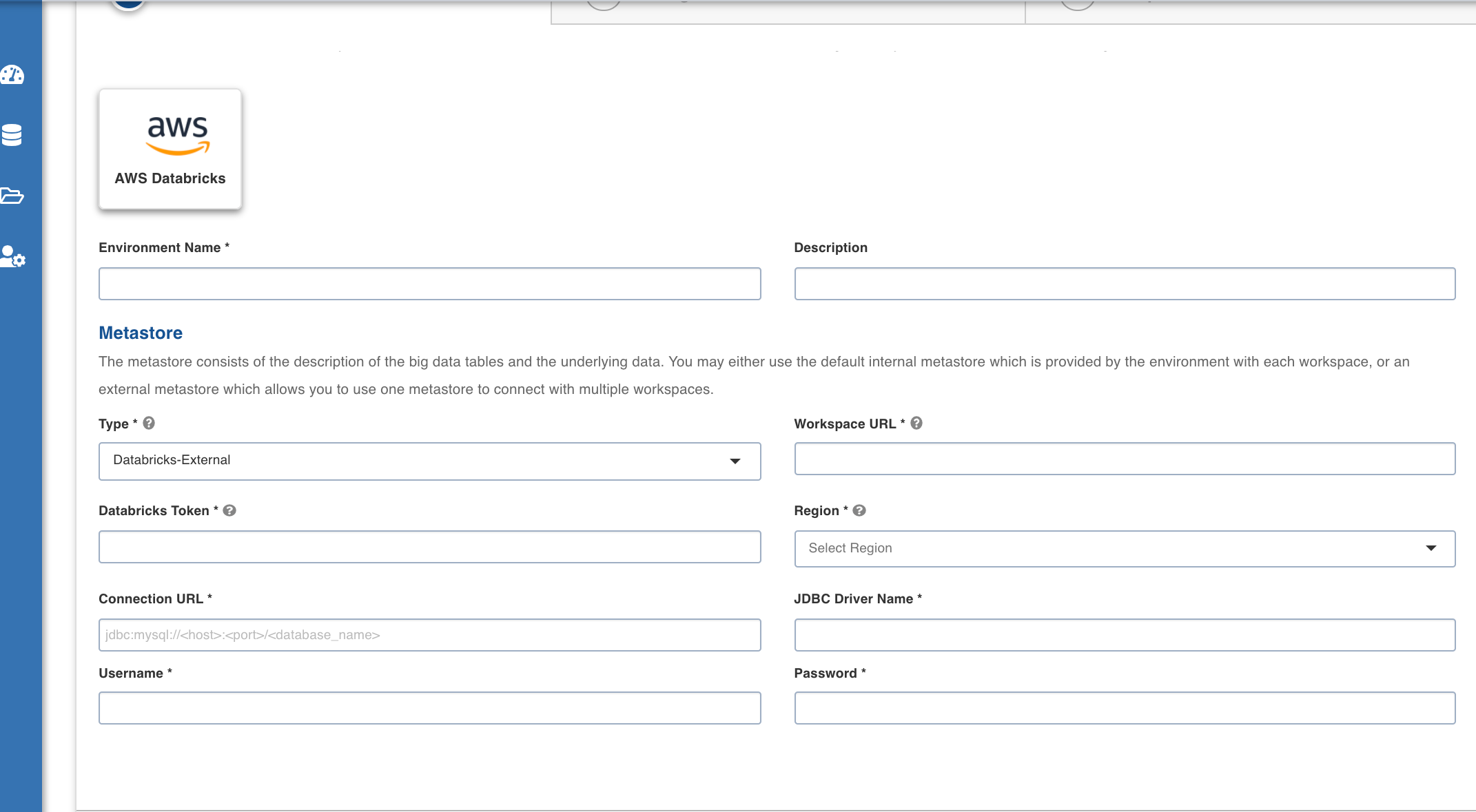
Field | Description | Details |
|---|---|---|
Connection URL | The JDBC URL for connecting to the metastore. | Provide the required JDBC URL for connectivity. |
JDBC Driver Name | The JDBC driver class name to connect to the database. | Provide the required JDBC driver class name. |
User Name | MySQL username. | Provide user's MySQL username. |
Password | MySQL password. | Provide user's MySQL password. |
After entering all the required values, click Continue to move to the Compute tab.
Compute
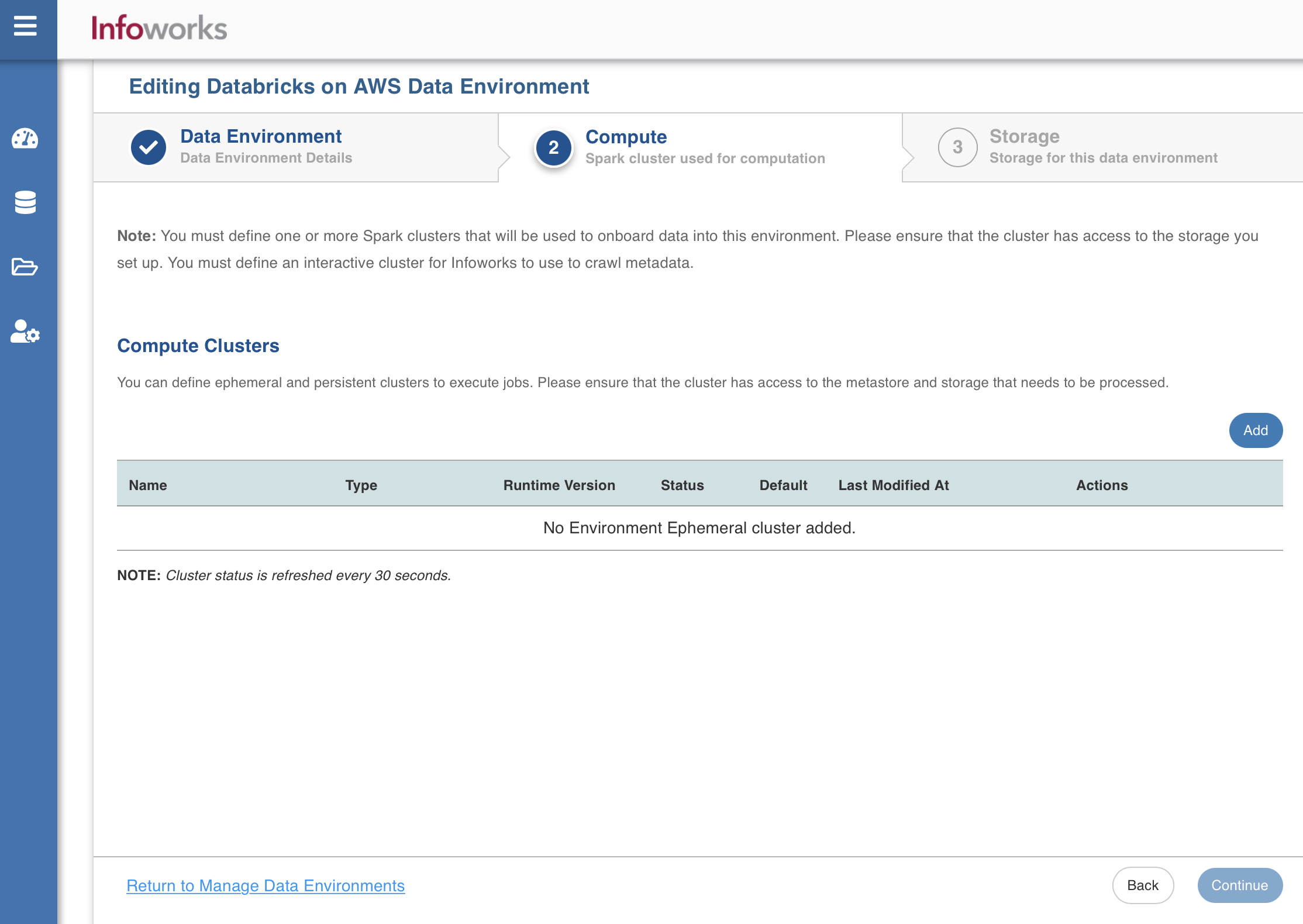
A compute template is the infrastructure used to execute a job. This compute infrastructure requires access to the metastore and storage that needs to be processed. To configure the compute details, enter values in the following fields. This defines the compute template parameters to allow Infoworks to be configured to the required Databricks on AWS Instance.
Infoworks supports creating multiple clusters (persistent/ephemeral) in Databricks on AWS environment, by clicking on Add button.
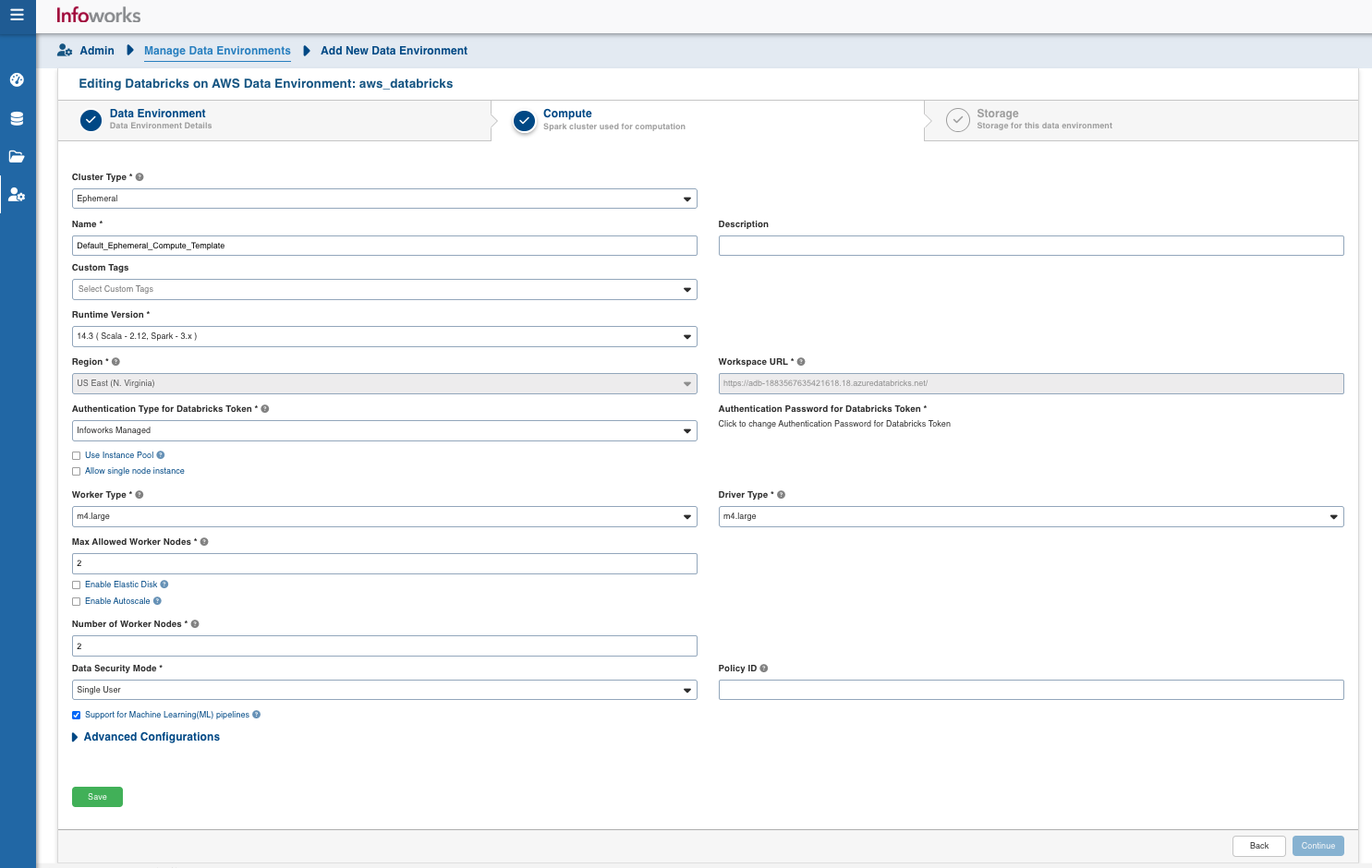
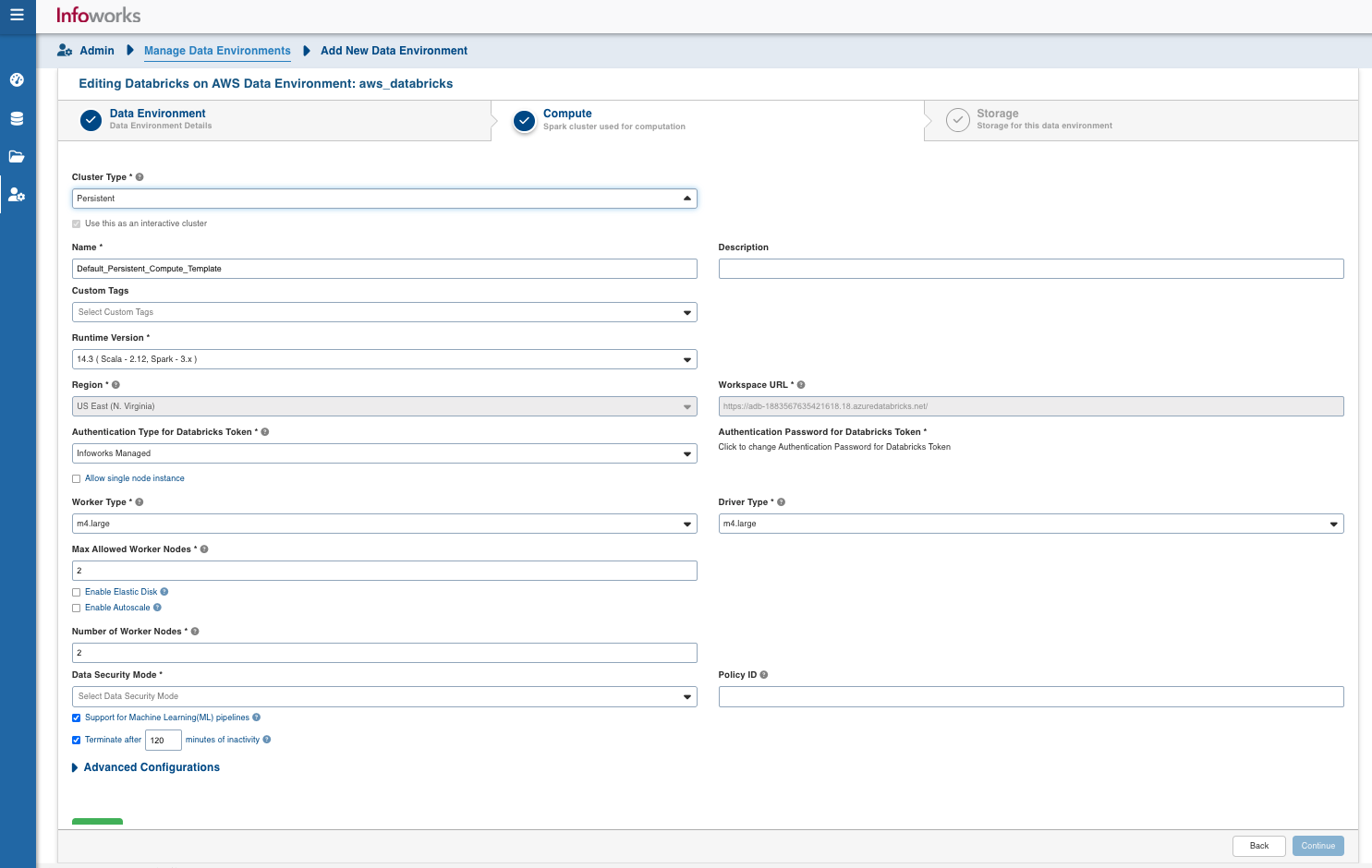
Field | Description | Details |
|---|---|---|
Cluster Type | The type of compute cluster that you want to launch. | Choose from the available options: Persistent or Ephemeral. Jobs can be submitted on both ephemeral as well as persistent clusters. |
Use this as an interactive cluster | Option to designate a cluster to run interactive jobs. Interactive clusters allows you to perform various tasks such as displaying sample data for sources and pipelines. You must define only one Interactive cluster to be used by all the artifacts, at any given time. | Select this check box to designate the cluster as an interactive cluster. |
Name | Name required for the compute template that you want to use for the jobs. | User-defined. Provide a meaningful name for the compute template being configured. |
Description | Description required for the compute template. | User-defined. Provide required description for the compute template being configured. |
Runtime Version | Select the Runtime version of the compute cluster that is being used. | Select the Runtime version as 9.1 from the drop-down, for Databricks on AWS. |
Metastore Version | Select the Metastore version of the compute cluster that is being used. | This field appears only if the Type field under the Metastore section in the Data Environment tab is set to Databricks-External. For the Runtime Version 9.1, the Metastore Version is automatically set to 2.3.7. NOTE You can change the default Metastore Version, but it must be compatible with the selected Runtime Version. |
Region | Geographical location where you can host your resources. | Provide the required region. For example: East US. |
Workspace URL | URL of the workspace that Infoworks must be attached to. | Provide the required workspace URL. |
Databricks Token | Databricks access token of the user who uses Infoworks. | Provide the required Databricks token. |
Allow single node instance | Option to run single node clusters | A single node cluster is a cluster consisting of an apache spark driver and no spark workers. NOTE Infoworks supports single node clusters on Databricks on AWS with the following node families: m5d, c4d, c5d, d3 , r5d, z1d. |
Use Instance Pool | Option to use a set of idle instances which optimizes cluster start and auto-scaling times. | If Use Instance pool check box is checked, provide the ID of the created instance pool in the additional field that appears. |
Worker Type | Worker type configured in the edge node. | This field appears only if Use Instance pool check box is unchecked. Provide the required worker type.For example: Standard_L4 |
Driver Type | Driver type configured in the edge node. | This field appears only if Use Instance pool check box is unchecked. Provide the required driver type. For example: Standard_L8 |
Max Allowed Worker Nodes | Maximum number of worker instances allowed. | Provide the maximum allowed limit of worker instances. |
Enable Autoscale | Option for the instances in the pool to dynamically acquire additional disk space when they are running low on disk space. | Select this option to enable autoscaling. |
Default Min Workers | Minimum number of workers that Databricks workspace maintains. | This field appears only if Enable Autoscale check box is checked. |
Default Max Workers | Maximum number of workers that Databricks workspace maintains. | This field appears only if Enable Autoscale check box is checked. This must be greater than or equal to Default Min Worker value. |
Number of Worker Nodes | Number of workers configured for availability. | This field appears only if Enable Autoscale check box is unchecked. |
Support for Machine Learning (ML) Pipelines | Option to enable support for Machine Learning workflows. | Select this option to support ML pipelines. |
Terminate after minutes of inactivity | Number of minutes after inactivity which the pool maintains before being terminated. | Provide the minimum number of minutes to be maintained before termination. |
Policy ID | Databricks Cluster Policy Id to be used for compute creation. | Optional field Policy Id for compute if databricks policy to be used. NOTE This field will be available for all Unity Catalog environments. |
Data Security Mode | Data security mode to be used at the time of cluster creation. | Single User/Shared Access Data security mode to be used for cluster. NOTE This field will be available for all Unity Catalog environments. |
NOTE If an admin edits the interactive cluster, the cluster restarts, and hence the job running on that cluster fails.
After entering all the required values click Save, and then click Continue to move to the Storage tab.
NOTE You can configure custom spark configurations for Databricks clusters by setting up the following advanced configuration: iw_environment_cluster_spark_config = spark.driver.extraJavaOptions=-DIW_HOME=dbfs://infoworks -Djava.security.properties=; spark.executor.extraJavaOptions=-DIW_HOME=dbfs://infoworks -Djava.security.properties=
By default, semi-colon will be used as a separator. To use a custom separator in place of semi-colon (;), use the following advanced configuration: advanced_config_custom_separator = <custom_separator_symbol>.
LIMITATION In Databricks persistent clusters, to set spark configurations on cluster level, the user will need to set the spark configurations on cluster and then restart the cluster with these configurations set. This is limitation from Databricks side.
LIMITATION In Unity-enabled environments, if staging area properties are updated, all libraries must be uninstalled and existing computes restarted to apply the new location.
Storage
Infoworks and Databricks recommends mounting an Azure or S3 storage to /mnt and use the mounted location as a base location path for the data lake storage. Data written to mount point paths (/mnt) is stored outside of the DBFS root. Even though the DBFS root is writeable, Databricks recommends that you store data in mounted object storage rather than in the DBFS root. The DBFS root is not intended for production customer data.
For example - If ADLS Gen 2 or S3 is the chosen storage option with a container name called edp-datalake, you must mount edp-datalake to /mnt and use /mnt/edp-datalake as the base path location for onboarding and transforming data.
For more information on the Databricks related documentation, refer to Databricks File System.
To configure the storage details, enter values in the following fields. This defines the storage parameters, to allow Infoworks to be configured to the required Databricks on AWS instance:
NOTE To configure a new storage after the first time configuration, click Add button on the UI.
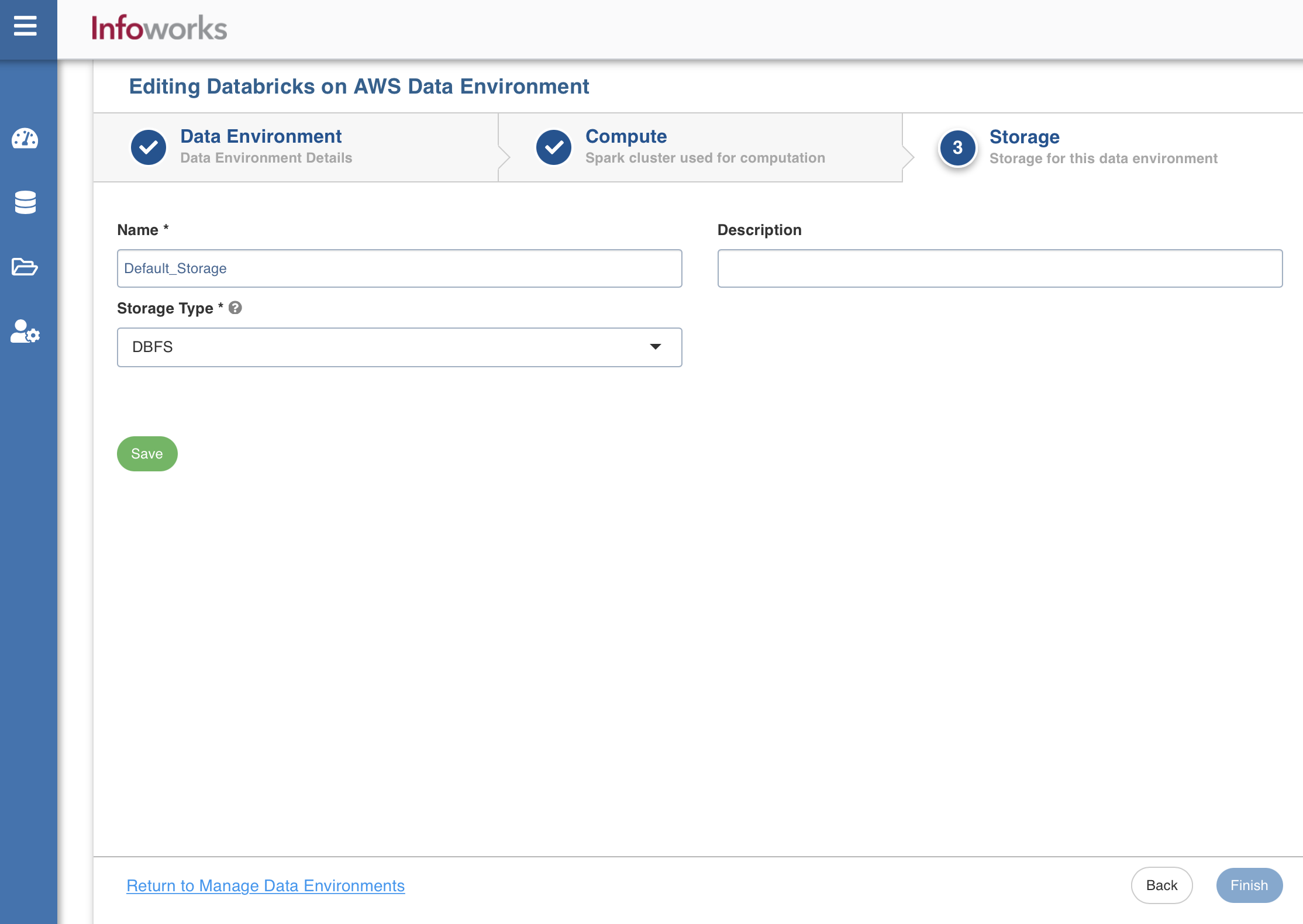
Field | Description | Details |
|---|---|---|
Name | Storage name must help the user to identify the storage credentials being configured. | User-defined. Provide a meaningful name for the storage set up being configured. |
Description | Description for the storage set up being configured. | User-defined. Provide required description for the environment being configured. |
Storage Type | Type of storage system where all the artifacts will be stored. The available options are DBFS and S3. NOTE To use DBFS with an external data workspace, ensure that the paths being used are pointing to the same underlying storage.<br><br>For example: If | Select the required storage type from the drop-down menu. |
Access Scheme | Scheme used to access ADLS Gen 2. Available options are s3a://, s3n://, and s3:// | Select the required access scheme from the drop-down menu. This field is displayed only for S3 storage type. |
Bucket Name | AWS bucket name is part of the domain in the URL. For example: http://bucket.s3.amazonaws.com. | Provide the required bucket name. This field is displayed only for S3 storage type. |
Access Key | Unique 20-character, alphanumeric string which identifies your AWS account. For example, AKIAIOSFODNN7EXAMPLE. | Provide the required access key. This field is displayed only for S3 storage type. |
Secret Key | Unique 40-character string which allows you to send requests using the AWS account. For example, wJalrXUtnFEMI/K7MDENG/bPxRfiCYEXAMPLEKEY. | Provide the required secret key. This field is displayed only for S3 storage type. |
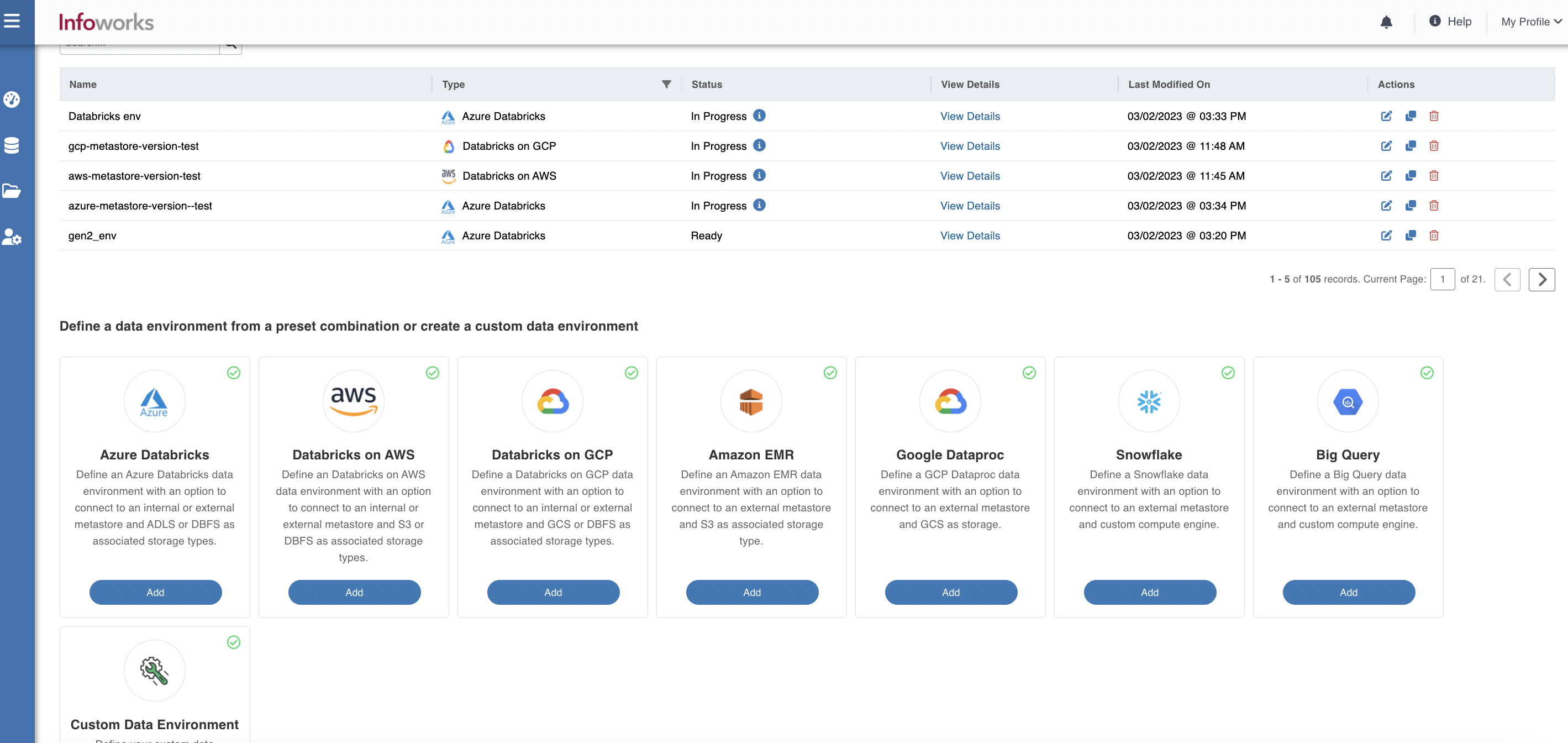
After entering all the required values, click Save. Click Finish to view and access the list of all the environments configured. Edit, Clone, and Delete actions are available on the UI, corresponding to every configured environment.
LIMITATION The Delta Crawl fails on insufficient credentials if the container is not mounted to DBFS.
Workaround:
To successfully complete the delta crawl of the delta tables created on cloud storage, you must ensure that the storage is mounted onto DBFS. This step is mandatory to access any external storage.
LIMITATION Running Batch jobs on Databricks Persistent Cluster
Credential configuration issues: Overriding the configurations that are passed to Spark and Distributed File System on the cluster, during the job initialization is not supported in DBx persistent clusters, and could potentially lead to job failures where there are multiple environments with different credentials.
Limitations on running CDATA source: CDATA sources require RSD files to be passed to all the worker nodes during the initialization of the cluster. This is not supported in persistent clusters, as we submit the jobs to an already running cluster.
Limitations on number of parallel jobs: It depends on the number of resources available for a spark driver to run. Number of jobs utilizing resources of the driver can limit the driver performance as it is a single spark driver running on the cluster.
Switching jar between different versions: If the same jar with different versions is used, then the spark always picks the one that is installed first. There is no way for the jobs to pick the right version. This is a limitation from the product side.
Restart cluster after jar update: If a jar gets updated, then we need to uninstall the old jars from the persistent cluster and then restart the cluster for spark to pick the new updated jar. This is required in case of upgrades or patches.
Advanced Configuration Key
An advanced configuration key (additional_init_scripts)is set in the environment/compute Advanced Configurations as a comma-separated list of init-script source paths (whitespace trimmed, empty entries ignored). They are merged with the default init scripts at cluster create/launch and if absent/empty, the behavior is unchanged.
For Unity Catalog environments, note that a path already starting with /Volumes is used as-is (leading /Shared/ stripped, duplicate slashes collapsed) and is NOT re-prefixed with the staging /Volumes/<catalog>/<schema>/<volume>/ path.