
Following are the steps to create a new pipeline version:
Navigate to the required pipeline and click the Create New Version button.
You can also navigate to the Version Actions > Create New Version option in the pipeline editor.
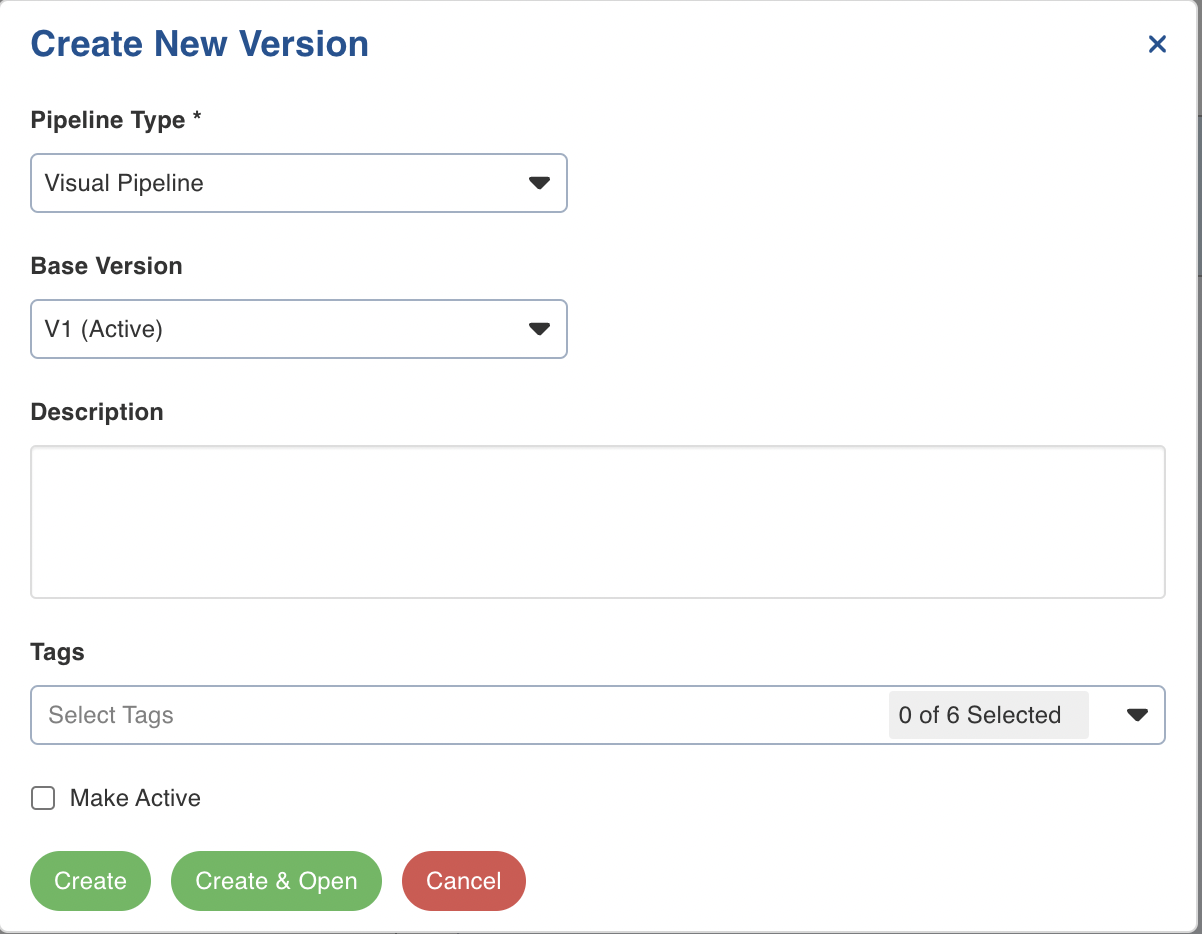
Enter the following details:
Field | Description | Details |
|---|---|---|
Pipeline Type | This field indicates the type of new pipeline version | You can select either of the following Pipeline Type: Visual Pipeline and SQL Pipeline. |
Base Version | The base version from which the metadata will be copied to the new version being created. | Select the required base version. |
Description | The description for the pipeline version. | Enter a description for the pipeline version. |
Tags | The tag for the pipeline version. | The options include In Progress, Stable, Active in Production, Duplicate, Successful Build, and Failed Build. |
Make Active | The option to make the new version active. | Check the box to make the version active. |
Click Create or Create and Open.
Creating a Visual Pipeline from SQL
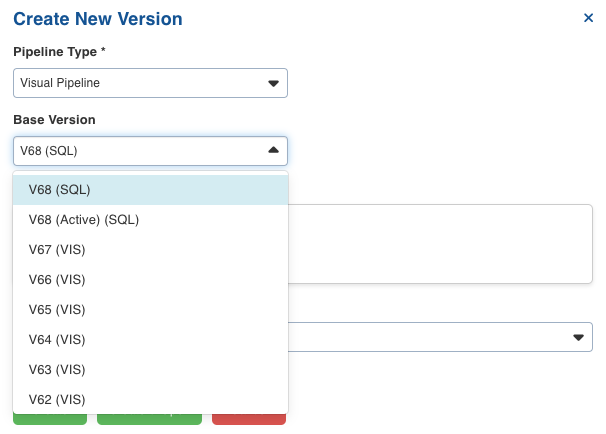
Our platform now supports seamless switching between SQL and Visual pipelines, allowing users to easily create a visual pipeline based on a SQL pipeline version. When creating a new version, you can select a base version of a different type (e.g., a SQL version can serve as the base for a visual version).
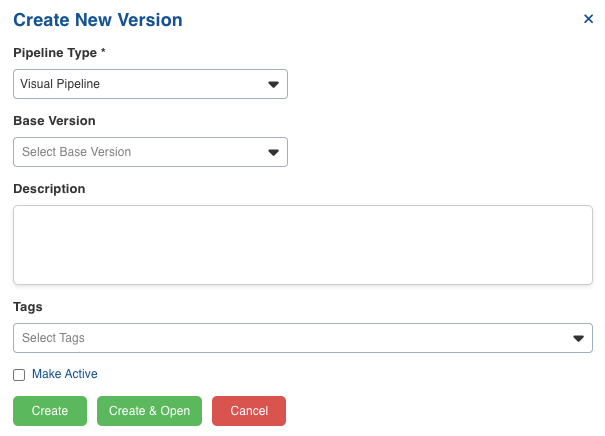
Previously, base versions were restricted to the same type as the new version. Now, users have the flexibility to select any base version, whether SQL or Visual, and create the desired pipeline format.
Disclaimer:
Certain SQL patterns may not be fully compatible with visual pipelines. For further details and guidance on patterns that may not be supported, please consult the reference guide.