
Infoworks uses locally managed MongoDB to store the metadata by default. Infoworks can be configured to use hosted MongoDB Atlas service to use the following features of the cloud-hosted service:
Durability
Security
Elasticity
Infoworks supports enabling MongoDB Atlas either during a fresh installation, upgrade from lower versions, or by manual configuration.
To enable the use of Atlas with Infoworks, we must set up the following:
Atlas account
Database
Database users
Atlas Setup
Account Creation
To perform any actions in Atlas we first need to set up an account, organization, and project. Refer to Atlas Account Creation for more information.
Cluster Setup
To create an Atlas MongoDB database cluster suitable for use in Infoworks, refer to Database Cluster Creation.
Recommended Configuration
Supported MongoDB version: 5.0.8
There should be a dedicated cluster.
Supported Cluster type: M20 or higher tier.
MongoDB Atlas should be on the same cloud provider and region as Infoworks and data plane.
Use private endpoint or network peering
Backup configuration depending on use case
For Atlas supported Cloud providers and regions, see Cloud Providers and Regions
For setting up private endpoints or network peering and network and security topics, see Configure Security Features for Database Deployments
MongoDB Atlas Setup Backup
To enable scheduled backups on the MongoDB Atlas Setup, see MongoDB BackUp and Restore.
Database and User Setup
Creating Custom Roles
To create custom roles required by Infoworks DB, perform the following procedure.
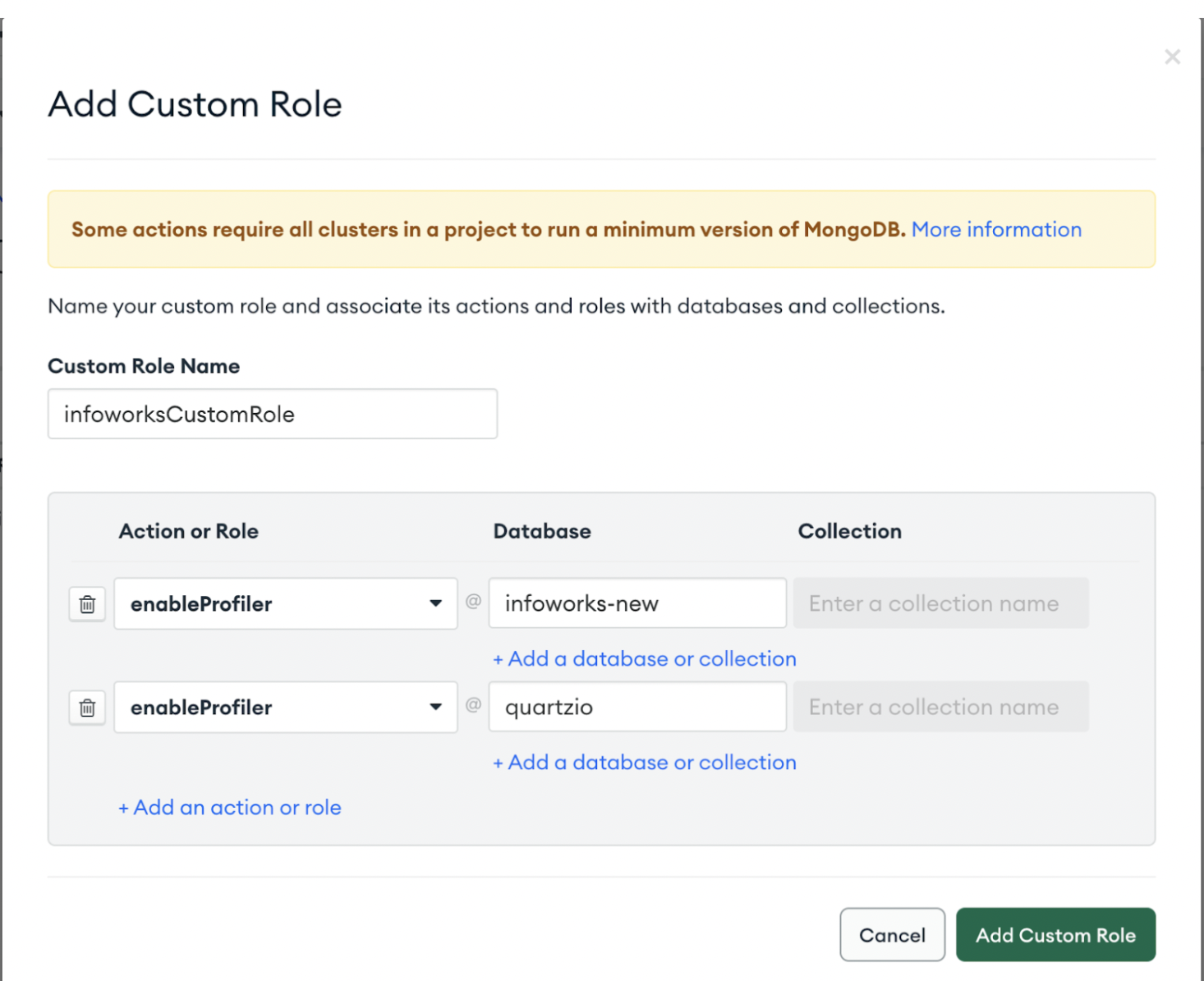
Step 1: Go to navigation pane on the left-side, under the Security section, click Database Access, and then click Add New Custom Role.

Step 2: Once the Add New Custom Role dialog opens, provide the following:
Under the Custom Role Name, type infoworksCustomRole.
Under the Action or Role section, select enableprofiler from the dropdown, and add infoworks-new from the database.
Under the Action or Role section, select enableprofiler from the dropdown, and add quartzio from the database.
Click Add Custom Role.
**Step 3:**Note down the Infoworks MetaDB Database name and Infoworks Quartzio Database for Installation and Upgrade Steps.
Step 4: Note down the Custom Role Name for next steps.
For more information related to creating custom roles, refer to Configure Custom Database Roles
Setup Infoworks Database User
Infoworks supports the default SCRAM authentication method on MongoDB Atlas. To create Infoworks MetaDB users, follow these steps.
Step 1: From the Database Access tab, add a new database user.
Step 2: Create an Infoworks DB username with a password on MongoDB Atlas and attach the previously created custom role to this user.
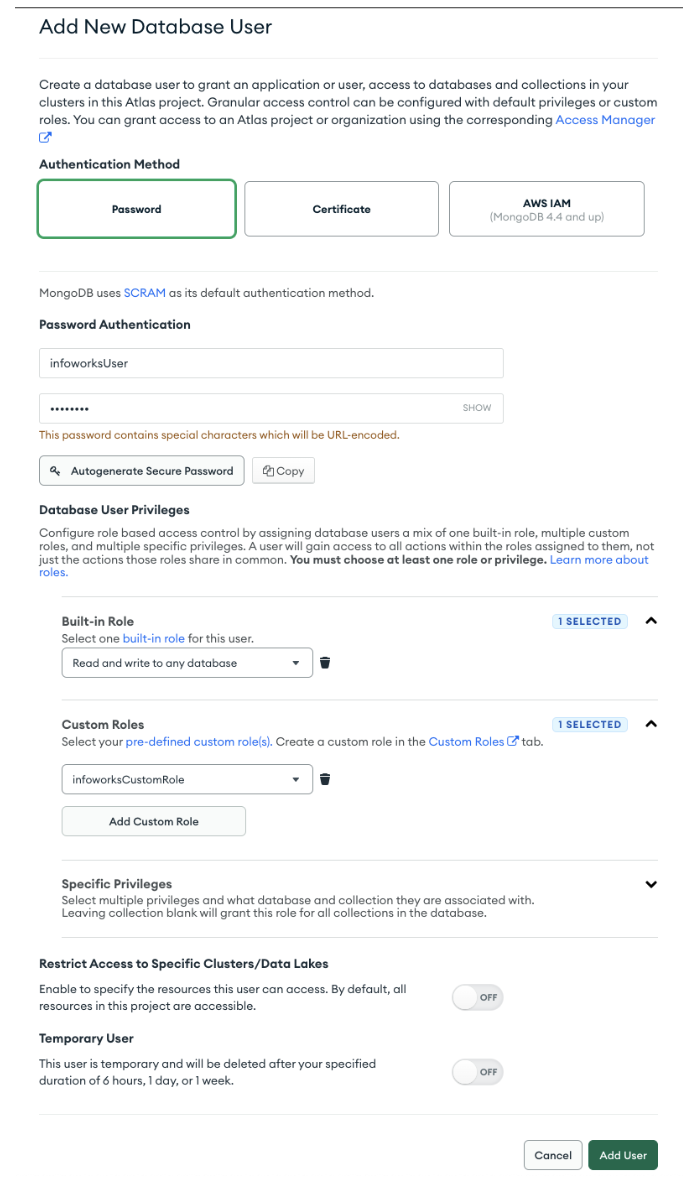
Step 3: Note these credentials for next steps.
For more information related to creating users on MongoDB Atlas, refer to Configure Database Users.
Note Infoworks DBs are handled as a part of the installation and upgrade process.
Verifying Connection from MongoDB to Infoworks
Verify that applications can access the Atlas cluster from Infoworks Edge Node. Follow Atlas documentation, copy the mongo cli command for v4.4 of the mongo shell, and use Infoworks Database User. For Infoworks-specific user, refer to previously mentioned Database and User Setup.
Use the following procedure as a reference only.
Step 1: To connect to MongoDB, copy the command from Atlas Connection Wizard. The command looks like this:
mongo "mongodb+srv://my-mongodbcluster.xyz.mongodb.net/myFirstDatabase"
Step 2: Keep a note of the cluster url (my-mongodbcluster.xyz.mongodb.net) for your reference along with other configurations for later use.
Step 3: Go to Infoworks Edge Node console and execute the following command:
cd /opt/infoworks/bin
source env.sh
Step 4: Run the full mongo shell command copied from the atlas UI as per step 1. If the connection is successful and a mongo shell appears, you can consider the step complete and move forward. If the connection fails due to network connectivity issues, you will need to fix the network setup till this connection is successful to move to the next step.