
This functionality allows you to get the metadata of already existing delta tables, so that they can be used in pipelines downstream and can be used in conjunction with tables ingested from other sources.
Creating a Delta Table Source
The following are the steps to create a Delta Table source:
In the left navigation pane of Infoworks UI page, click the Data Sources icon.
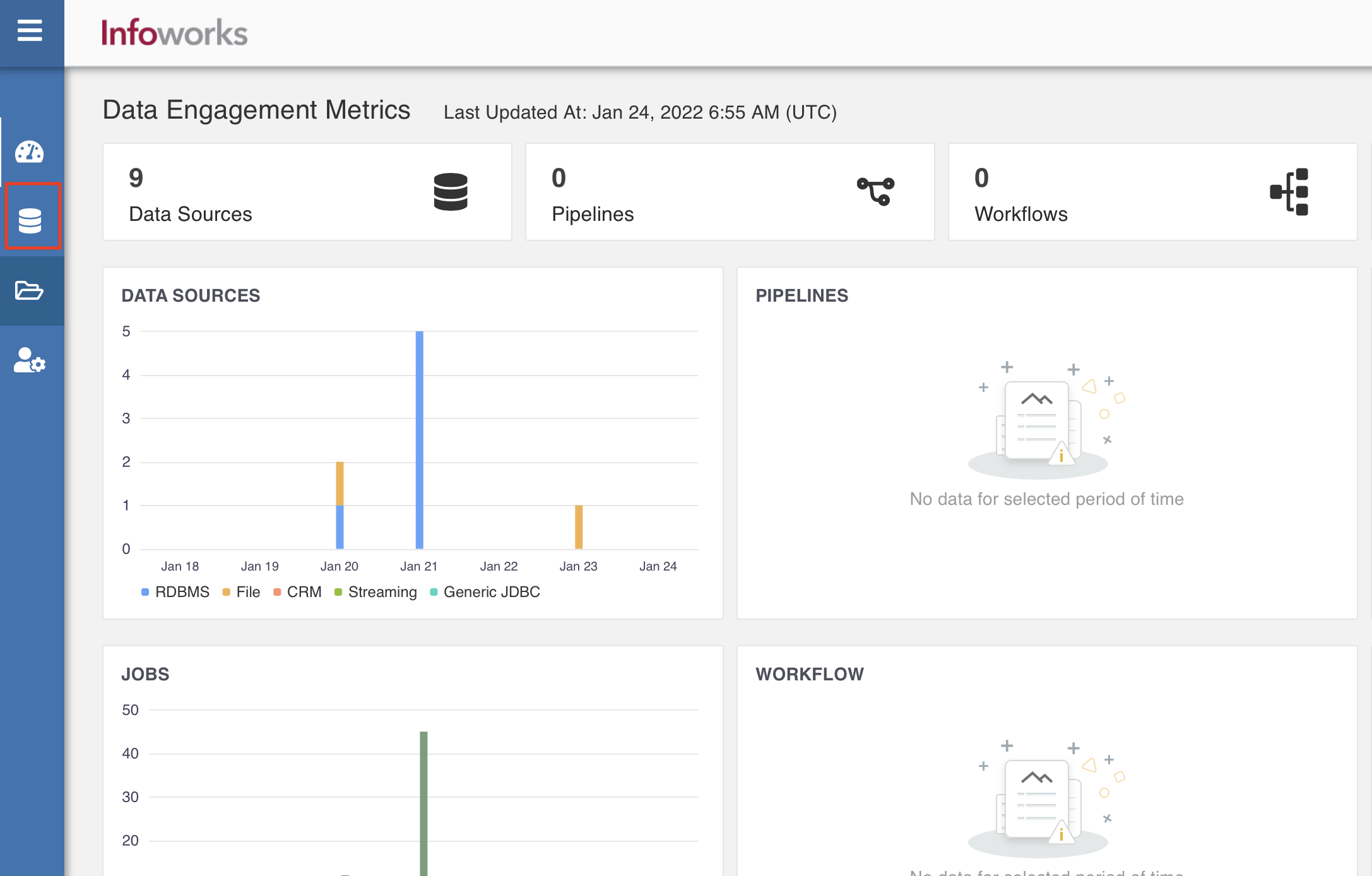
Click Onboard New Data. The Source Connectors page appears with the list of all available connectors.
In the Search... bar, type Delta Tables Metadata Sync.
Click the Delta Tables Metadata Sync connector. The configuration page of the connector appears.
Configuring a Delta Table Source
The following are the steps to configure a Delta Table source:
In the Configure Source & Target page, enter the following configuration details.
Field | Description |
|---|---|
Source Name | Provide a source name for the target table. |
Source Catalog Name | Provide a source catalog name. The source will have limited assets belonging to just this catalog. NOTE Supported only for Unity environment. |
Fetch Data Using | The mechanism through which Infoworks fetches data from the database. Default option is Spark. |
Data Environment | Select the environment where the tables are registered. Infoworks will spawn a spark session in the persistent cluster running in the environment and fetch all the tables registered. NOTE Snowflake environment is not supported. |
Storage | Select from one of the storage options defined in the environment. |
Base Location | The path to the base/target directory where all the data should be stored. |
Schema Name | The schema name of the target table. |
Click Save, and then click Next.
Select Tables
You can select the tables for which the metadata crawl is required. You can add more tables later.
In the Select Tables step, you can choose to Browse entire source or Filter tables to browse.
Filter the tables by Schema Name, Table Name, by entering multiple names separated by comma or by using a "%" as a wildcard.
Click Browse Source. The Browse source area appears.
Select the check boxes against the relevant table(s), and click Add Selected Tables.
Click Crawl Metadata to proceed. A success message appears.
NOTE To view the job status, click View Job Status.