
Prerequisites
NOTE Before upgrade, user should cancel all their running jobs.
NOTE Before going through the below-mentioned prerequisites for this section, ensure that all the Prerequisites for Infoworks Installation on Azure Kubernetes Service (AKS) are validated.
NOTE Ensure that the helm version is 3.14 or above. This is mandatory from 5.5.1. You can install the latest helm client from here.
Follow the below steps to increase the limit of nginx proxy-body-size:
Navigate to the directory IW_HOME/iw-k8s-installer.
Edit the values.yaml file
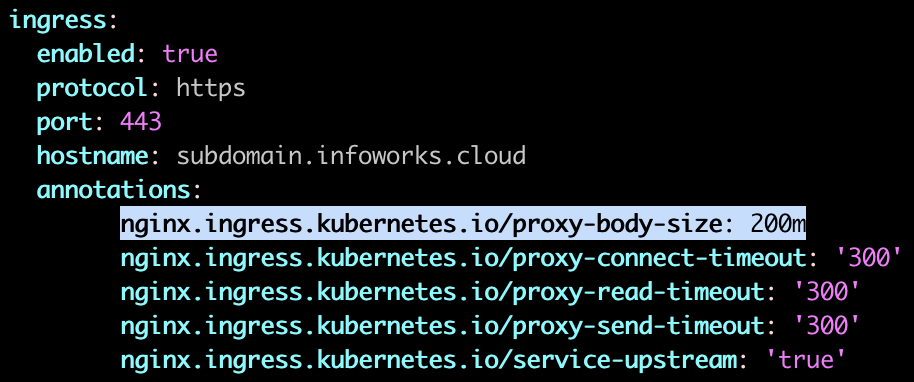
a. Go to ingress.annotations section and edit the nginx.ingress.kubernetes.io/proxy-body-size to 200m.
b. After editing the annotations, the values.yaml file should look as shown below:
NOTE To check the supported version of MongoDB by Infoworks, refer to MongoDB Atlas Recommended Configuration.
Ensure that the following Python packages are available on the server before starting the upgrade activity of Infoworks environment.
PyYAML (version 6.0)
jsonmerge (version 1.9.0)
wheel
pycryptodomex (version 3.15.0)
argparse
If the aforementioned packages are not available, execute the following command to install them.
Ensure the current deployment chart is present in /opt/infoworks.
Python 3.8 or above version with the pip module is installed in the Bastion VM.
Stable internet connectivity on the Bastion VM to download the required Python packages from the Python repository during installation/upgrades.
Validate that the version of the old chart is 6.2.2.
User should enable quiescent mode config. Refer General Configuration.
Cancel all the running jobs and workflow runs after waiting for some time.
NOTES
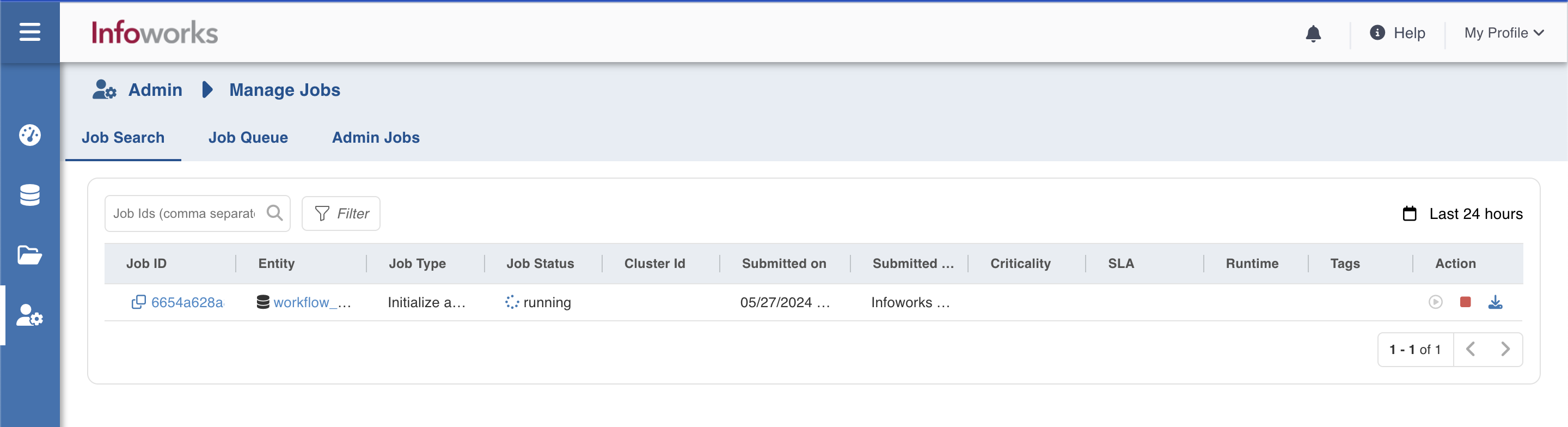
User can view and cancel all running jobs from Manage Jobs in admin section.
Users can view and cancel all workflow runs from Workflows in admin section.
Ensure to take backup of MongoDB Atlas and PostgresDB PaaS. In case you don't take the backup, jobs will fail after the rollback operation. For more information, refer to the MongoDB Atlas Backup and PostgresDB PaaS Backup.
To improve stability of jobs, it is suggested to increase the linkerd init-proxy memory requests and limits to 30Mi. This can be done by passing the appropriate flags while running linkerd install/upgrade commands:
For example: linkerd upgrade --set proxyInit.resources.memory.limit=30Mi --set proxyInit.resources.memory.request=30Mi | kubectl apply -f -
Back up the Airflow DAGs and logs
The upgrade regenerates the Airflow DAGs, and the log migration in post-upgrade Step 10 rewrites the Airflow logs to the 3.x layout. Back up the /opt/infoworks/orchestrator-engine directory of the orchestrator pod first, which contains both the DAGs and the logs, so they can be restored if needed.
Set the Infoworks home, namespace and release name:
export IW_HOME=/opt/infoworksexport NS=<namespace>export RELEASE=<release-name>Navigate to the backup directory:
mkdir -p $IW_HOME/backupcd $IW_HOME/backupCopy the directory to the bastion VM as an archive:
kubectl -n $NS exec deploy/${RELEASE}-orchestrator -c orchestrator -- \tar cf - -C /opt/infoworks orchestrator-engine \> orchestrator-engine-6.2.3.tarVerify the archive can be read:
tar tf orchestrator-engine-6.2.3.tar > /dev/null && echo "Backup OK"
Remove logger_configs.sh from the Databricks init scripts
Navigate to
$IW_HOME/iw-k8s-installer.Edit the values file:
vi infoworks/values.yamlUnder
databricks, delete the entry ending inlogger_configs.shfromazureDatabricksInitScripts,awsDatabricksInitScriptsandgcpDatabricksInitScripts. Keep the other entries.Before
databricks:gcpDatabricksInitScripts:- source: ${environment_home}/lib/scripts/databricks_py4j_install.sh- source: ${environment_home}/lib/scripts/logger_configs.shazureDatabricksInitScripts:- source: ${environment_home}/lib/scripts/databricks_py4j_install.sh- source: ${environment_home}/lib/scripts/logger_configs.shawsDatabricksInitScripts:- source: ${environment_home}/lib/scripts/databricks_py4j_install.sh- source: ${environment_home}/lib/scripts/logger_configs.shAfter
databricks:gcpDatabricksInitScripts:- source: ${environment_home}/lib/scripts/databricks_py4j_install.shazureDatabricksInitScripts:- source: ${environment_home}/lib/scripts/databricks_py4j_install.shawsDatabricksInitScripts:- source: ${environment_home}/lib/scripts/databricks_py4j_install.shSave the file.
Upgrade Instructions
To upgrade Infoworks on Kubernetes:
ASSUMPTION It is assumed that the existing chart is placed in the /opt/infoworks directory and the user has the access permission.
Before selecting the type of upgrade execute the following commands:
Step 1: Create the required directories and change the path to that directory.
Internet-free Upgrade
NOTE If you are upgrading via the Internet-based procedure, skip to the next section.
Step 1: Download the upgrade tar files shared by the Infoworks team to the Bastion (Jump host) VM and place it under $IW_HOME/downloads.
Step 2: To configure Internet-free upgrade, execute the following command:
Internet-based Upgrade
Step 1: Download the Update script tar file.
Common Steps for both Internet-free and Internet-based
NOTE Once you have selected the type of upgrade, the below-mentioned steps are common for both Internet-free and Internet-based.
Step 1: Extract the iwx_updater_k8s_6.2.3 .tar.gz under $IW_HOME/downloads.
Do not extract the tar file to /opt/infoworks/iw-k8s-installer as it would result in loss of data.
This should create two new files as follows - update-k8s.sh and configure.sh.
NOTE Execute step 2 only if the "export KEYVAULT_ENABLED" flag in the $IW_HOME/iw-k8s-installer/configure.sh file is set to false and you want to enable Keyvault in the upgraded deployment, else skip to step 3.
Step 2: Edit the configure.sh file present in the $IW_HOME/downloads/ directory and fill details as given below. For more information related to Keyvault details, refer to Keyvault and Keyvault Authentication Configuration.
Ensure all the above Keyvault fields are filled, otherwise the Keyvault setup will not work as expected.
NOTE Execute step 3 only if the “export IW_LOG_ARCHIVAL” flag in the $IW_HOME/iw-k8s-installer/configure.sh file is set to false or not present and you want to enable Log Archival in the upgraded deployment, else skip to step 4.
Step 3: Edit the configure.sh file present in the $IW_HOME/downloads/ directory and fill details as given below. For more information related to Log Archival, refer to Log Archival Configuration.
Step 4: Run the script.
NOTE At the end of the above command's execution, if you want to run helm upgrade manually, then type N and press Enter. There is a 30-second timeout set to abandon the deployment of the upgraded version. If no input is received within the timeout duration, the deployment is triggered.
Enter N to skip running the above command to upgrade the helm deployment. (timeout: 30 seconds): N
Upgrade success
Pre-Upgrade Validation Steps
Before proceeding with the platform upgrade, the following validations must be performed to ensure configuration correctness, detect unintended changes, and confirm final rendered manifests.
Delete if $IW_HOME/backup/iw-k8s-installer folder exists.
Extract the tar file located in $IW_HOME/backup folder.
Helm Lint – Syntax Check
Checks the Helm chart syntax and values file to ensure templates are valid. Fix any errors reported before proceeding ahead.
Configuration Difference Review
Highlights differences between the current and upgrade values.yaml. Verify all changes are intentional before proceeding.
Helm Template – Render Final Manifests
Generates the manifests that will be applied. Review to ensure all resources are correct, and keep the rendered file for reference after the upgrade.
Delete the $IW_HOME/backup/iw-k8s-installer folder.
Step 5: Update the values.yaml file to pull the images from local container registry:
In values.yaml file, there are some additional fields added under ingress-nginx block where the below fields have to be updated:
registry name
imagePullSecrets (If any) and the
digest (sha256) values for all 3 images in double quotes (“ “)
The new ingress-nginx block will look like this:

Key | Value |
|---|---|
registry | <Name of container registry>/ingress-nginx |
imagePullSecrets | Secret value used for authenticating to Container Registry (if any) |
Digest | Sha256 values(Add respective values for controller, kube-webhook-certgen and defaultbackend-amd64 imaged) |
After updating the mentioned fields, the ingress-nginx block should look like this:

Step 6: With 6.1.3, Infoworks recommends enabling network Policy for enhanced security. Please refer here for detailed documentation on how to enable network policies and for whitelisting additional namespaces. Run helm upgrade command again for the policies to take effect.
Step 7: Run the following command to restart the deployment so that the Network Policy changes take effect.
Step 8: Remove logger_configs.sh from persistent clusters:
Important: Run this step while quiescent mode is still enabled. Running clusters are restarted when they are updated, and quiescent mode ensures no jobs are running on them.
The script updates every Databricks persistent cluster in all environments, the same as editing the cluster in the UI. This rebuilds the cluster's init scripts without logger_configs.sh. What happens to each cluster depends on its current state:
Cluster state | What happens |
|---|---|
Running | Updated and restarted by Databricks. |
Stopped | Updated and stays stopped. The change applies the next time it starts. |
Error | Updated and started by Infoworks. |
Set the namespace and release name:
export NS=<namespace>export RELEASE=<release-name>Copy
Copy
remove_logger_config_init_script.py, provided by Infoworks, to$IW_HOME/downloadson the bastion VM, then navigate to that directory:cd $IW_HOME/downloadsCopy
Run a dry run. It changes nothing and lists each cluster with its current state. The
Restartsline in the summary shows how many clusters will be restarted or started. To update only some environments, add--environment-ids <id1>,<id2>to this and the next command.kubectl -n $NS exec -i deploy/${RELEASE}-orchestrator -c orchestrator -- \python - --dry-run < remove_logger_config_init_script.pyCopy
Run the update:
kubectl -n $NS exec -i deploy/${RELEASE}-orchestrator -c orchestrator -- \python - < remove_logger_config_init_script.pyCopy
Make sure the summary ends with
Result OK, exit 0. Updated clusters showSUBMITTED, and Infoworks applies the update in the background. If any cluster showsFAILED, contact Infoworks Support.
Step 9: Disable quiescent mode:
(i) Infoworks will remain in quiescent mode which means the jobs will remain in pending state and the workflows will be paused.
(ii) User can provide test_workflow_ids and test_job_ids in the advanced configuration run the jobs and workflows to test the sanity of upgrade. Refer General Configuration.
NOTE Incase of any job failure, contact Infoworks support or move to rollback section directly.
To bring system out of quiescent mode user can run following commands:
Step 10: Trigger Airflow log migration:
Log migration no longer runs during the upgrade, so start it manually. It runs in the background, and jobs and workflows keep running normally.
Prerequisite: jq must be installed on the bastion VM.
Set the variables:
NS=<namespace>RELEASE=<release-name>DAYS=90 # Migrate logs for DAG runs from the last N daysIMAGE="" # Leave empty to use the orchestrator's 6.2.4 imageCreate the migration pod:
kubectl delete pod ${RELEASE}-airflow-log-migration -n $NS --ignore-not-foundkubectl get deploy ${RELEASE}-orchestrator -n $NS -o json | jq --arg name "${RELEASE}-airflow-log-migration" --arg days "$DAYS" --arg image "$IMAGE" '{apiVersion: "v1",kind: "Pod",metadata: {name: $name,labels: { "infoworks.app/type": "iw-batch-job" },annotations: (.spec.template.metadata.annotations // {})},spec: (.spec.template.spec| del(.affinity, .initContainers, .securityContext.fsGroup, .securityContext.fsGroupChangePolicy)| .restartPolicy = "Never"| .containers |= [ .[] | select(.name == "orchestrator")| del(.livenessProbe, .readinessProbe, .startupProbe, .ports, .resources)| .name = "airflow-log-migration"| (if $image != "" then .image = $image else . end)Monitor the migration. It is complete when the pod status is
Completed.kubectl logs -f ${RELEASE}-airflow-log-migration -n $NSDelete the pod:
kubectl delete pod ${RELEASE}-airflow-log-migration -n $NS
Note: If the pod ends in Error, repeat step 2. The migration resumes from where it stopped.
Step 11: (Applicable only for Databricks Persistent Clusters):
A change in the Infoworks jar requires libraries being uninstalled and cluster restart. Without this step, there will be stale jars. Perform the following steps:
(i) Go to the Databricks workspace, navigate to the Compute page, and select the cluster that has stale jars.
(ii) In the Libraries tab, select all the Infoworks jars and click Uninstall.
(iii) From Infoworks UI or Databricks dashboard, select Restart Cluster.
Rollback
Prerequisites
Before executing the rollback script, ensure that IW_HOME variable is set.
Assuming Infoworks home directory is /opt/infoworks, run the below command to set the IW_HOME variable.
Validate that the version of the current chart is 6.2.4.
Ensure to restore MongoDB Atlas and PostgresDB PaaS. In case you don't restore the backup, jobs will fail. For more information, refer to the MongoDB Atlas Restore and PostgresDB PaaS Restore.
Rollback Instructions
NOTE Since IW_HOME has been exported in the Prerequisites section mentioned above, the following steps can be executed from any location for users with read/write access to the aforementioned IW_HOME.
Step 1: Change into the Infoworks Charts Directory
Step 2: Download the rollback script.
Step 3: Place the Update script in the same directory as that of the existing iw-k8s-installer.
Step 4: Ensure you have permission to the $IW_HOME directory.
Step 5: Give executable permission to the rollback script using the below command.
Step 6: Run the script.
Step 7: You will receive the following prompt. If you want to run helm upgrade manually, then type N and press Enter.
NOTE There is a 30-second timeout set to abandon the deployment of the downgraded version. If no input is received within the timeout duration, the deployment is triggered.
Step 8: Disable quiescent mode:
(i) Infoworks will remain in quiescent mode which means the jobs will remain in pending state and the workflows will be paused.
To bring system out of quiescent mode user can follow these steps:
Get encrypted METADB_PASSWORD from Chart configure.sh(unless stored on keyvault):
Get Orchestrator Pod Name:
Exec into any orchestrator pod with the following commands:
Inside the Pod, run: