
Overview
Tags are metadata elements that you apply to your cloud resources. They're key-value pairs that help you identify resources based on settings that are relevant to your organization. If you want to track the deployment environment for your resources, add a key named Environment. To identify the resources deployed to production, give them a value of Production.
Fully formed, the key-value pair becomes, Environment = Production.
You can apply tags to your cloud resources, resource groups, and subscriptions.
Adding Custom Tags
To add a custom tag:
Step 1: Go to Admin > Manage Custom Tags.
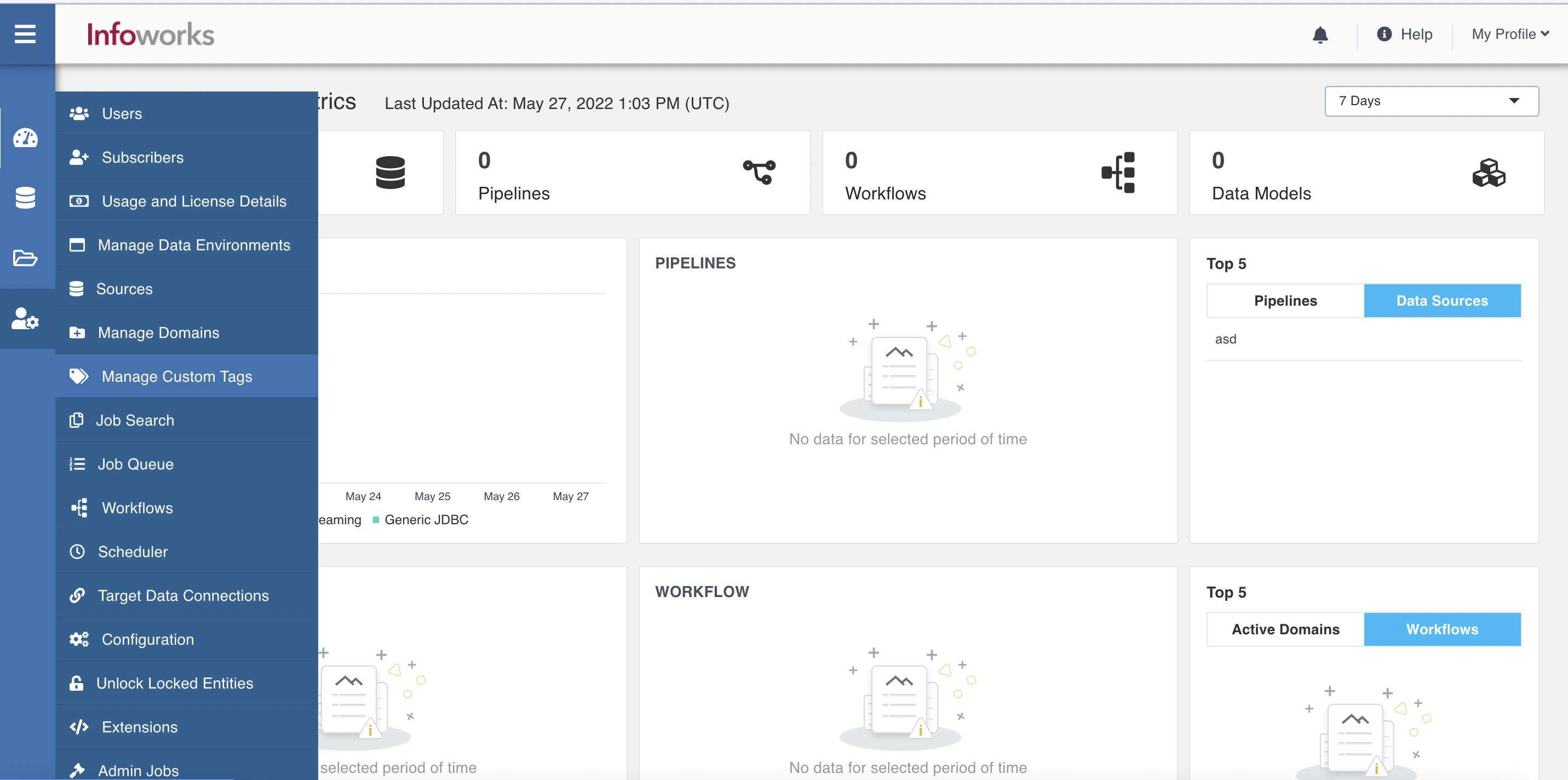
The Managing Custom Tags page appears.
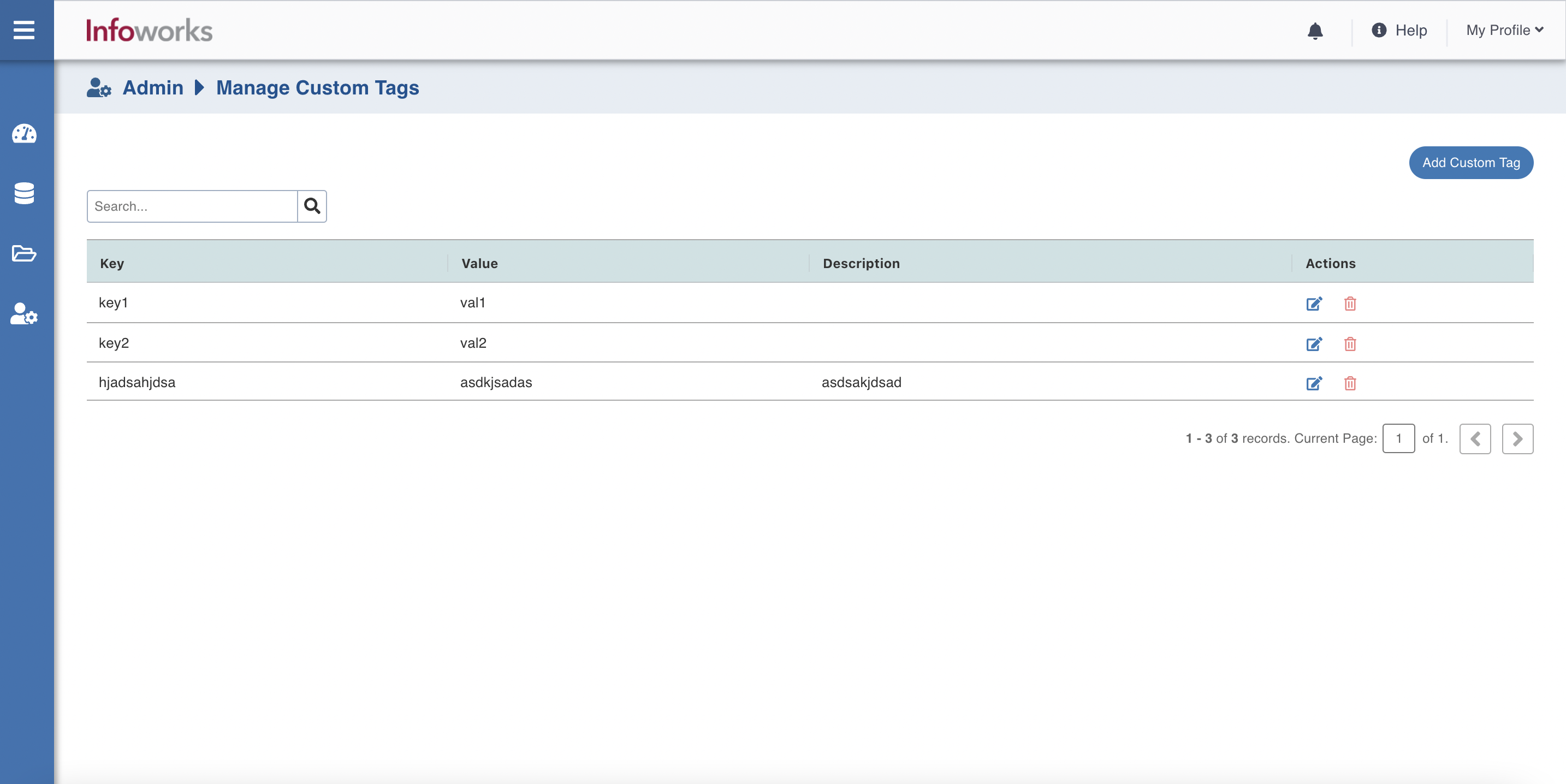
Field | Description |
|---|---|
Key | This field indicates the tag to identify the resource. |
Value | This field indicates the value that is assigned to the key. There are multiple key-value pairs, which means that same key can have multiple values. |
Description | Provides custom tag details. |
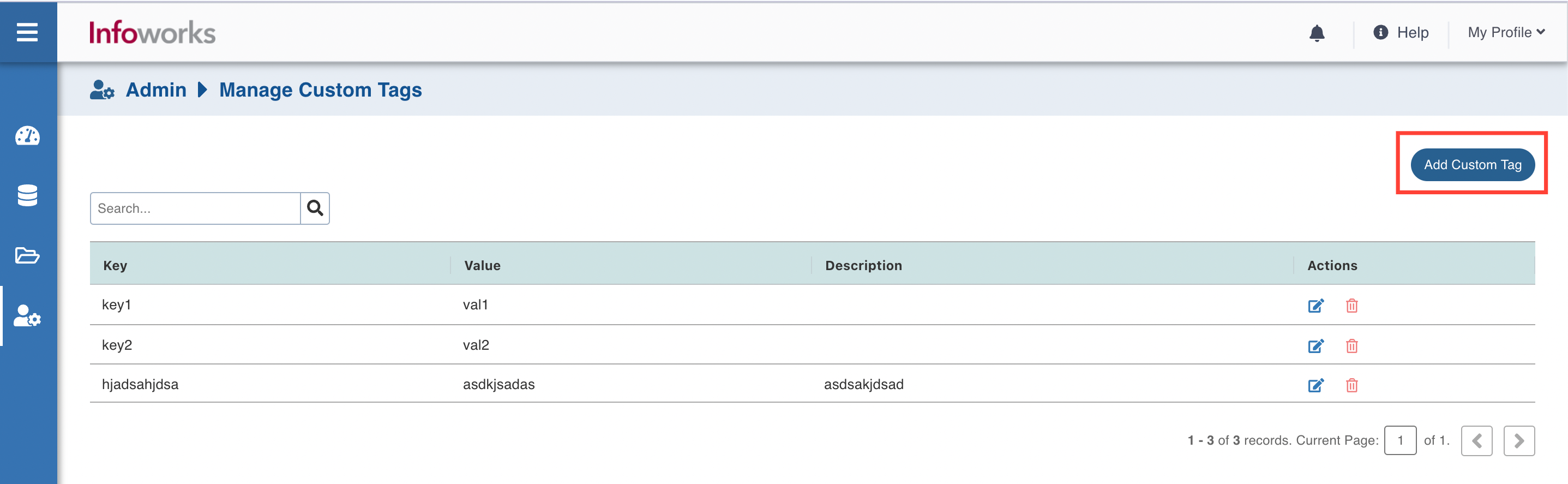
Step 2: Click Add Custom Tag.
Step 3: Provide Custom Tag details.
NOTE Tag names are case-insensitive for operations. A tag with a tag name, regardless of the casing, is updated or retrieved. However, the resource provider might keep the casing you provide for the tag name. You'll see that casing in cost reports. Tag values are case-sensitive.
NOTE Keys and values can contain only lowercase letters, numeric characters, underscores, and dashes.
NOTE Key cannot be empty. Value can be an empty string, but it cannot be NULL.
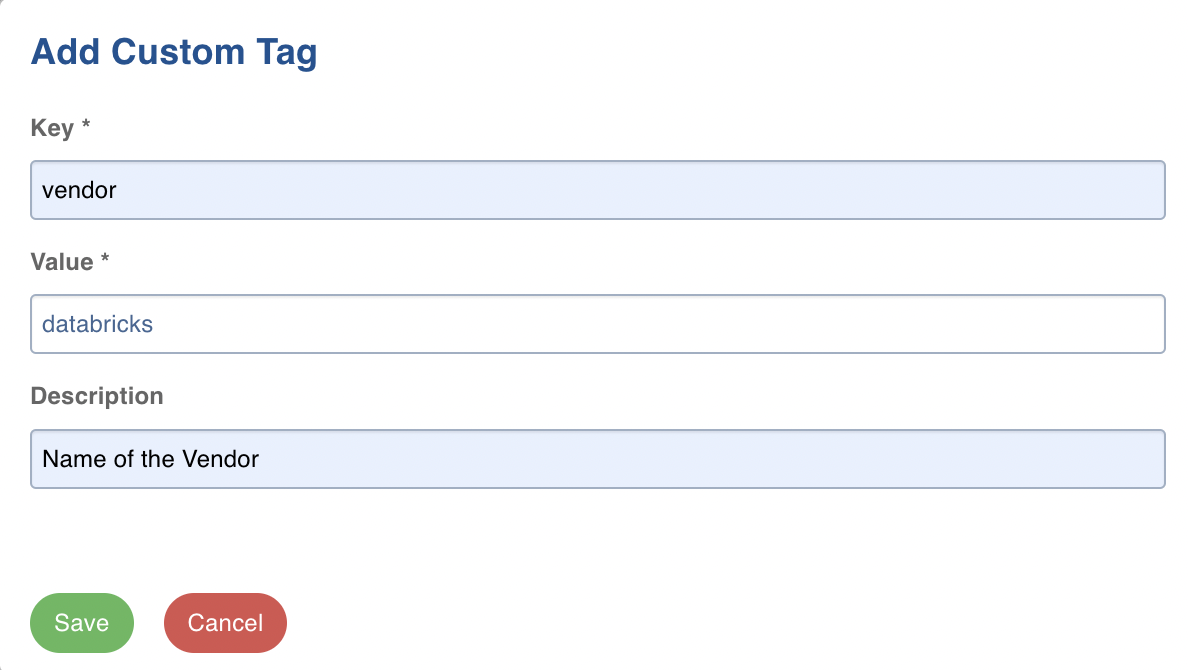
Step 4: Click Save.
Custom Tags Priority
The custom tag addition to the cloud resources follows the following priority:
Workflow
Pipeline
Table Group / Ingest modal
Cluster
So, the tags set at workflow level will override tags set at Table Group and Cluster level.
For example: If you set key1=value11 at the workflow level, key1=value12 and key2=value22 at the cluster level, you would get key1=value11 and key2=value22.
Custom Tags Filter Functionality and Availability
A tag filter functionality can be added in following sections
Job metrics page in Ingestion section
Job search page in Admin section
Custom Tags will be shown in following pages
Pipeline settings page
Workflow settings page
Tablegroup configuration page
You can create, update, and delete a custom tag via REST API also.
NOTE Starting with version 6.1.3, Operations Analyst (OA) users will gain the ability to manage custom tags and extensions, a feature that was previously restricted to administrators.