
Infoworks allows you to ingest data in the fixed-width structured file formats into the data lake. You can fetch the fixed-width structured files from DBFS, SFTP, and cloud storage.
Creating a Fixed-width Structured File Source
For creating a fixed-width structured file source, see Creating a Source. Ensure that the Source Type selected is Structured Files (Fixed-width).
Setting a Fixed-width Structured File Source
For setting a fixed-width structured file source, see Setting Up a Source.
Fixed-width Structured File Configurations
Select either of the following storage systems depending on where your files are stored:
Databricks File System (DBFS)
Remote Server (using SFTP)
Cloud Storage
Databricks File System (DBFS)
Databricks File System (DBFS) is a distributed file system mounted into a Databricks workspace and available on Databricks clusters. DBFS is an abstraction on top of scalable cloud object storage. For more details, see Databricks Documentation.
For preparing data for ingestion from Databricks File System (DBFS), enter the following:
Source Base Path: The path to the base directory in DBFS where all the fixed-width structured files to be accessed are stored. The other files are relative from this path. For example, if the file is stored in iw/filestorage/ingestion/sample in DBFS, the base path refers to iw/filestorage/ingestion.
Infoworks allows you to access files stored in remote servers using SSH File Transfer Protocol (SFTP). This ensures your data is transferred on a secured channel.
Remote Server (Using SFTP)
For preparing data for ingestion Remote Server (using SFTP), enter the following:
Field | Description |
|---|---|
Source Base Path | The path to the base directory in the file system where all the fixed-width structured files to be accessed are stored. The other files are relative from this path. For example, if the file is stored in iw/filestorage/ingestion/sample, the base path refers to iw/filestorage/ingestion. |
SFTP Host | The host from which data will be read. |
SFTP port | The port where the SFTP service is run. |
Username | The username to log in to the SFTP host. |
Authentication Mechanism | Select if you want to authenticate using private key or password. |
Password | Type the password to log in to the SFTP host. NOTE This field appears only when Using Password is selected as Authentication Mechanism. |
Private Key | Type the private key to log into the SFTP host. It can either be a text, uploaded, or a path on the edge node. NOTE This field appears only when Using Private Key is selected as Authentication Mechanism. |
NOTES
When using Private Key as authentication mechanism:
The client public key needs to be added under
~/.ssh/authorized_keyson the SFTP server. The corresponding private key on the job cluster will be used to connect.The private key should be in RSA format. If it is available in OpenSSH format, use the command "
ssh-keygen -p -f <file> -m pem" to convert it into RSA format.
To resolve File Ingestion Failure from SFTP, refer to the File ingestion Failure from SFTP Server.
Cloud Storage
Infoworks allows you to access files from cloud storage, ingest the data and perform analytics on them. Cloud storage refers to data stored on remote servers accessed from the internet, or cloud.
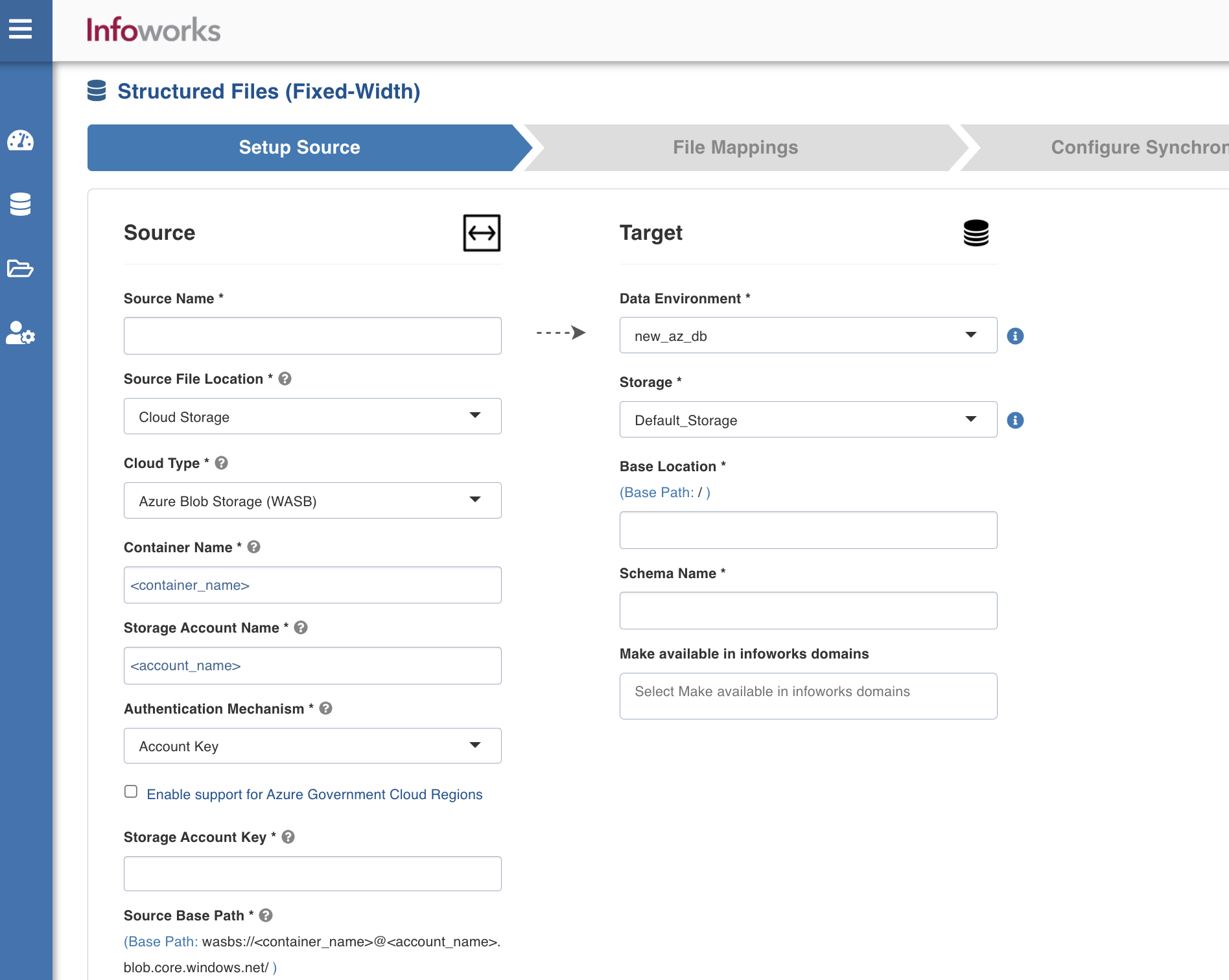
For preparing data for ingestion Cloud Storage, enter the following:
Cloud Type: The options include Azure Blob Storage (WASB), Amazon S3, GCS, and Azure DataLake Storage (ADLS) Gen2.
Windows Azure Storage Blob (WASB), also known as Blob Storage, is a file system for storing large amounts of unstructured object data, such as text or binary data. For more details, see Azure Blob Storage Documentation.
For Azure Blob Storage (WASB), enter the following:
Field | Description |
|---|---|
Container name | The name of the container in the storage account, in which the files are stored. A container organizes a set of blobs, similar to a directory in a file system. For more details, see Create a container. |
Storage Account name | The unique name of the storage account. For more details, see Create a storage account. |
Authentication Mechanism | The mechanism using which the security information is stored. The options include Account Key and None. Account key refers to the access key to authenticate applications when making requests to this Azure storage account. You can choose None to access data from public cloud storage folders. |
Enable Support for Azure Government Cloud Regions | Select this check box to enable ingestion from a source available in the Government Cloud regions. This option is not editable if the data source tables are already created. |
Storage Account Key | The storage account access key. This option is displayed if the Authentication Mechanism used is Account Key. For more details, see Manage storage account access keys. |
Source Base Path | The path to the base directory in the file system where all the fixed-width structured files to be accessed are stored. The other files are relative from this path. The default value is /, which indicates the base path of the following format: |
Snowflake Warehouse | Snowflake warehouse name. Warehouse is pre-filled from the selected snowflake environment and this field is editable. NOTE This field appears only when the Data Environment is snowflake. |
Amazon Simple Storage Service (S3) is storage for the Internet. Amazon S3 has a simple web services interface that you can use to store and retrieve any amount of data, at any time, from anywhere on the web. For more details, see Amazon S3 Documentation.
For Amazon S3, enter the following:
Field | Description |
|---|---|
Authentication Mechanism | The mechanism using which the security information is stored. |
Access ID | The access ID uniquely identifies an AWS account. You can use the access ID to send authenticated requests to Amazon S3. The Access ID is a 20-character, alphanumeric string, for example, AKIAIOSFODNN7EXAMPLE. For the access ID details, contact your AWS Cloud admin. |
Secret key | The secret key to send requests using the AWS account. The secret access key is a 40-character string, for example, wJalrXUtnFEMI/K7MDENG/bPxRfiCYEXAMPLEKEY. For the secret key details, contact your AWS Cloud admin. For more details, see AWS Account Access Keys. |
Source Base Path | The bucket where all the fixed-width structured files to be accessed are stored. For more details, see Creating a bucket. |
Snowflake Warehouse | Snowflake warehouse name. Warehouse is pre-filled from the selected snowflake environment and this field is editable. NOTE This field appears only when the Data Environment is snowflake. |
Google Cloud Storage (GCS) is an online file storage web service for storing and accessing data on Google Cloud Platform infrastructure. In GCS, buckets are the basic containers that hold the data. For more details, see GCS documentation.
For GCS, enter the following:
Field | Description |
|---|---|
Project ID | The ID of the project in the source. For more details, see Project ID. |
Authentication Mechanism | The mechanism using which the security information is stored. The Service Account Credential File option refers to the access key to authenticate applications when making requests to this Azure storage account. For more details, see Creating and managing service account keys. |
Service Account Credential File Upload | You can upload or enter the location where the service account JSON credential file is available in the edge node. This option is displayed if the Authentication Mechanism selected is Service Account Credential File. |
Source Base Path | The path to the base directory in the file system where all the fixed-width structured files to be accessed are stored. The base path must begin with gs://. For more details, see Creating storage buckets. |
Snowflake Warehouse | Snowflake warehouse name. Warehouse is pre-filled from the selected snowflake environment and this field is editable. NOTE This field appears only when the Data Environment is snowflake. |
For Azure DataLake Storage (ADLS) Gen2, enter the following:
Field | Description |
|---|---|
Access Scheme | Scheme used to access ADLS Gen2. The available options are abfs:// and abfss:// |
Authentication Mechanism | The mechanism using which the security information is stored. The options include Access Key and Service Principal. Access key refers to the key to authenticate applications when making requests to this Azure storage account. Service Principal functions as the identity of the application instance. |
File System | Provide a file system where all the data of an artifact will be stored. |
Storage Account Name | Provide the name of Azure storage account. |
Access Key | Provide the storage access key to connect to ADLS. NOTE This field appears only when the authentication mechanism is selected as Access Key. |
Application ID | Provide the ID that uniquely identifies the user application. NOTE This field appears only when the authentication mechanism is selected as Service Principal. |
Directory ID | Provide the ID that uniquely identifies the Azure AD instance. NOTE This field appears only when the authentication mechanism is selected as Service Principal. |
Service Credential | Provide the credential string value that the application uses to prove its identity. NOTE This field appears only when the authentication mechanism is selected as Service Principal. |
Target Fields and Description | |
|---|---|
Target Field | Description |
Data Environment | Select the data environment from the drop-down list, where the data will be onboarded. |
Storage | Select from one of the storage options defined in the environment. NOTE This field becomes Temporary Storage when the Data Environment is snowflake. |
Base Location | The path to the base/target directory where all the data should be stored. |
Schema Name | The schema name of the target. NOTE This field becomes Snowflake Schema Name when the Data Environment is snowflake. |
Snowflake Database Name | The database name of the Snowflake target. NOTE This field appears only when the Data Environment is snowflake. |
Make available in infoworks domains | Select the relevant domain from the dropdown list to make the source available in the selected domain. |
Mapping File
This page allows you to map individual files stored in the file system. You can add tables to represent each file, crawl them and map the file details based on the preview.
Click the File Mappings tab and click Add Table.
Enter the following file location details:
Field | Description |
|---|---|
Table Name | The name to represent the table in the Infoworks User Interface. |
Target Table Name | The name for the target table to be created in the data lake. |
Source Relative Path | The path to the directory (relative to source base path) where the fixed-width structured files are stored. For example, if the file is stored in iw/filestorage/ingestion/sample, the relative path refers to /sample. |
Target Relative Path | The target directory path (relative to the target base path) to store the crawled output. Hive external tables will be created on this directory. |
Include Files Pattern (regex) | The regex pattern to include files. Only the files matching this Java regex will be crawled. |
Exclude Files Pattern (regex) | The regex pattern to exclude files. The files matching this Java regex will not be crawled. |
Include Subdirectories | The option to ingest the fixed-width structured files present in the subdirectories of the source path. |
File Type | The type of fixed-width structured file to be ingested. |
Click Save. The File Preview will be displayed.
Enter the following mapping details based on the file preview:
Field | Description |
|---|---|
Number of Header Rows | The number of header rows in the file. If the files contains any header rows enter the value as 1. This field also allows you to skip the lines after the header row. If n lines are to be skipped after the header in all the files, enter the value as n+1. |
Number of Footer Rows | This field also allows you to skip n number of the lines from the bottom. |
Escape Character | The character used in the delimited files to escape occurrences of Column Separator and Column Enclosed By in data. All the files in the mentioned source path must have the same value. This value must be a character. The default value is . |
End of Line | Provide the end of line character in this field. For example, \u001E. NOTE The default value is \n. |
Character Encoding | The character encoding of the delimited files. The default value is UTF-8. |
Record Width Type | Select the relevant record width type from the drop-down. The available options are Fixed Width and Variable Width. In Fixed Width, the length of all the records ingested has the width equal to the sum of the widths of all the columns given by the user. If the record length is greater than the sum of column widths, the remaining characters are ignored. In Variable Width, the ingested records can have variable widths. If the record length is greater than the sum of column widths, then the remaining characters become part of the last column. The width of the last column given by the user is ignored and set to 512 by default. Users can change this default value by setting the max_chars_per_column advance configuration at the table level. For more details see Advanced Configurations. |
Column Width | Provide the column width for the given column name in the same order as in files. |
Quick Upload | Option to upload an array of JSON objects, with each object containing “column_width” as field. NOTE The column width order needs to be maintained in the same order as they are in files. |
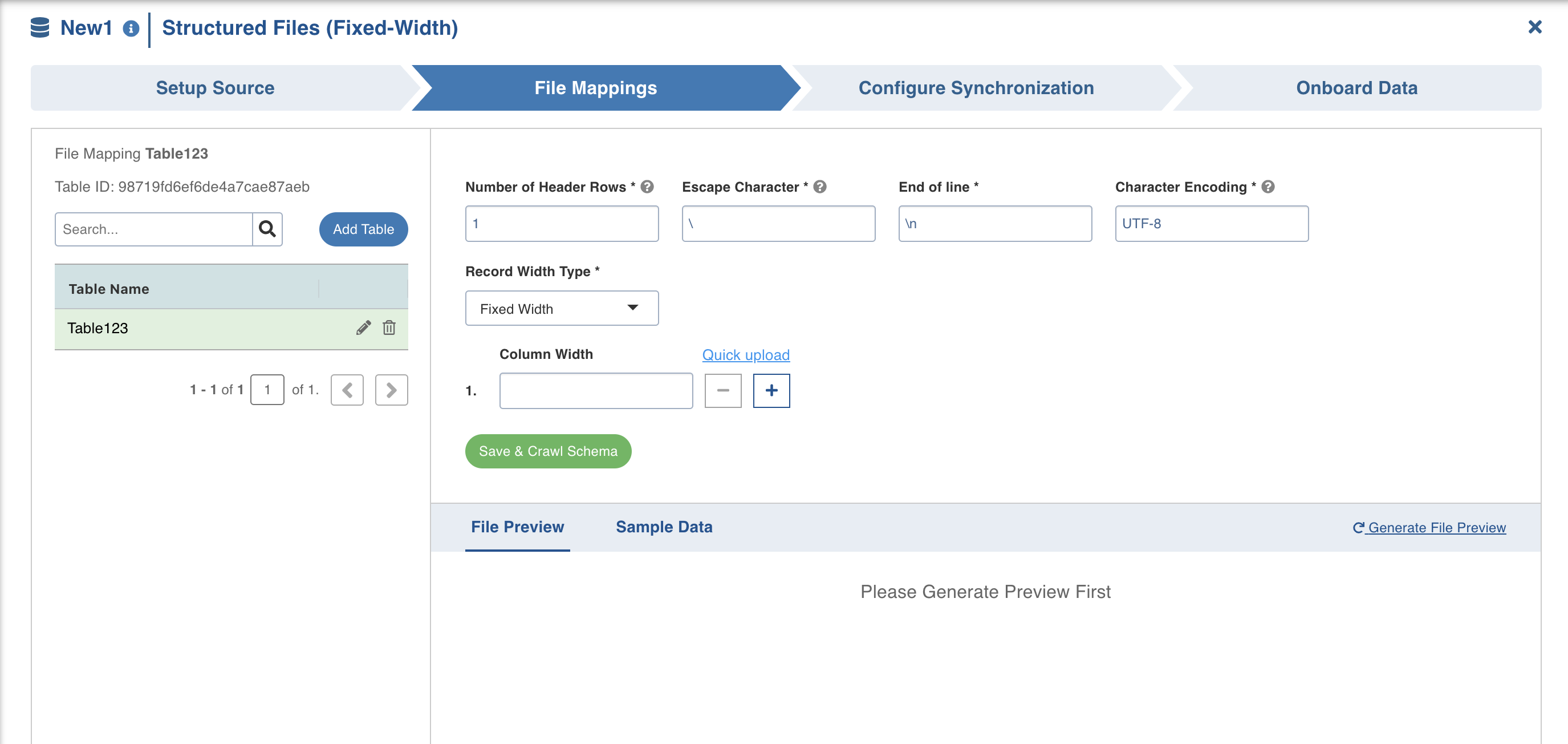
Click Save and Crawl Schema.
The schema will be crawled and the sample data will be displayed with the sample records of the table.
Edit Schema
You can edit the schema before ingesting the table. For details, see Editing Table Schema.
Advanced Configurations
max_chars_per_column
Default: 512
Description: Max chars that each column can have in a fixed-width file. Used as the width of the last column when variable-width is chosen.
fixed_width_padding
Default: “ ” (white space)
Description: If the data within a column does not completely use all the width assigned to it, then it is padding with the padding character
fixed_width_max_columns
Default: 1024
Description: max number of columns that a fixed-width file can have
multiline_fixed_width
Default: false
Description: If the records in the fixed-width file are multiline, then this configuration should be set to true
fixed_width_keep_padding
Default: false
Description: Set this value to true if the ingested data should have the padding characters
fixed_width_trim_values
Default: true
Description: Set the value to false if the ingested values should not be trimmed (remove leading and trailing white spaces)
fixed_width_skip_trailing_chars_until_new_line
Default: false
Description: If multiline_fixed_width is set to true and the record width exceeds the given sum of column widths, then the remaining characters will be considered as part of the next record
NOTE This parameter should be set at admin level.
Configuring a fixed-width Structured File Table
For configuring a fixed-width Structured File source, see Configuring a Table.
Ingesting Fixed-width Structured File Data
For ingesting a fixed-width structured file source, see Onboarding Data.
Known Issues
The total number of files cannot be more than 500.
By default, the Sample Data section displays the datatype as String for every column.
Adding a column to the table
After metadata crawl is complete, you have the flexibility to add a column to the table. It can either be a source column or a target column.
Source Column refers to adding a source column to the table when the metadata crawl of the table did not infer any schema (since we infer the smallest file schema).
Target Column refers to adding a target column if you need any special columns in the target table apart from what is present in that source.
In both the cases, you can select the datatype you want to give for the specific column. You can select either of the following transformation modes: Simple and Advanced.
Simple Mode
In this mode, you must add a transformation function that has to be applied for that column. Target Column with no transformation function applied will have null values in the target.
Advanced Mode
In this mode, you can provide the Spark expression in this field. For more information, refer to the Adding Transform Derivation section.
NOTE When table is in ready state (already ingested), schema editing is disabled.
Additional Information
For details on tables created during the ingestion process, see Tables Created during Ingestion.
NOTE During data crawl, the data that cannot be crawled are stored in an error table, <tablename>_error.
For details on audit columns, see Audit Columns.
There will be error records if any record is not adhering to the schema and if the number of error records crosses the threshold value, the job will fail.
Gzip support: Infoworks supports two types of compressed files: .gz (Gzip) and .bz2 (Bzip2)