
Overview
Service Authorization
To avoid password-based or user-based authentication, service authentication can be used. These are identities used by applications and services to access specific resources, such as performing Databricks operations or accessing ADLS storage. These authentications can have a specific role, and tightly controlled permissions to access only required resources.
NOTE Infoworks currently supports Azure AD service principal and managed identity
External Keyvault
To avoid storing sensitive information in a metadb, such as password of sources or access token of Databricks workspace, you can use External Keyvault to store this sensitive information and Infoworks will retrieve this information when required.
NOTE Infoworks currently supports Azure Keyvault.
Architecture
Service Authorization
The below-given image illustrates the architecture of Service Authentication in Infoworks.
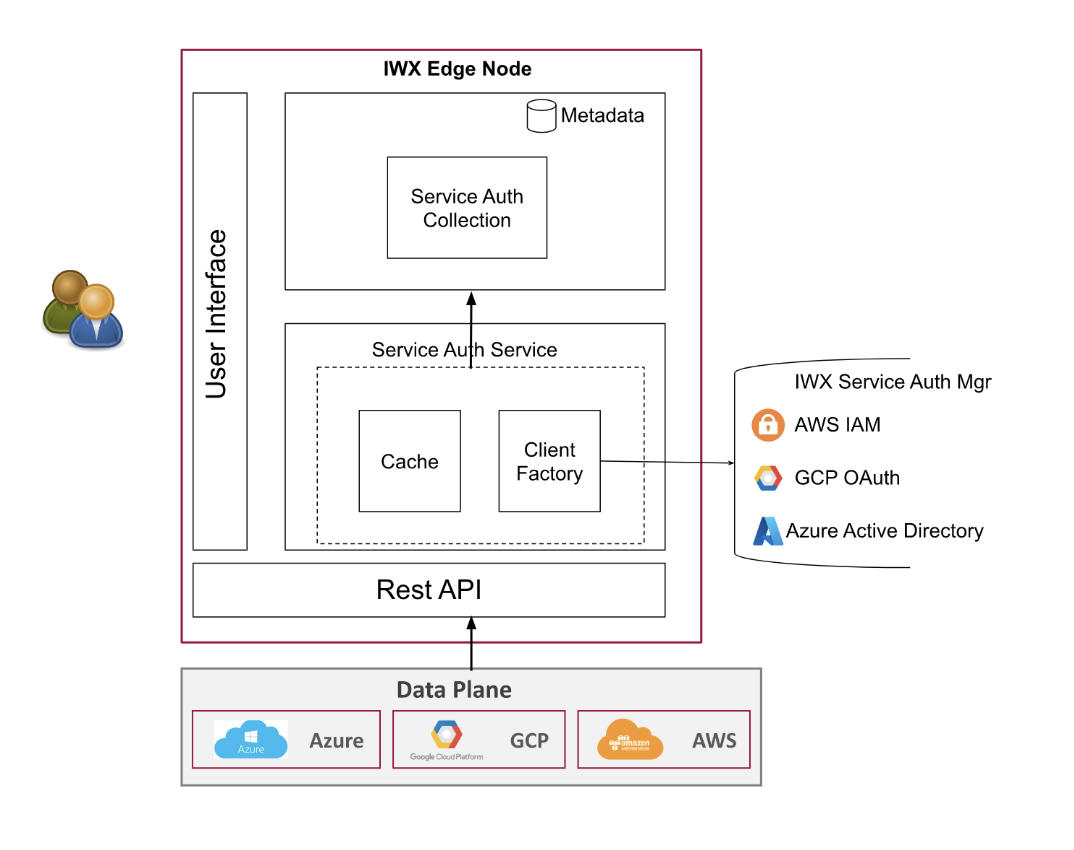
IWX Edge Node: This is a VM where Infoworks services are deployed. The Config Service on Edge Node is the only client for the service authentication. All other services will connect to the config service when any access token is required.
Config Service will maintain a cache of Service Authentication Access Tokens in memory to avoid multiple requests to the service in a short timeframe.
External Keyvault
The below-given image illustrates the architecture of External Keyvault Usage in Infoworks.
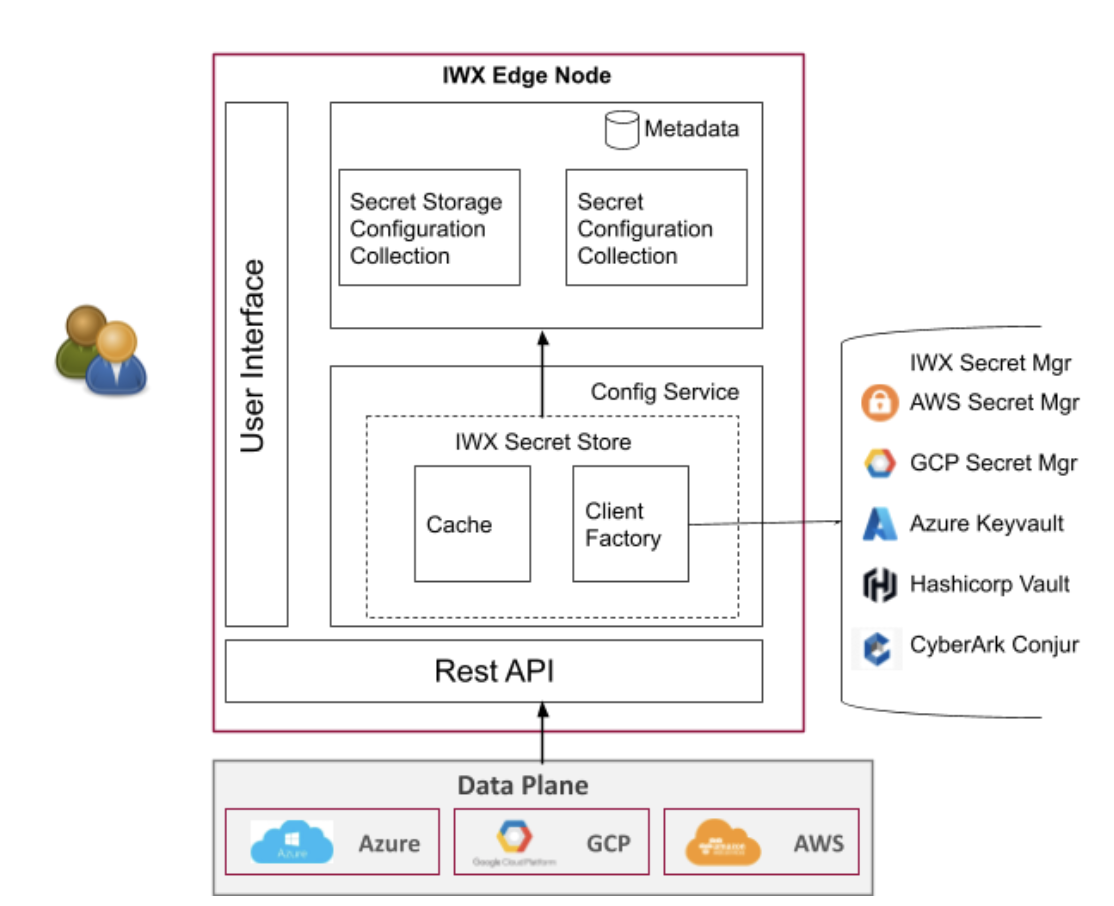
IWX Edge Node: This is a VM where Infoworks services are deployed. The Config Service on Edge Node is the only client for the external keyvault. All other services will connect to the config service when any secret value is required.
Config Service will maintain a cache of Secret Value in memory to avoid multiple requests to the external keyvault in a short timeframe.
keyvault_secret_cache_interval is the config to control cache expiry duration in the config service. The default expiry duration is 10 minutes (value should be provided in milliseconds).
Prerequisites
Creating Service Authentication in Azure Portal
An Azure service principal is an identity created for use with applications, hosted services, and automated tools to access Azure resources. This access is restricted by the roles assigned to the service principal, giving you control over which resources can be accessed and at which level.
To create a Service Principal in the Azure portal, refer to Creating a Service Principal.
NOTE Infoworks currently supports Service Principal authentication through Application Secrets. For more information, refer to Creating a New Application Secret.
Managed Identities provide an automatically managed identity in Azure Active Directory (Azure AD) for applications to use when connecting to resources that support Azure AD authentication. Applications can use managed identities to obtain Azure AD tokens without having to manage any credentials.
To create a Managed Identity in the Azure portal, refer to Creating a Managed Identity.
Infoworks recommends you opt for Managed Identity when configuring service authentication.
Assigning Authentication in Azure Portal
Assigning Authentication for Azure Databricks
For Azure Databricks, assigning authentication is a two-step process:
Step 1: To assign Azure role (such as Contributor) for the Service Principal on the Databricks resource refer to Managing Roles.
Step 2: To assign authentication for Databricks, refer to refer to Assigning Authentication in Azure Databricks.
To assign authentication for Storage, refer to Assigning Storage Access.
Assigning Authentication for Azure ADLS
To assign authentication for Storage, refer to Assigning Storage Access.
Creating Keyvault in Azure Portal
To create a Keyvault in the Azure portal, refer to Creating Azure Keyvault.
NOTE Infoworks only supports Vault Access Policy as the access configuration for Azure Keyvault.
Assigning Keyvault Access in Azure Portal
To assign a Keyvault access policy, refer to Assigning Keyvault Access.
NOTE Infoworks requires the GET and LIST permissions/policies on Secrets in Keyvault.
Copying Keyvault URL from Azure Portal
To copy the Keyvault URL, which is generated after the keyvault is created.
Step 1: Log in to Azure portal and navigate to Key Vaults section.
Step 2: Click the respective Keyvault, and copy Vault URI.
Adding Service Authentication
Adding Service Principal/Managed Identity
To add Service Principal/Managed Identity:
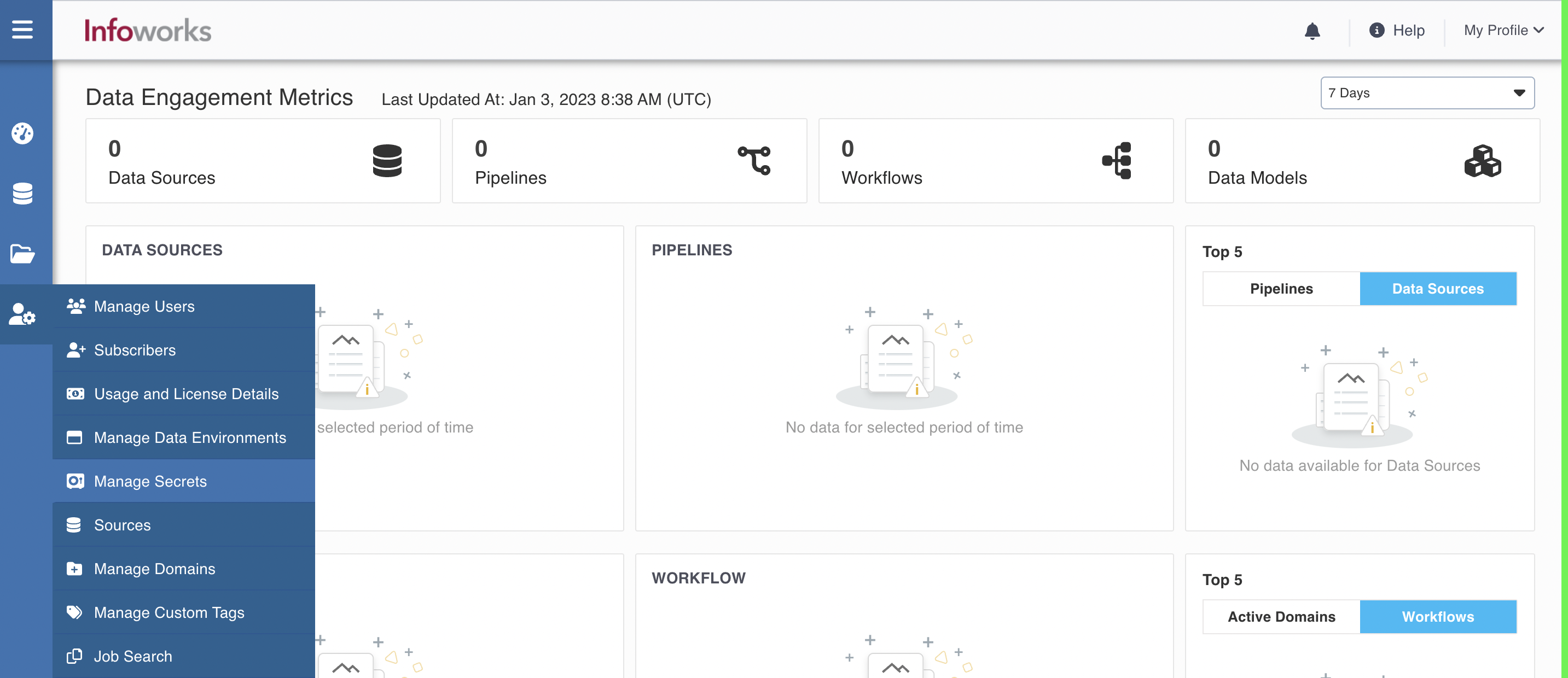
Step 1: Go to Admin > Manage Secrets. The Service Authentication tab appears.
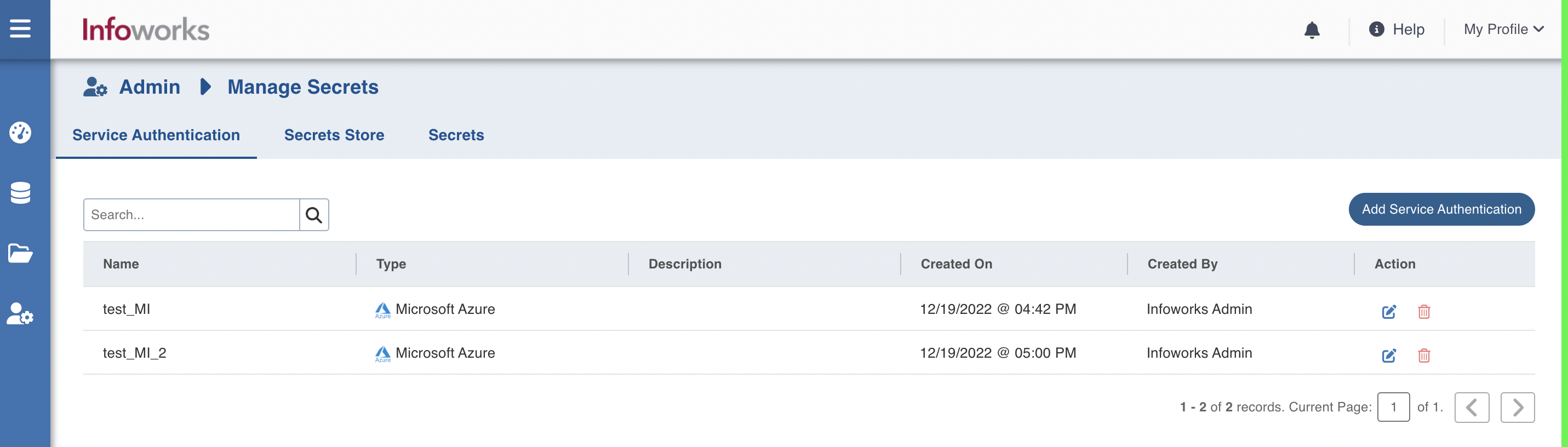
Step 2: Click Add Service Authentication.
Step 3: Provide the following details.
Field | Description |
|---|---|
Name | Name of the service authentication |
Description | This field describes service authentication |
Cloud | This field indicates the cloud platform on which service authentication is being performed. |
Authentication type | This field indicates the authentication mechanism supported for this resource type. Select the type of authentication from the dropdown. For example, Managed Identity or Service Principal Credentials. Managed Identity: Managed identities provide an automatically managed identity in Azure Active Directory (Azure AD) for applications to use when connecting to resources that support Azure AD authentication. Applications can use managed identities to obtain Azure AD tokens without having to manage any credentials. Service Principal Credentials: An Azure service principal is an identity created for use with applications, hosted services, and automated tools to access Azure resources. This access is restricted by the roles assigned to the service principal, giving you control over which resources can be accessed and at which level. |
Subscription ID | This subscription manages the Service Principal resource. NOTE This field appears only if Authentication Type is set to Service Principal Credentials. |
Object ID: | This is the unique ID of the service principal object associated with this application. This ID can be useful when performing management operations against this application You can use object IDs to retrieve all the roles assigned to a user in an application. NOTE This field appears only if Authentication Type is set to Service Principal Credentials. |
Tenant ID | Tenant Id is the Azure Active Directory's Global unique identifier (GUID). NOTE This field appears only if Authentication Type is set to Service Principal Credentials. |
Client ID | This is the unique application ID of this application in your directory. You can use this application ID if you ever need help from Microsoft Support, or if you want to perform operations against this specific instance of the application You can log in to Azure with Client Id and Client Secret Principle ID. NOTE This field appears only if Authentication Type for both Managed Identity and Service Principal Credentials. |
Client Secret | Secret Value for Client ID. |

Step 4: Click Save.
Adding Secret Store/Keyvault.
To add Secret Store/Keyvault:
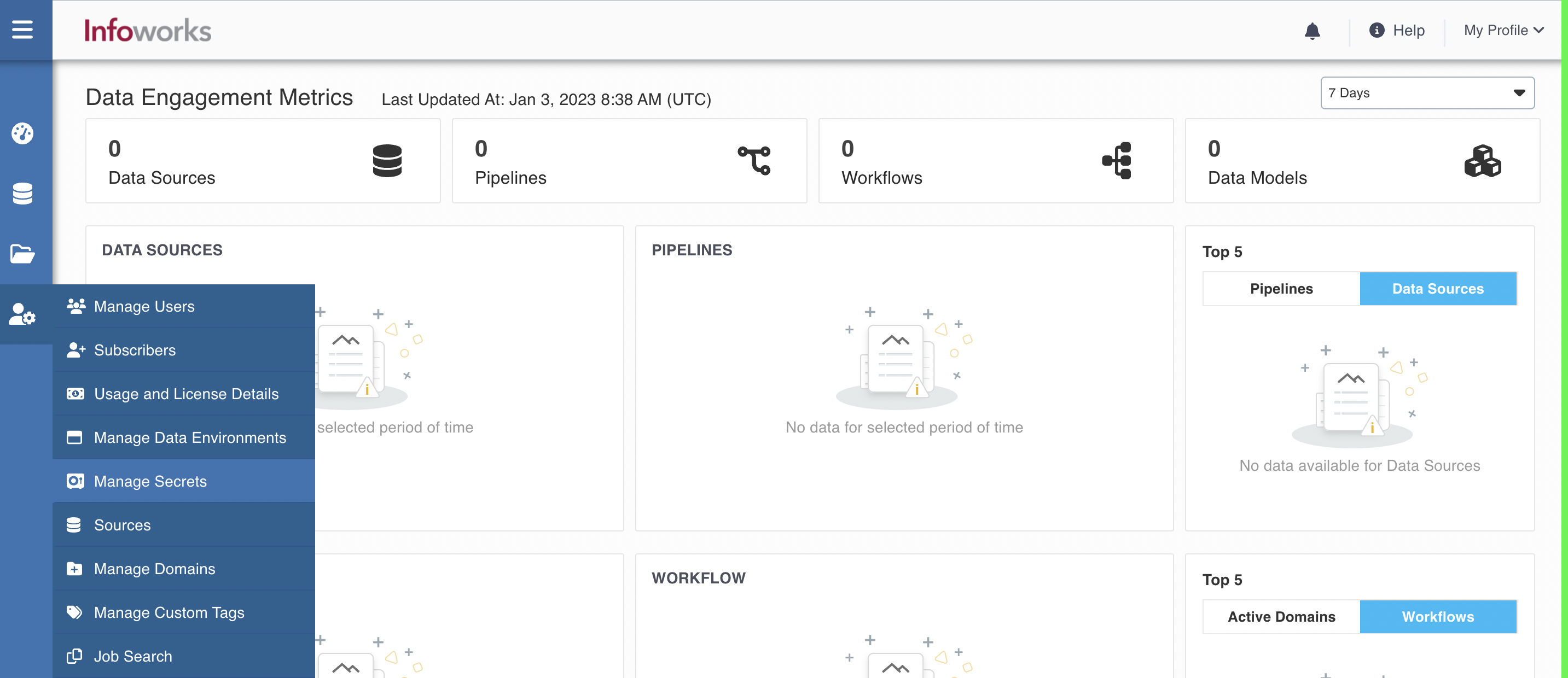
Step 1: Go to Admin > Manage Secrets.
Step 2: Click Secret Stores tab and click Add Secrets Store.
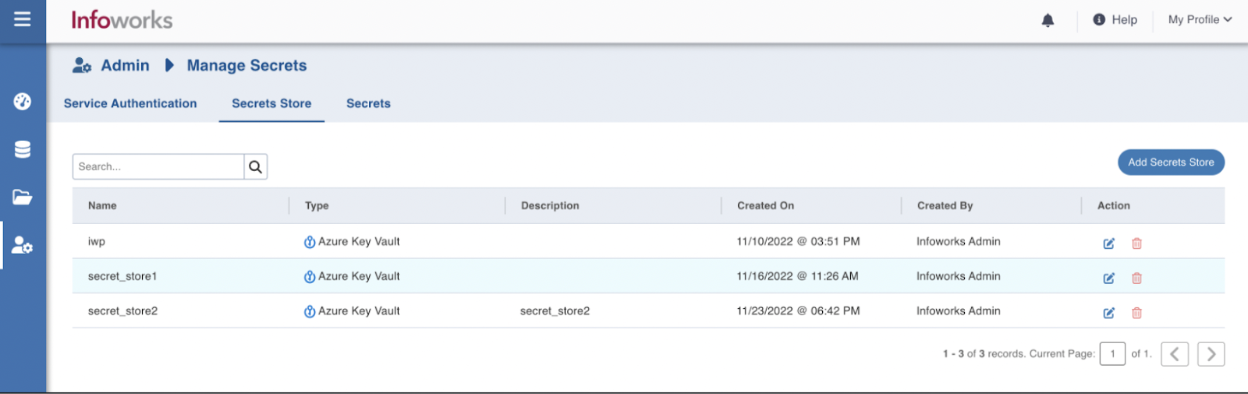
Step 3: Provide the following details.
Field | Description |
|---|---|
Name | Name of the Secret Store. |
Description | Description of the Secret Store. |
Secrets Store | Type of Secret Store. For example, Azure Keyvault |
Secrets Store URL | URL of the Azure Keyvault. To receive URL, refer to Copying Keyvault URL from Azure Portal. |
Service Authentication | Select the service authentication that has access to this secret store from dropdown. |
Step 4: Click Save.
Creating Secrets
A secret is anything that you want to tightly control access to, such as API keys, passwords, certificates, or cryptographic keys.
Once the Secrets Store has been set up, you can create Secrets retrieve sensitive information as per the requirements.
Prerequisites
Creating Secrets in Azure Key Vault
To create a secret in Azure Key Vault, refer to the Adding a Secret in Key Vault.
Creating Secrets in Infoworks
To create secrets:
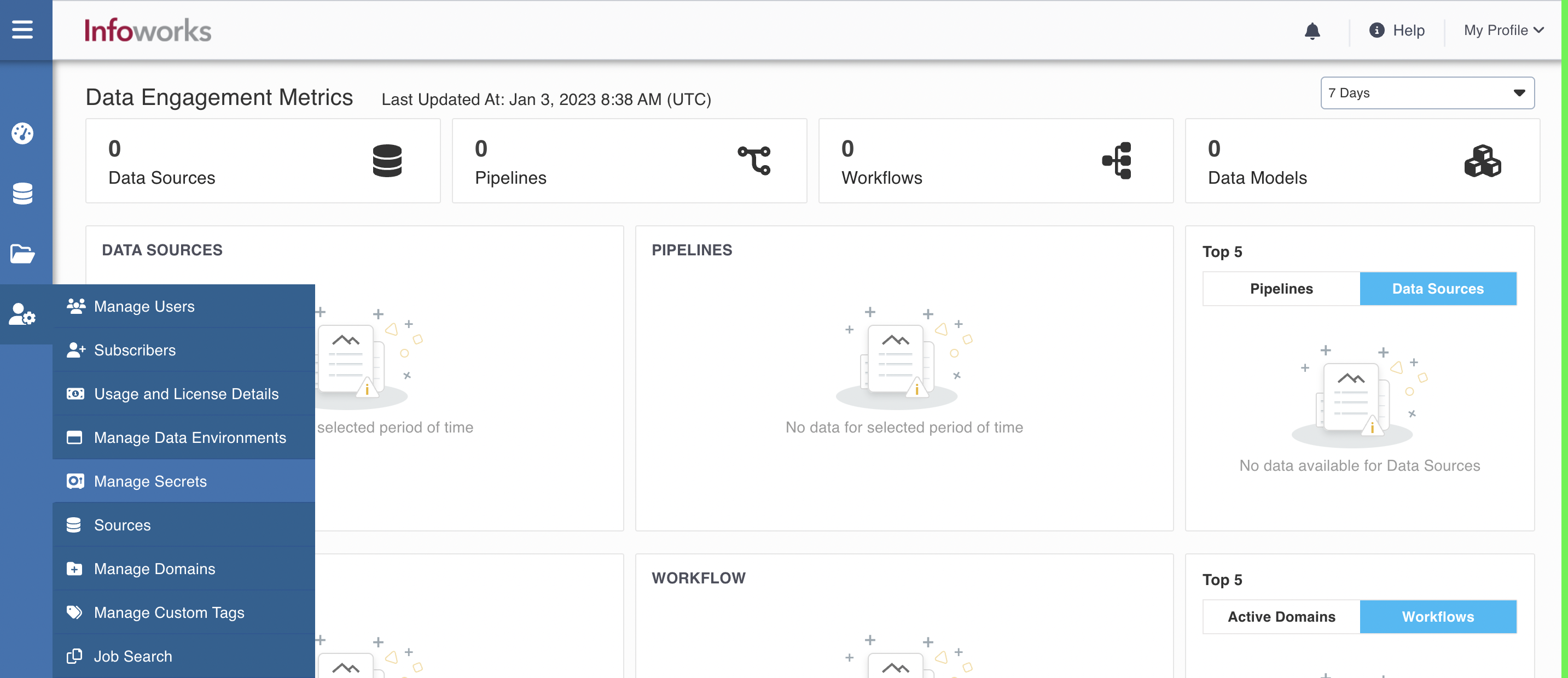
Step 1: Go to Admin > Manage Secrets.
Step 2: Click Secrets tab and click Add Secret.
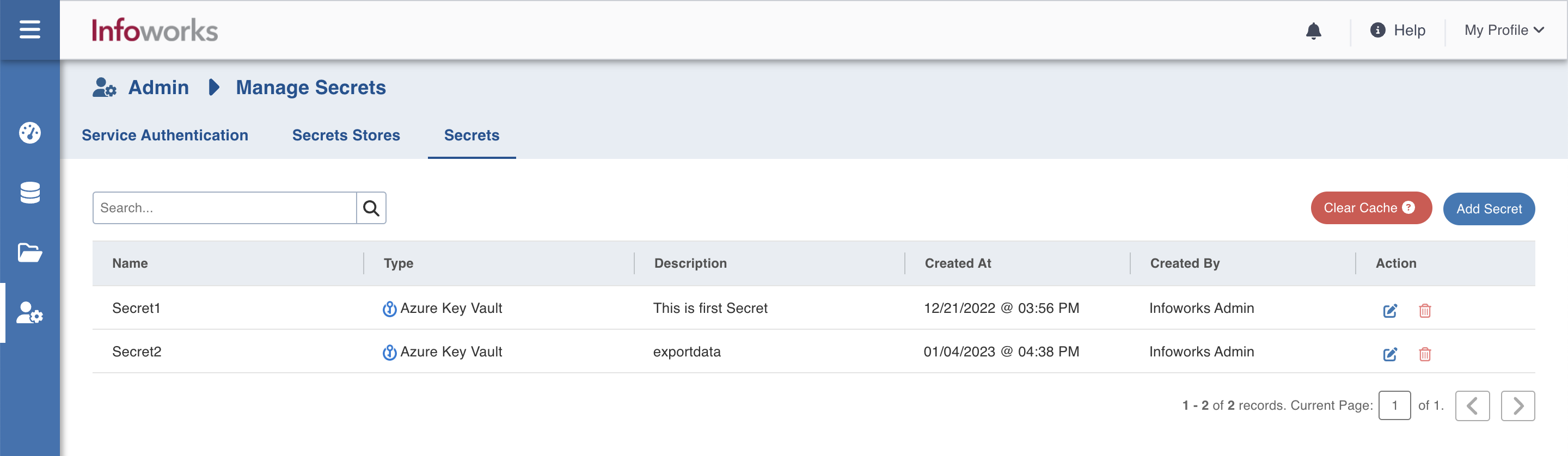
Step 3: Provide the following details.
Field | Description |
|---|---|
Name | Name of the Secret. |
Description | Description of the Secret. |
Secrets Store | Select the Secret Store where the secret is created. |
Secret Name | Name of the Secret in External Key Vault |
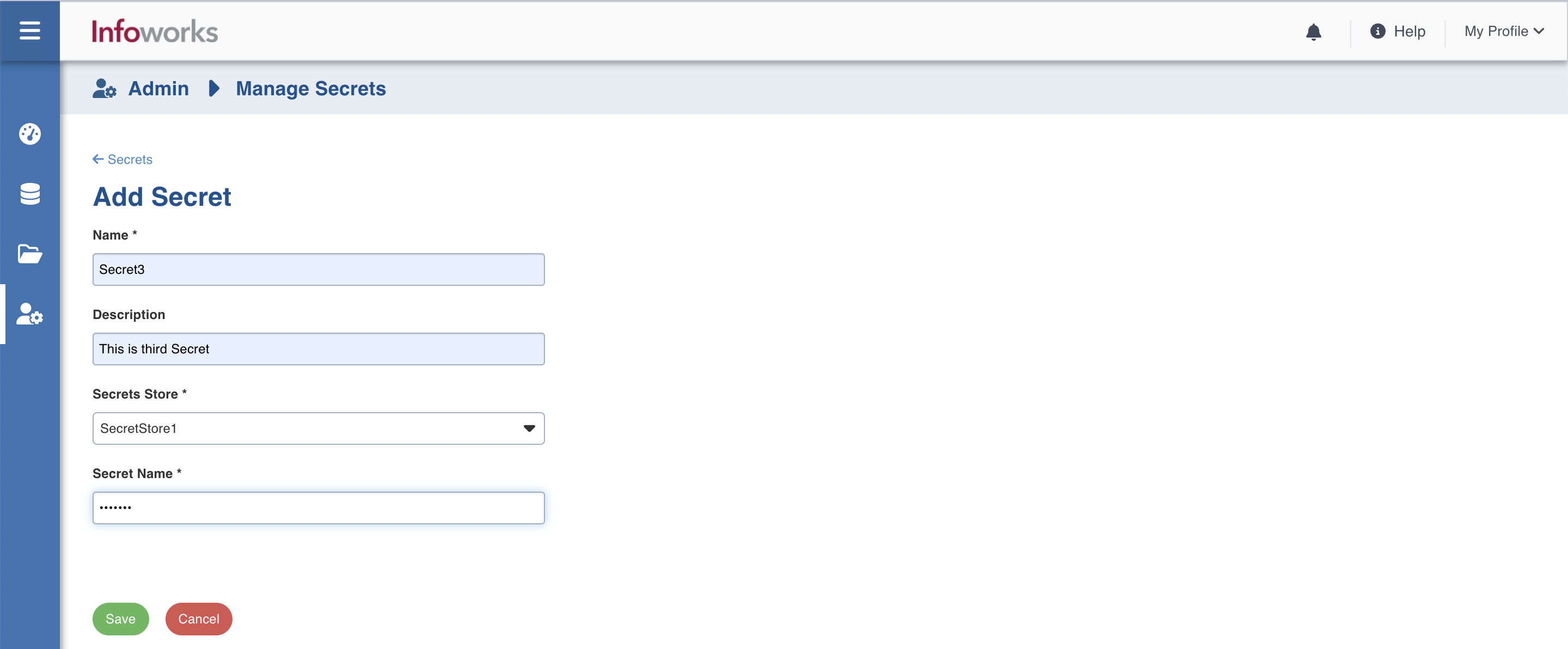
Step 4: Click Save. The Secret can now be used to retrieve passwords and other information.