
You can map or change the selected source table schema with any other Hive table used as a reference table using the Change Table Schema feature in the Inputs tab. This feature allows you to change the entire table schema.
If there are any updates to the schema of the original Hive table and if that table is being used in the pipeline, there will be a mismatch in schema of the pipeline source table and schema of the original Hive table. In case of schema mismatch, a warning icon is displayed on the pipeline editor page. When you click the warning icon, the dialogue box with a list of source nodes that are not in sync with the source tables is displayed.
Following are the steps to change the source table schema:
Double-click the source node in the pipeline and click the Inputs tab.
Click the Sync Table Schema button. The Table Schema Sync window is displayed.
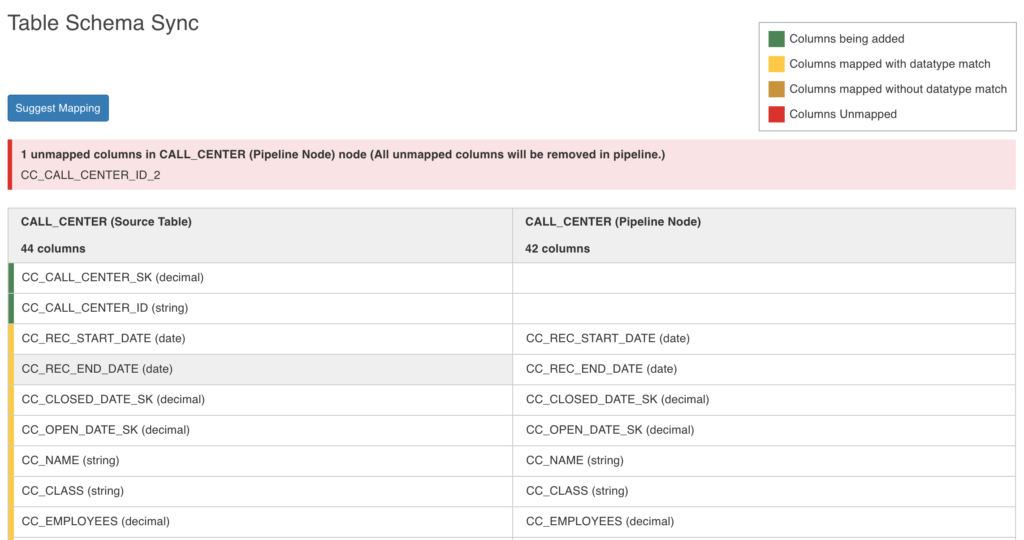
The columns on the left are the reference columns derived from the reference table (desired table schema) selected in the drop down. The columns on the right are the ones from the pipeline source table. Following are the color conventions used for the reference table columns:
Green highlight: Columns to be added (new columns)
Yellow highlight: Columns mapped with datatype match
Brown highlight: Columns mapped without datatype match
Red highlight: Columns to be removed
NOTE All the mapped columns from the left will take the flag available downstream from the corresponding mapped node columns. All unmapped audit columns will be excluded by default.
Click Suggest Mapping to sync the schema of the source node used in the pipeline. The derived column name will be empty for the mismatched column.
Click the Edit icon in the derived column list and select the column from the drop-down list.
Click Save.
NOTES
Once the source schema used in the pipeline is modified, you must run the ingestion job and click Generate Sample Data in order to get the updated sample and data in the pipeline.
You can disable this feature by setting the advanced configuration
PIPELINE_SOURCES_AUTO_SYNC_CHECK_DISABLED = true.