
The Filter transformation node allows you to filter the required data/columns from the connecting source table or other nodes.
Following are the steps to apply Filter node in pipeline:
Drag and drop the Filter node from the Transformations section to the pipeline editor page.
Connect the source node to the Filter node.
Double-click the Filter node. The properties page is displayed.
Click Add Filter, enter the following details and click Save.
Field | Description |
|---|---|
Column | The column on which the filter condition is to be applied. |
Operator | The operator of the filter operation to be performed on the column. |
Filter Values | The comparison value. |
You can add multiple filters and combine them using the Combine Condition option.
To add SQL filter query, select the Advanced filter type and click Edit Filter.
Enter the SQL query and click Save.
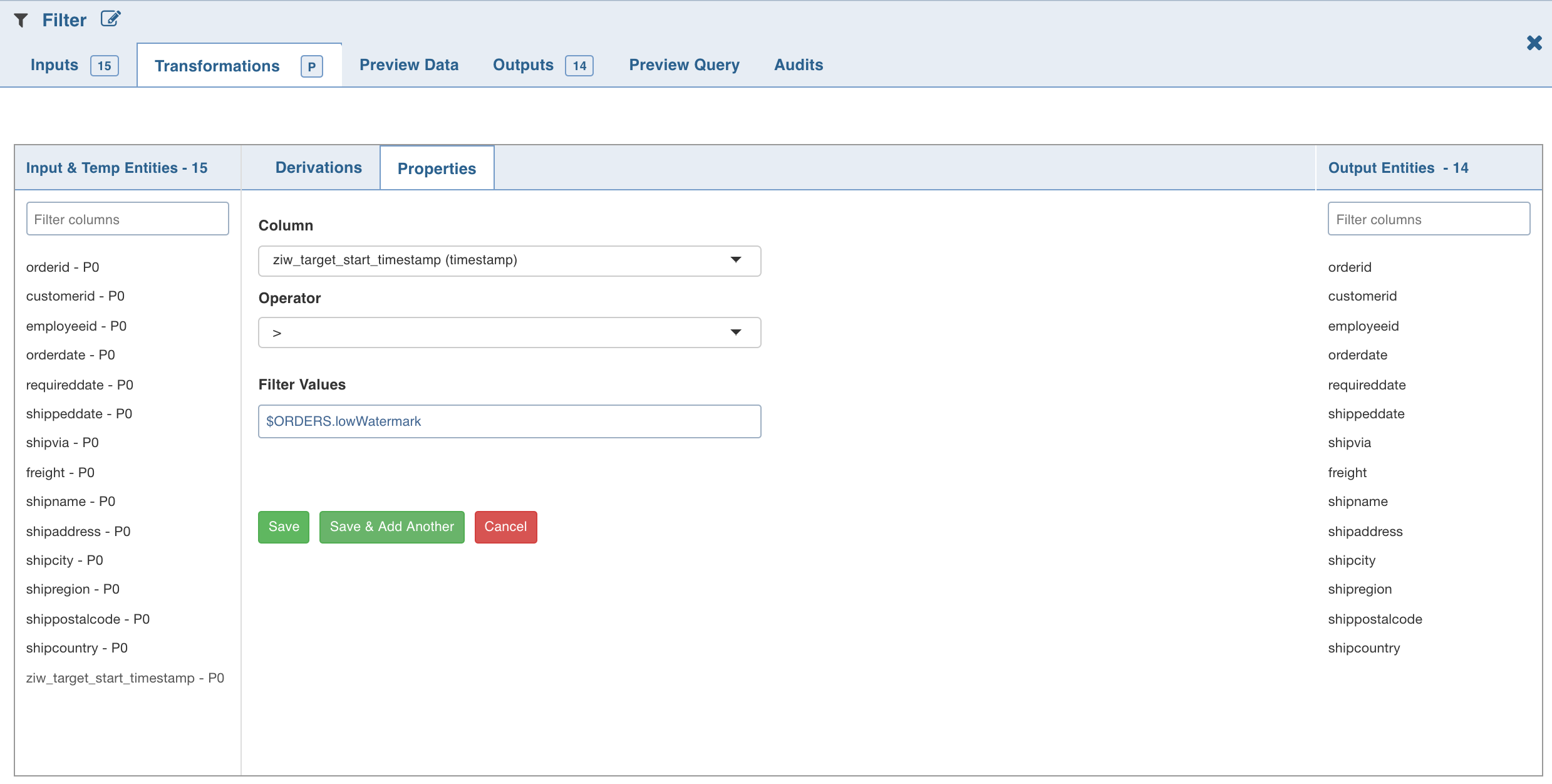
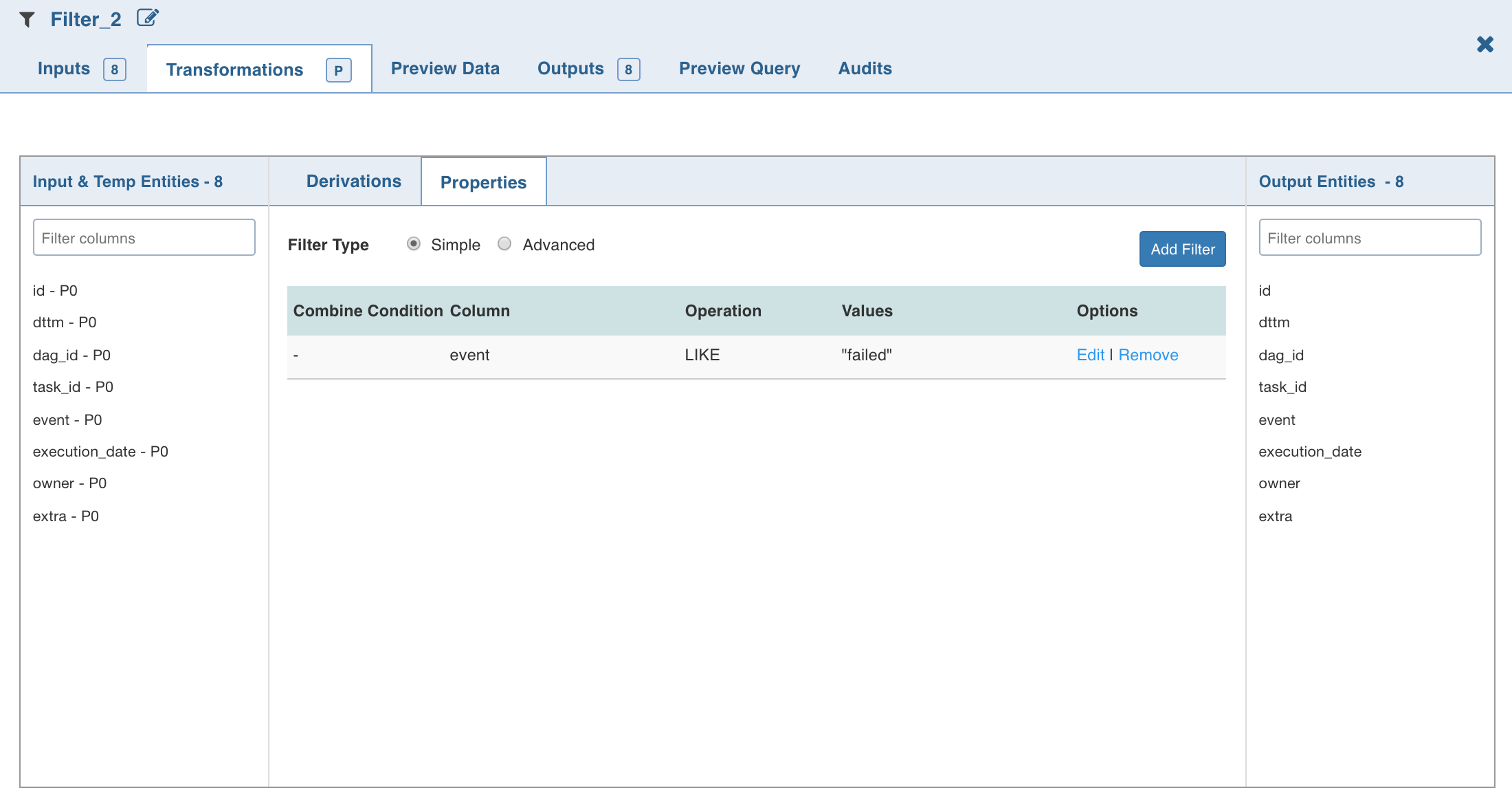
The added filters will be listed in the Properties section. The Properties section with the low and high watermark values will be displayed.
NOTE For details on derivations, see Derivations.