
Perform the following steps to ingest data:
Click the Ingest Data tab.
Select the tables to be ingested and click the Ingest button.
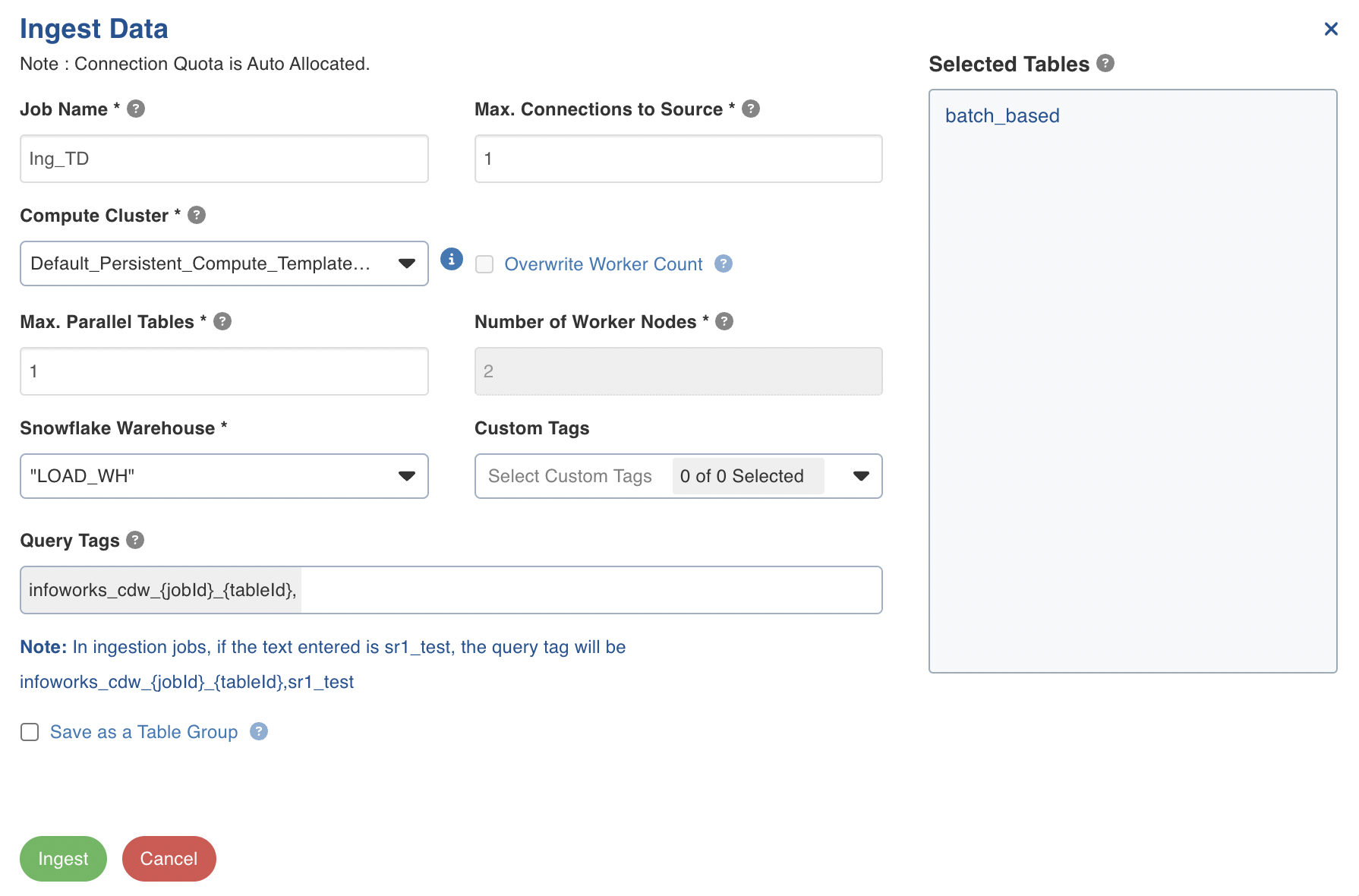
In the Ingest Data wizard, enter the ingestion details and click Ingest.
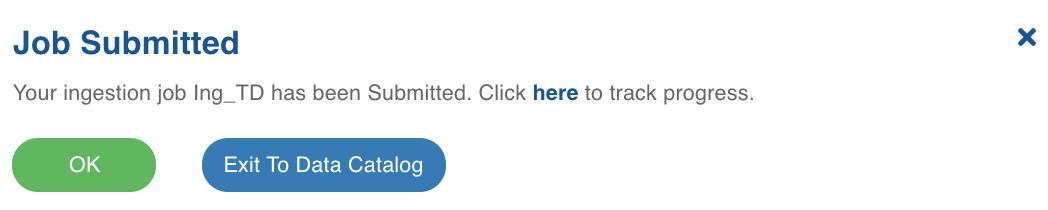
Click OK in the Job Submitted pop-up window.
Ingestion Details
Field | Description |
|---|---|
Job Name | The name of the ingestion job. |
Max. Connections to Source | The maximum number of source database connections allocated to this ingestion table group. |
Max. Parallel Tables | The maximum number of tables that can be crawled at a given instance. |
Compute Template | The template based on which the cluster will spin up for each table. |
Overwrite Worker Count | The option to overwrite the minimum and maximum worker values configured in the compute template. |
Min Workers | The minimum number of nodes that will spin up in the cluster. |
Max Workers | The maximum number of nodes that can be spun up in the cluster. |
Number of Worker Nodes | The number of nodes that can be spun up in the cluster. |
Snowflake Warehouse | This field appears only if the Data Environment selected in a CDW env. For e.g. Snowflake. Select from the list of associated warehouses. |
Query Tags | A string that is added to the Snowflake query and can be accessed via Query history in Snowflake. NOTE This field appears only if the source is using Snowflake CDW environment |
This allows specifying lower and upper watermark (not as offset) for a particular run. The default upper bound is the maximum of the watermark column(s) which can be changed by the user. For lower limit, the last ingested cdc value is the default.
NOTE The watermark values from the restatement job will not be updated in the table.
For running new restatement jobs on 6.0.0 using databricks environment, after upgrading from lower release (5.5.1.x), user need to remove existing jars from old cluster and then restart the cluster for using the same or user can create a new cluster for running the jobs.
