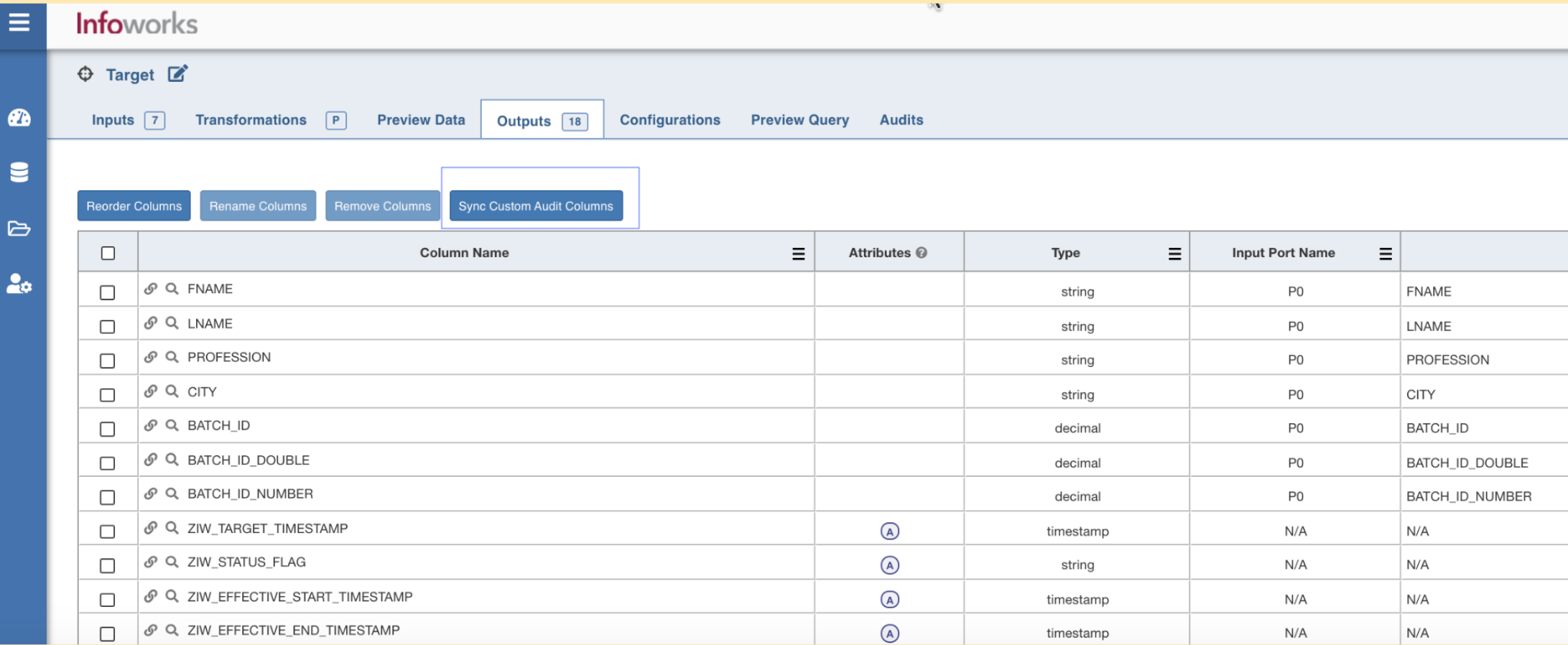
The Custom Audit Columns feature allows you to add, edit, delete the additional columns of a Source or a Pipeline, for auditing purposes. You can sync the custom audit columns for Pipelines only.
NOTE The custom audit columns that are added apply to all target tables. For pre-existing tables, you must truncate, recrawl, and re-ingest the tables. The custom audit columns are automatically added for new pipeline targets.
Add Custom Audit Columns for Sources
To add the custom audit columns, perform the following steps:
Select Custom Audit Columns from the Administration menu on the left navigation panel.
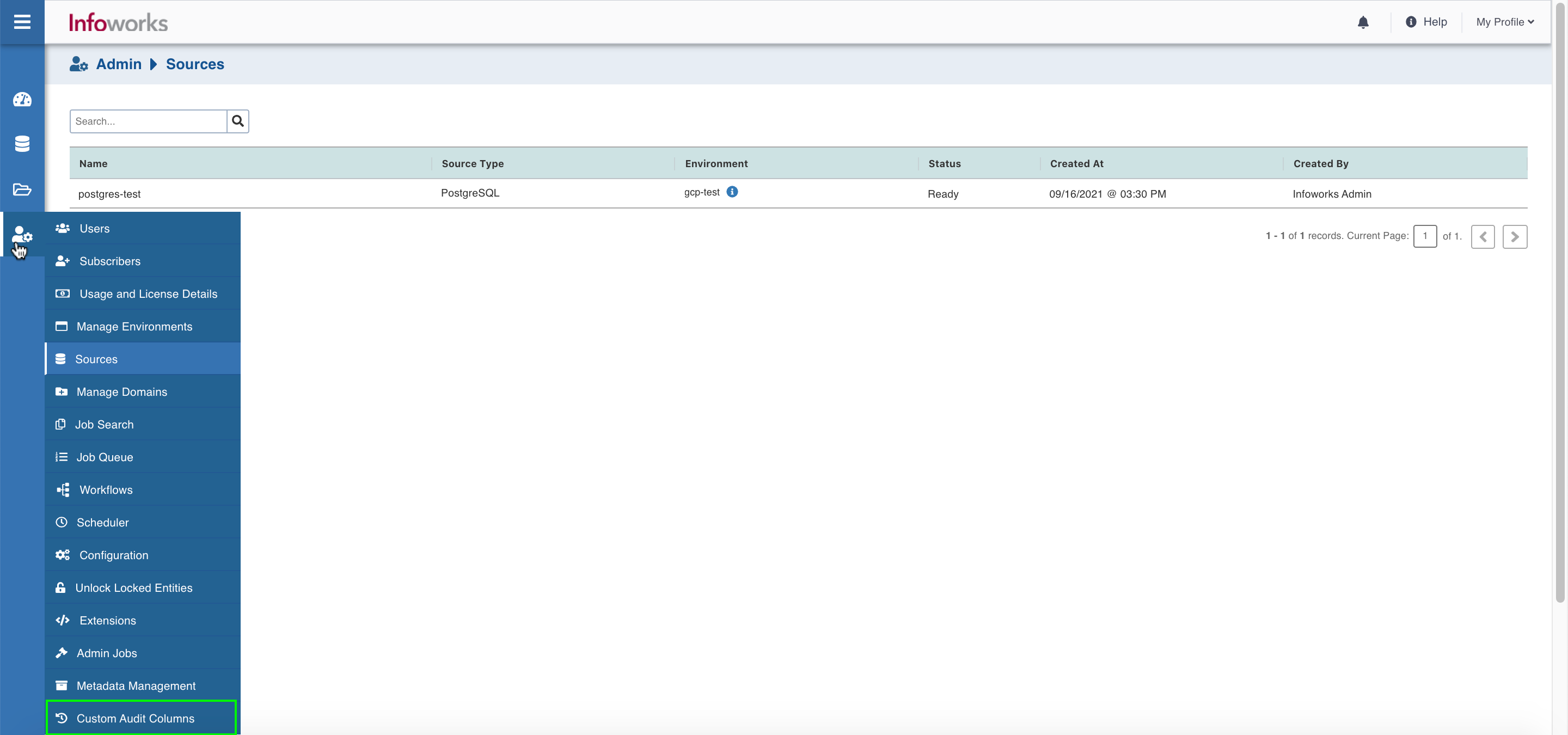
Click Add Custom Audit Columns.
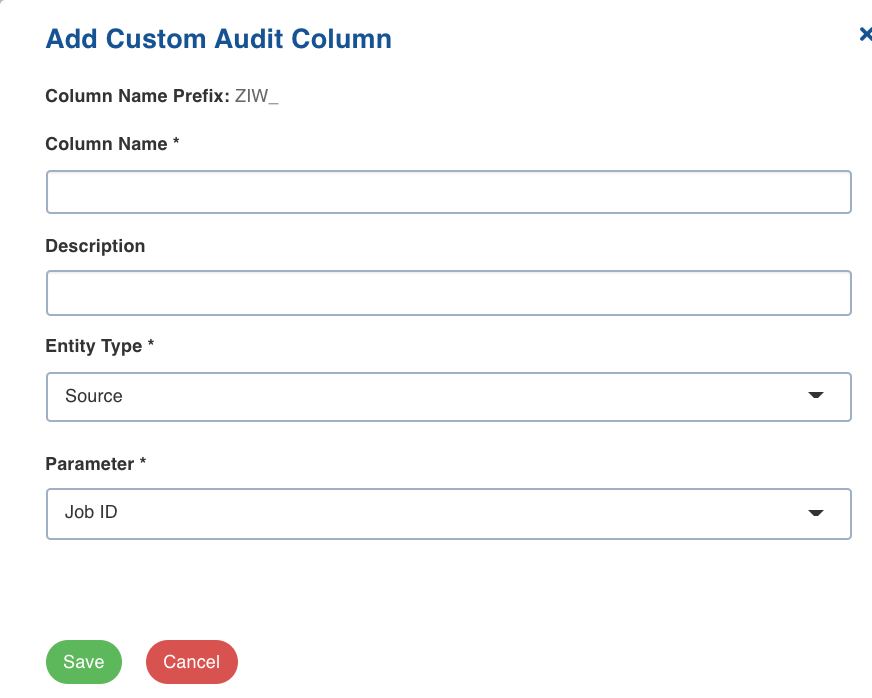
Enter the following fields in the Add Custom Audit Columns screen.
Field | Description |
|---|---|
Column Name | Enter the name of the audit column that you are adding. By default, the column name appears with the prefix ZIW. |
Description | Enter a description for the column. |
Entity Type | Select Source from the drop-down menu. This is the entity that the column will apply to. |
Parameter | Select a parameter from the drop-down menu. This is the information that will be written to the column. |
You can add the following parameters for the sources:
Parameter | Description |
|---|---|
Job ID | The last Job ID that processed the record. |
Schema name | The schema name of the source table. |
Source ID | The Source ID of the table. |
Table ID | The Table ID of the table. |
Workflow ID | The Workflow ID of the table. |
Workflow Run ID | The workflow ID of the record that is processed. |
Source Name | The source name of the table. |
Table Name | The table name where the custom audit column is added. |
Click Save to save the changes.
View the Change History of the Custom Audit Columns
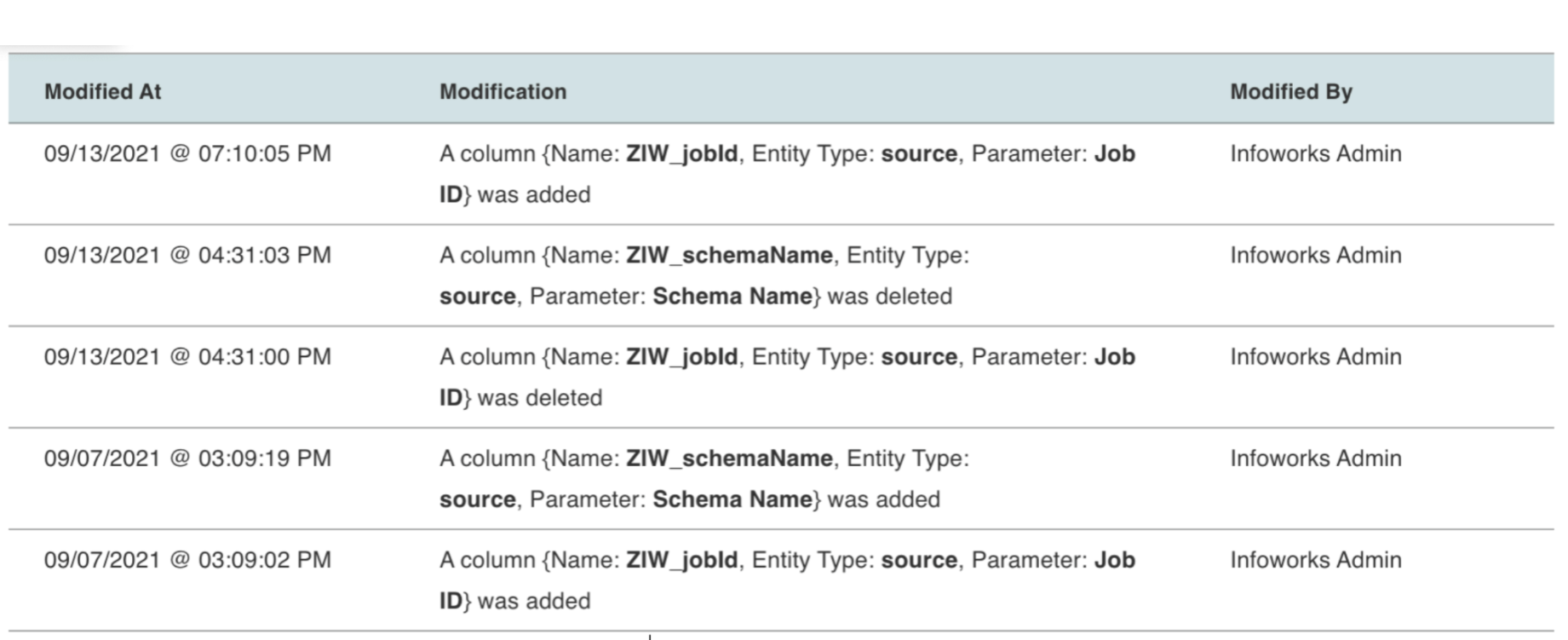
To view the change history of the audit columns, click View Audits. The Audits for Custom Audit Columns screen appears.
NOTE Only the newly added and deleted audit columns appear in the change history.
Edit the Custom Audit Columns
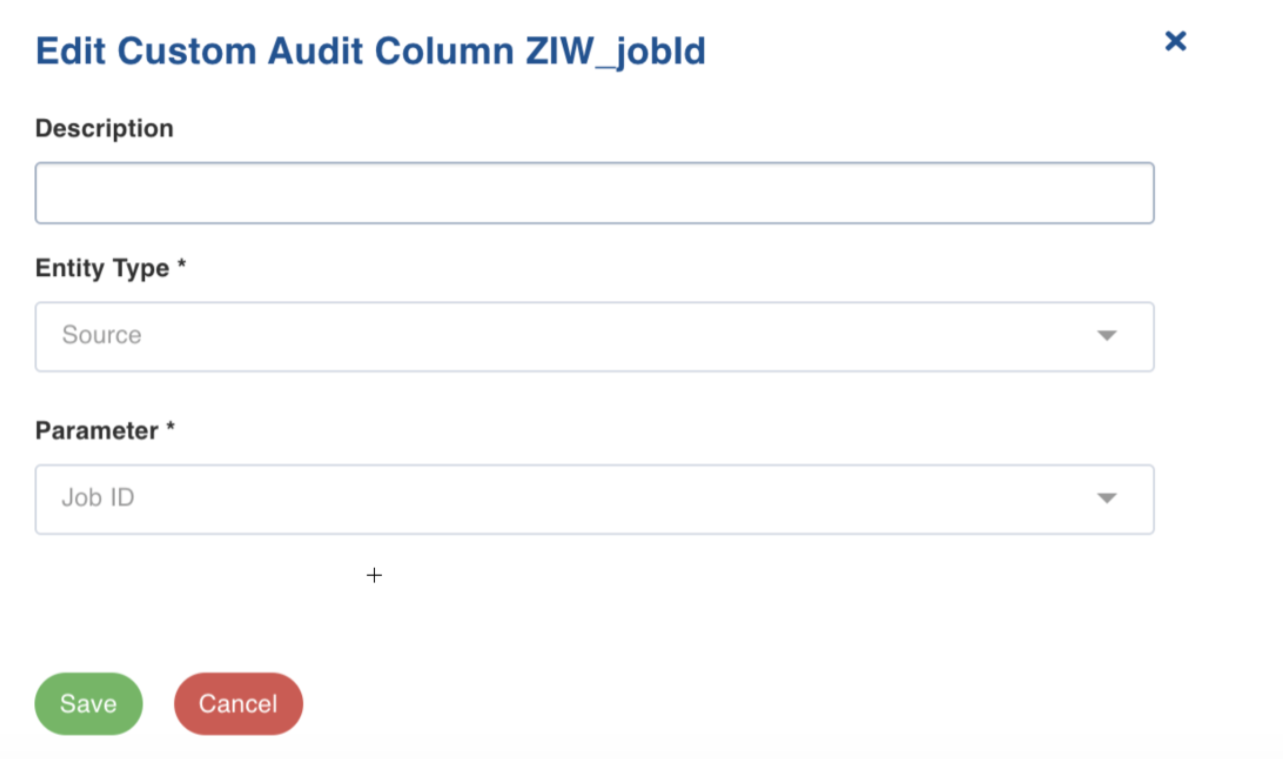
You can edit only the description of an Audit column.
To edit the description, perform the following steps:
Select the Edit icon under the Actions column in the Custom Audit Columns screen.
Update the Description in the Edit Custom Audit screen.
Click Save. The details are updated.
Delete the Custom Audit Column
To delete the custom audit column, perform the following steps:
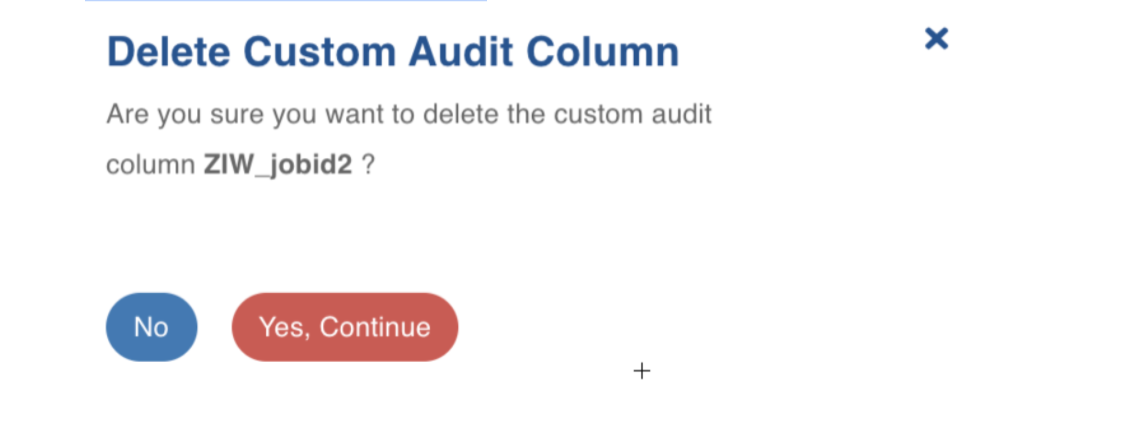
Click the Delete icon in the Actions column in the Custom Audit Columns screen.
Click Yes to continue in the confirmatory dialog box that appears. The Audit column is deleted.
Sync Custom Audit Columns for Sources
NOTE For Kafka, JSON, and Confluent sources there is no recrawl and truncate options available for custom audit columns.
Perform the following steps for these sources to sync the custom audit columns.
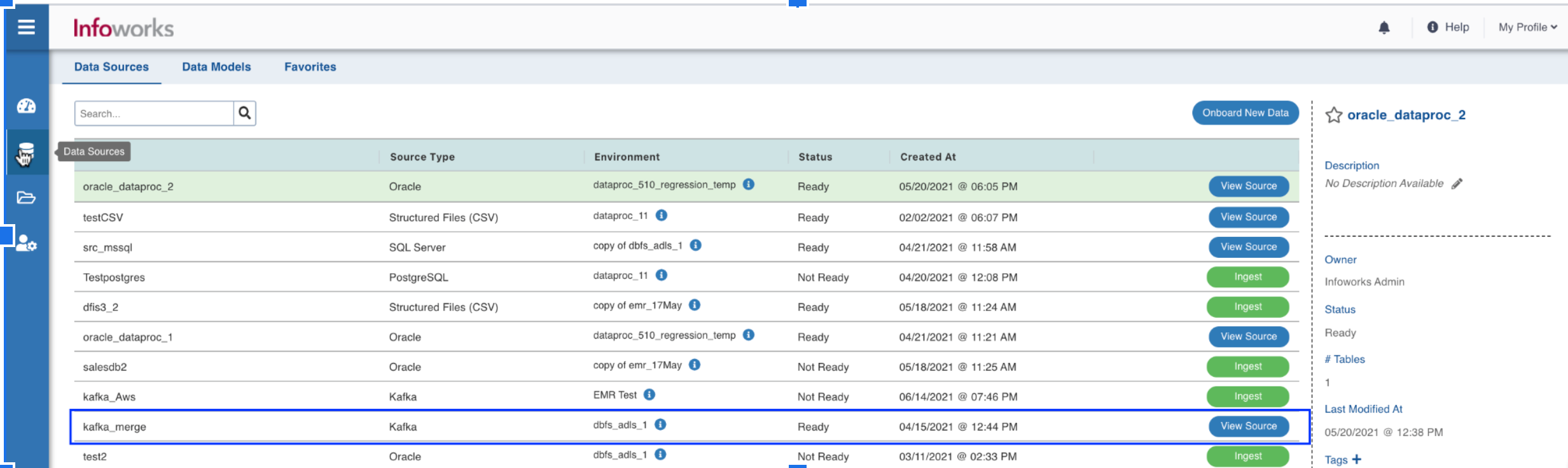
Navigate to one of the Kafka, JSON, or Confluent sources.
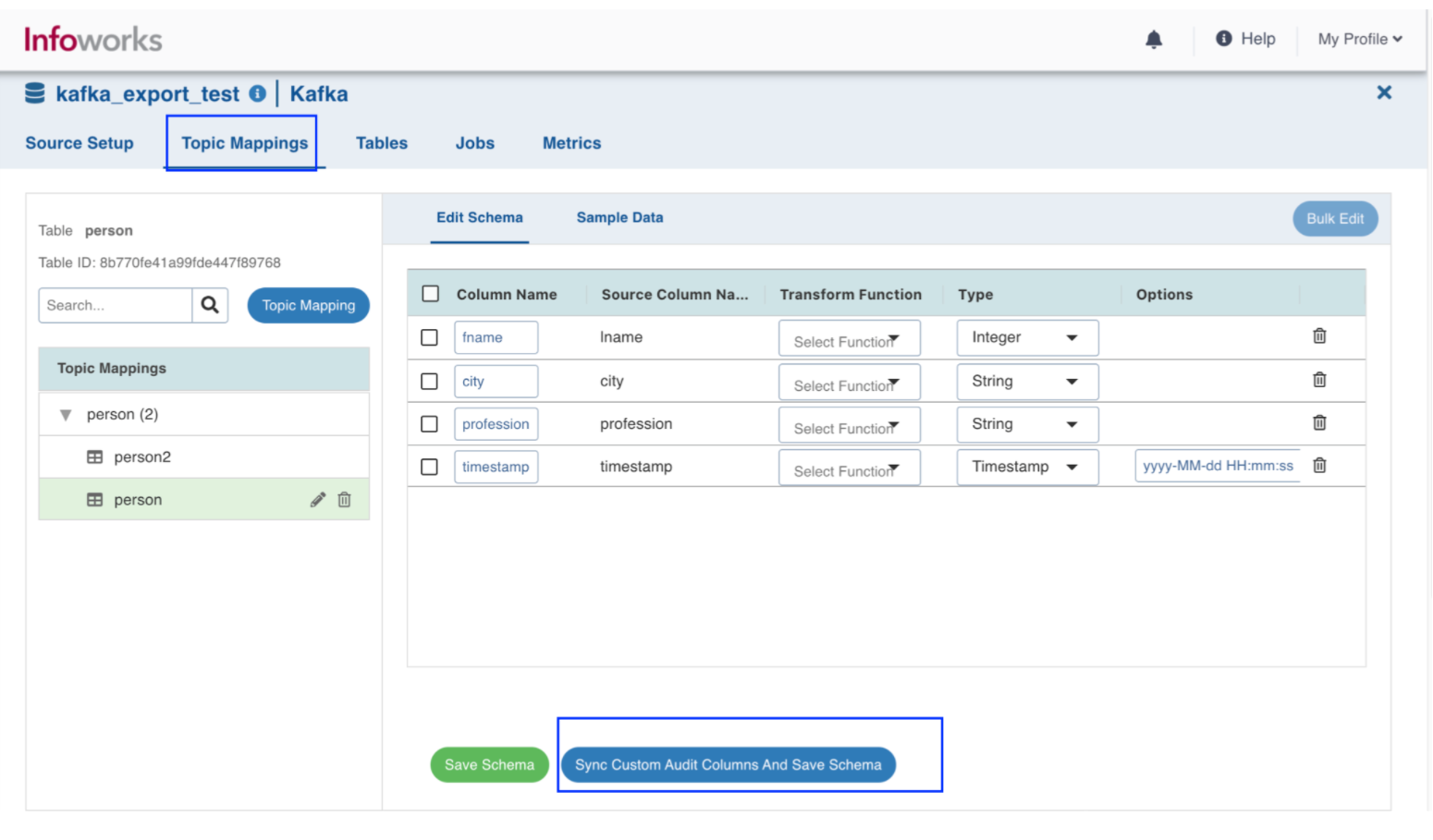
Click Topic Mappings on the top navigation panel.
NOTE For JSON source, you must click File Mappings.
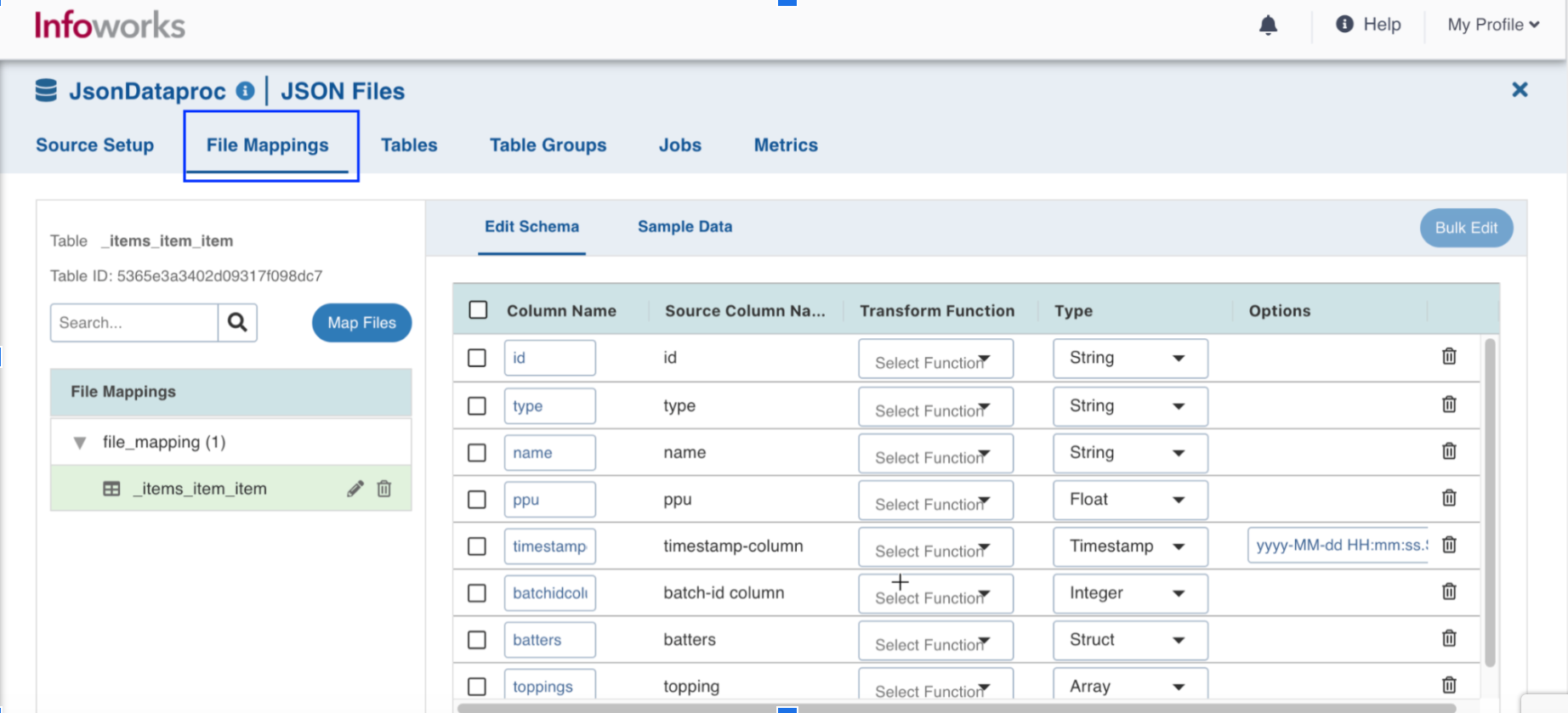
Select the Topic Mappings to be updated and edit the columns in the schema under Edit Schema.
Click Sync Custom Audit Columns and Save Schema. The audit columns are synced and the schema defined is saved.
Add Custom Audit Columns for Pipelines
To add the custom audit columns, perform the following steps:
Select Custom Audit Columns from the Administration menu on the left.
Click Add Custom Audit Columns.
Enter the following fields in the Add Custom Audit Columns screen.
Parameter | Description |
|---|---|
Column Name | Enter the name of the audit column that you are adding. By default, the column name appears with the prefix ZIW. |
Description | Enter a description for the column. |
Entity Type | Select the Pipeline from the drop-down menu. This is the entity that the column will apply to. |
Parameter | Select a parameter from the drop-down menu. This is the information that will be written to the column. |
You can add the following parameters for Pipelines:
Parameter | Description |
|---|---|
Job ID | The last Job ID that processed the record. |
Pipeline ID | The Pipeline ID of the target table. |
Workflow ID | The Workflow ID of the target table. |
Workflow Run ID | The workflow Run ID of the Pipeline that is processed. |
Click Save to save the details.
Sync Custom Audit Columns for Pipelines
You must perform this procedure to sync the pipeline targets whenever a custom audit column is added or deleted.
To sync the custom audit column, perform the following steps:
Select Domains from the left navigation panel.
Select one of the domains and the pipelines from the list.
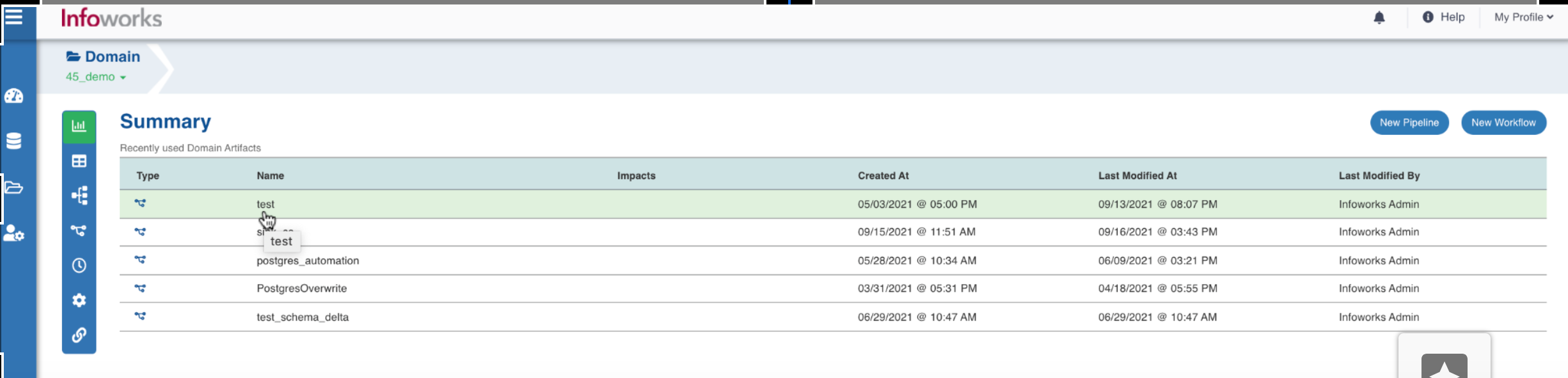
Click Open Editor at the top right corner.
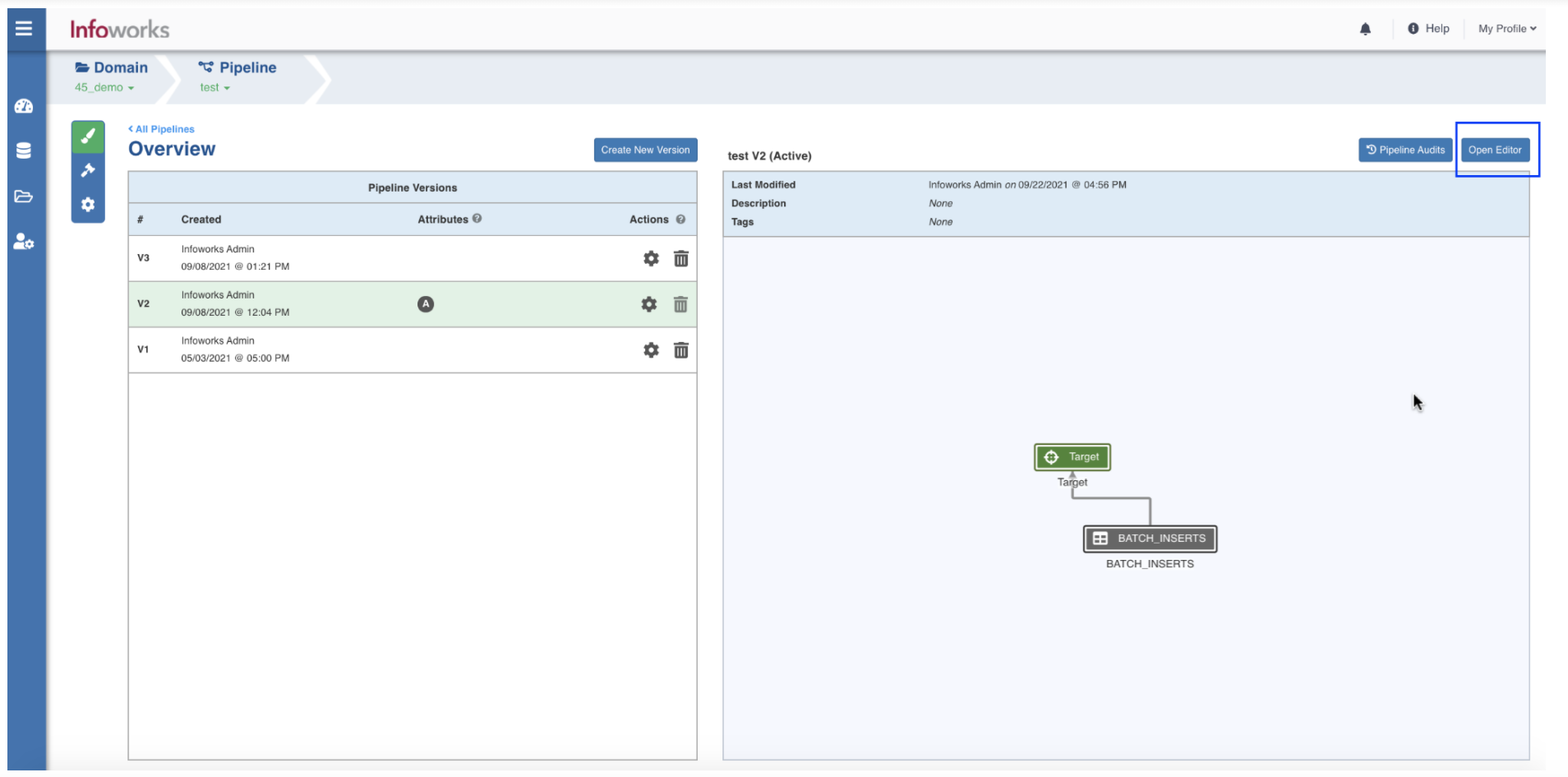
Double-click the Target on the editor and navigate to the Outputs tab.
Click Sync Custom Audit Columns. The custom audit columns are synced successfully.