
Postgres is a powerful, open-source object-relational database system that uses and extends the SQL language combined with many features that safely store and scale the most complicated data workloads.
The process to export data to a Postgres DB is described in the following sections:
Define the Postgres Target Data Connection > Create a Pipeline to Add Postgres Node > Export the Data
Define the Postgres Target Data Connection
The following are the steps to configure a Postgres data connection:
Navigate to the required domain and click the Target Data Connections icon.
Click Add Connection.
In the Add Data Connection page, provide the following connection details.
Click Save.
Field | Description |
|---|---|
Type | The type of target data connection. Select Postgres. |
Name | The name for the target data connection. The connection name must be unique across the specific domain. |
Description | The description for the target data connection. |
JDBC URL | The JDBC URL to connect to the Postgres database. The URL must be of the following format: jdbc:postgresql://<host>:<port>/<database_name> |
User Name | The username of the Postgres target account. |
Password | The password of the Postgres target account. |
Additional Params | The optional JDBC parameters. |
Create a Pipeline to Add Postgres Node
Following are the steps to add a new pipeline to the domain:
Click the Domains menu and click the required domain from the list. You can also search for the required domain.
Click the Pipelines icon.
In the Pipelines page, click the New Pipeline button.
Enter the following details.
Click Save. The new pipeline will be added to the list of pipelines.
Field | Description |
|---|---|
Name | Unique name for the pipeline. |
Description | Description for the pipeline. |
Execution Engine | Select the Execution Engine as Spark. |
Machine Learning Library | Select SparkML____. |
Cluster Templates for Batch Mode | Select the default cluster template. |
Design a Pipeline
Following are the steps to design a pipeline:
In the Pipelines page, click the new pipeline created. The Overview page is displayed with the pipeline version details and a blank design space.
Click Open Editor or click on the blank design space to open the editor page.
From the left panel, drag and drop the required Source tables from the Datalake Tables tab, and Postgres Target node from the Transformations tab, to the pipeline editor and connect them to design a pipeline.
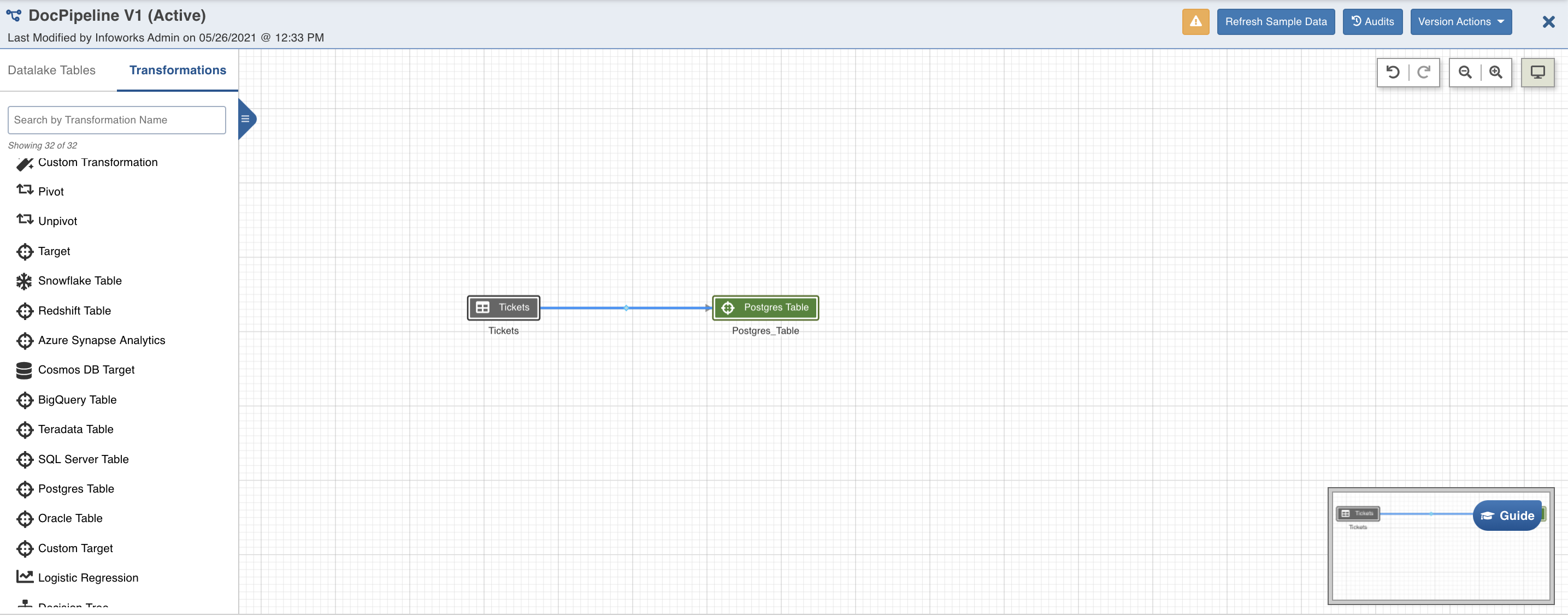
Postgres Target Node Configuration
Following are the steps to apply Postgres Table Target node in pipeline:
Double-click the Postgres Table node. The Properties page is displayed.
Click Edit Properties.
Click Save.
Field | Description |
|---|---|
Build Mode | The options include overwrite, append or merge. Overwrite: Drops and recreates the Postgres target. Merge: Merges data to the existing table based on the natural key. Append: Appends data to the existing Postgres target. Insert-Overwrite: Overwrites all the rows based on combination of natural keys (OR condition) and inserts new rows. |
Data Connection | The data connection created in the " Define the Postgres Target Data Connection" step for Postgres Target. |
Schema Name | The name of the existing schema in the Postgres database. |
Create a schema if it does not exist | Enable this option to create a new schema with the name provided above. Ensure that the user has sufficient privileges to create a schema in Postgres. |
Table Name | The table name for the Postgres target. |
Natural Keys | The required natural keys for the Postgres target. This is the combination of columns to uniquely identify the row. |
Is Existing Table | When enabled, existing table behavior works as an external table to Infoworks. The table will not be created/dropped or managed by Infoworks. |
Partition Type | The type of partition for the table. By default, the Partition Type is set to None. You can also select the following partition types: List: Table is partitioned according to the listed values. If the table’s relevant columns contain data for a particular list, then the List partitioning method is used in these tables. Range: Table is partitioned according to the specific date and number range. Each partition has an upper and lower bound, and the data is stored in this range on partitions. Hash: Hash partitioning divides partitions using a hashing algorithm that partitioning key is applied that you identify. |
Partition Column | The column based on which the data will be partitioned. This field is displayed for the list, range, and hash partition types. |
Is Default | The condition to use the default partitioning for the child partition. This field is displayed for the list partition type. Default partition is supported only for list partition. |
Child Partition Table | The name of the child partition table. This field is displayed for the list, range, and hash partition types. You can add multiple child partition tables. While creating the child partition tables, make sure that of each row of source dataset is mapped to anyone of the child partition. If a row does not have a matching child partition, it will fail. |
Values | The values based on which the child partition will be created. |
Min | The minimum value for the range. This field is displayed for the range partition type. |
Max | The maximum value for the range. This field is displayed for the range partition type. |
Partition Modulus | The modulus for hash partition. This field is displayed for the hash partition type. |
Remainder | The remainder associated with the child partition. This field is displayed for the hash partition type. |
Index Type | The indexing option. By default, the Index Type is set to None. You can also select the following Index types: Hash: Can be used where equal comparison is more important. You can only look up for data that matches exactly. BTree: Is used for the data that can be sorted and can handle equality and range queries. GIST: This option is used when the data to be indexed is more complex. SP-GIST: This option is used when the data can be grouped into non-overlapping groupings. GIN: This option is used when indexing data that consists of multiple elements in a single column such as arrays, json documents (jsonb) or text search documents (tsvector). BRIN: This option is used for large size tables that have columns with some natural sort order. **Note:**GIST, SP-GIST, GIN indexes are not supported with primitive datatypes. Following datatypes can be used with these indexes:
|
Index Column | The index columns for the target table to be created. |
Is Unique Index | Enable this option to define a unique constraint on the btree index. This field is available only for BTree type indexing. Note: Unique constraints on partitioned tables must include all the partition key columns. |
Sync Table Schema | The option to synchronise pipeline export table schema with source table schema. |
NOTE Natural columns in Postgres merge must uniquely define rows in the target table. If you are using an existing table, ensure that unique indexes are created using natural columns. For non-existing tables, Infoworks creates unique indexes using natural columns during the first build. If you are changing an already built postgres target from Overwrite mode to Merge mode, ensure that unique indexes are already created using natural keys.
Export the Data
Following are the steps to build a pipeline:
Navigate to the required pipeline and click the Build icon.
Select the Version and click Build Pipeline to build the pipeline version.
You can click the Build Target Metadata button to enable import of multiple, sequential pipelines with export configuration.
Click any of the existing builds under the Recent Builds section to view the detailed information of the job. You can view the summary. You can also download logs of the job.
Supported Datatype Mappings
Below is the list of supported source datatypes and their mapping to Postgres datatypes
Spark Datatype | Postgres Datatype |
|---|---|
DecimalType | decimal |
NUMBER | int |
FloatType | float |
DoubleType | float |
LongType | bigint |
StringType | text |
DateType | date |
TimestampType | timestamp |
ArrayType | array |
BooleanType | boolean |