
Setting Source-Level Configurations
Following are the steps to set advanced configuration for a source:
Click the Data Catalog menu and click Ingest for the required source.
NOTE For an already ingested table, click the View Source button.
Click the Source Setup tab and scroll down to the Advanced Configuration section.
Click Add Configuration.
Enter key, value, and description. You can also select the configuration from the list that appears.
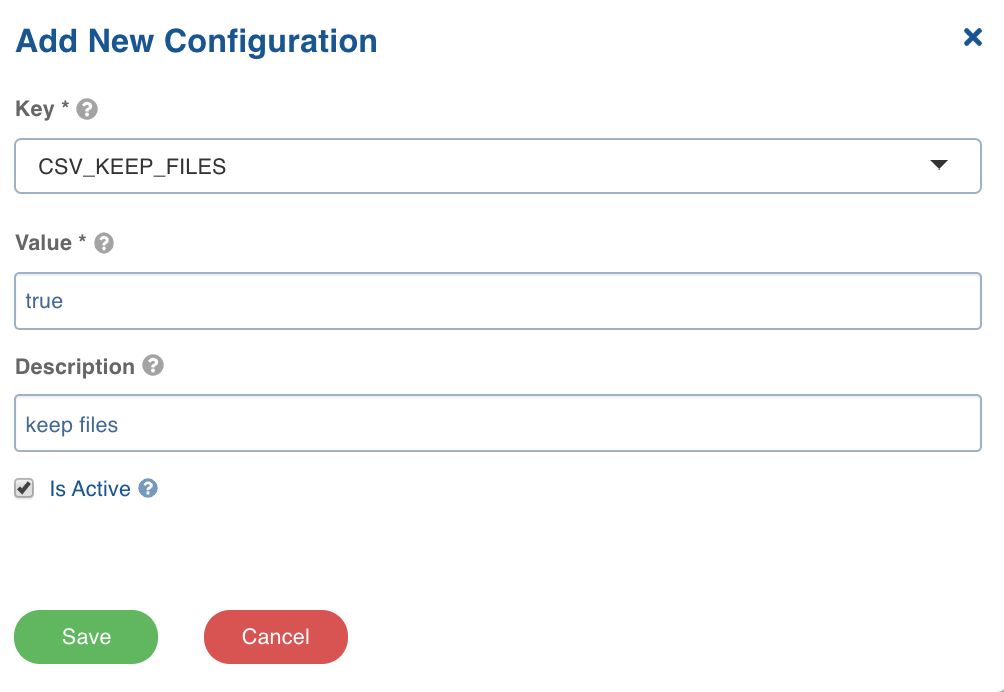
Click Save.
LIMITATION In Databricks persistent clusters, to set spark configurations on cluster level, the user will need to set the spark configurations on cluster and then restart the cluster with these configurations set. This is limitation from Databricks side.
Setting Table-Level Configurations
Following are the steps to set advanced configuration for a table:
Click the Data Catalog menu and click Ingest for the required source.
NOTE For an already ingested table, click View Source, click the Tables tab, click Configure for the required table and click the Advanced Configuration tab.
Click the Configure Tables tab, click the Advanced Configuration tab and click Add Configuration.
Enter key, value, and description. You can also select the configuration from the list that appears.
LIMITATION In Databricks persistent clusters, to set spark configurations on cluster level, the user will need to set the spark configurations on cluster and then restart the cluster with these configurations set. This is limitation from Databricks side. Setting spark configurations as advanced config will not work in case the compute is databricks-persistent cluster.