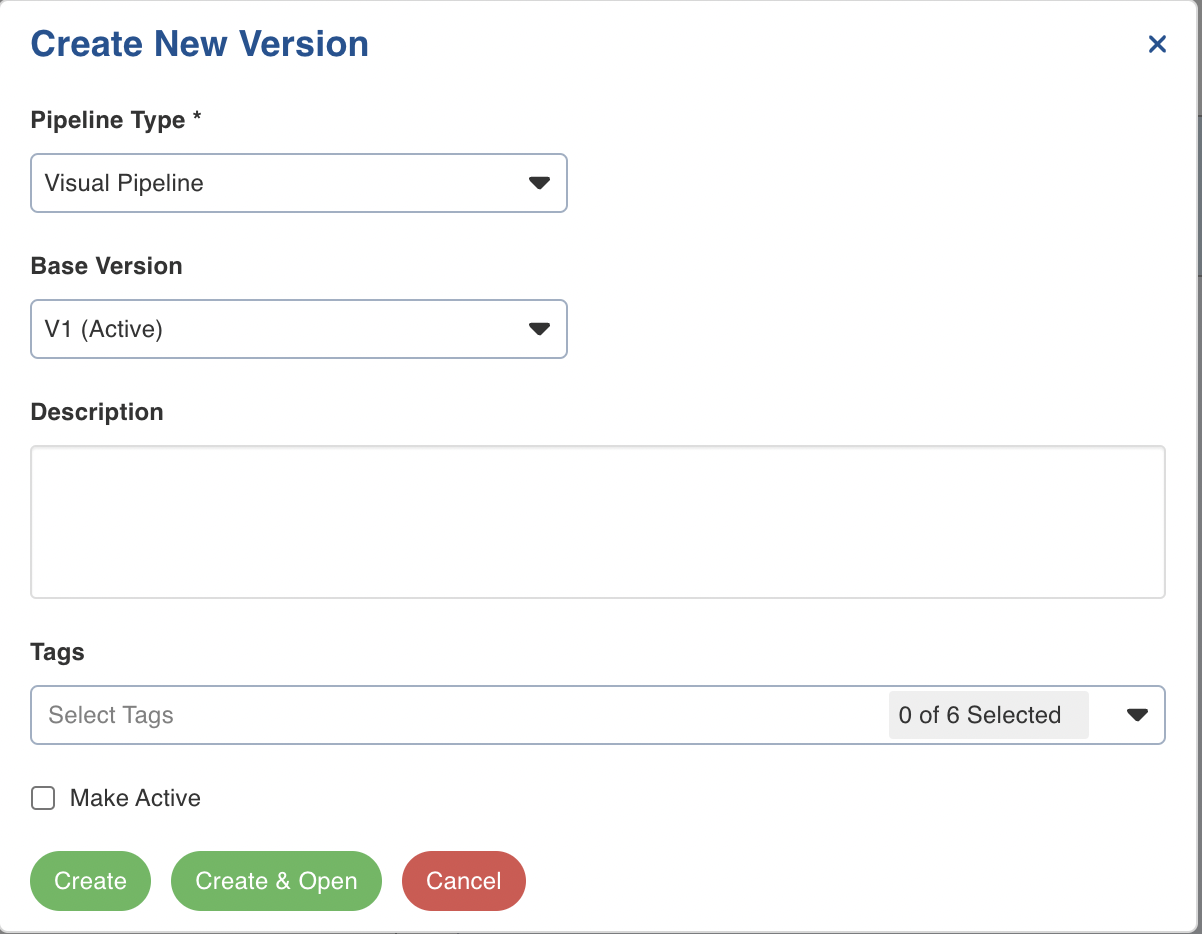
Following are the steps to create a new pipeline version:
Navigate to the required pipeline and click the Create New Version button.
You can also navigate to the Version Actions > Create New Version option in the pipeline editor.
Enter the following details:
Field | Description | Details |
|---|---|---|
Pipeline Type | This field indicates the type of new pipeline version | You can select either of the following Pipeline Type: Visual Pipeline and SQL Pipeline. |
Base Version | The base version from which the metadata will be copied to the new version being created. | Select the required base version. |
Description | The description for the pipeline version. | Enter a description for the pipeline version. |
Tags | The tag for the pipeline version. | The options include In Progress, Stable, Active in Production, Duplicate, Successful Build, and Failed Build. |
Make Active | The option to make the new version active. | Check the box to make the version active. |
Click Create or Create and Open.