This functionality allows you to get the metadata of already existing snowflake tables, so that they can be used in pipelines downstream and can be used in conjunction with tables ingested from other sources.
Creating a Snowflake Source
The following are the steps to create a Snowflake source:
In the left navigation pane of Infoworks UI page, click the Data Sources icon.
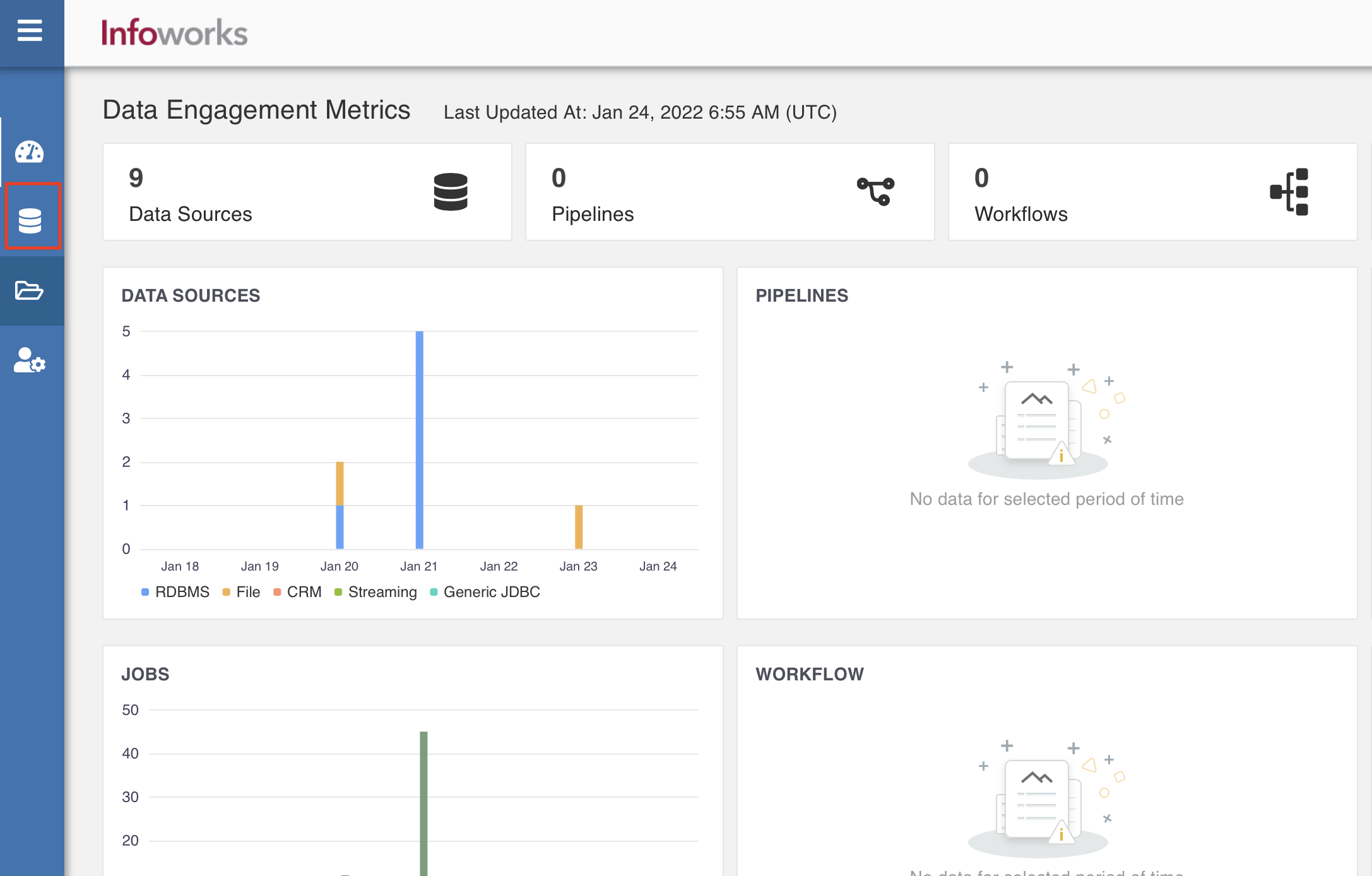
Click Onboard New Data. The Source Connectors page appears with the list of all available connectors.
In the Search... bar, type Snowflake Metadata Sync_._
Click the Snowflake Metadata Sync connector. The configuration page of the connector appears.
NOTE Snowflake metadata sync source can only be created on a snowflake environment.
Configuring a Snowflake Source
The following are the steps to configure a Snowflake source:
Configure Source & Target
In the Configure Source & Target page, enter the following configuration details.
Field | Description |
|---|---|
Source Name | Provide a source name for the target table. |
Fetch Data Using | The mechanism through which Infoworks fetches data from the database. Default option is JDBC. |
Data Environment | Select the environment where the tables are registered. Infoworks will spawn a spark session in the persistent cluster running in the environment and fetch all the tables registered. NOTE The dropdown list shows only the available snowflake environments |
Temporary Storage | Select from one of the storage options defined in the snowflake environment. |
Connection URL | The connection URL through which Infoworks connects to the database. NOTE Connection URL is pre-filled from the selected snowflake environment. Editing the connection url isn't permitted. |
Base Location | The path to the base/target directory where all the data should be stored. |
Snowflake Warehouse | Snowflake warehouse name. For example, sales. NOTE This field is pre-populated from the selected snowflake environment, and is editable. |
Account Name | The Snowflake account name. NOTE Account Name is pre-filled from the selected snowflake environment, and cannot be edited. |
User Name | Username of the snowflake account. NOTE Username is pre-filled from the selected snowflake environment, and cannot be edited. |
Additional Parameters | Additional Parameters added while configuring the snowflake environment. NOTE Additional parameters are pre-filled, and cannot be edited. |
Make available in infoworks domains | Select the relevant domain from the dropdown list to make the source available in the selected domain. |
Click Save button. Click Next.
Select Tables
You can select the tables for which the metadata crawl is required. You can add more tables later.
In the Select Tables step, you can choose to Browse entire source or Filter tables to browse.
Filter the tables by Schema Name, Table Name, by entering multiple names separated by comma or by using a "%" as a wildcard.
Click Browse Source. The Browse source area appears.
NOTE The Browse Source page takes longer to appear as the value of bulk_payload_record_size is set to 6500, by default.
For the tables to appear quickly, scroll down to the Advanced Configurations section, and set the value of bulk_payload_record_size to 100. The value can be changed at admin and source levels.
Select the check boxes against the relevant table(s), and click Add Selected Tables.
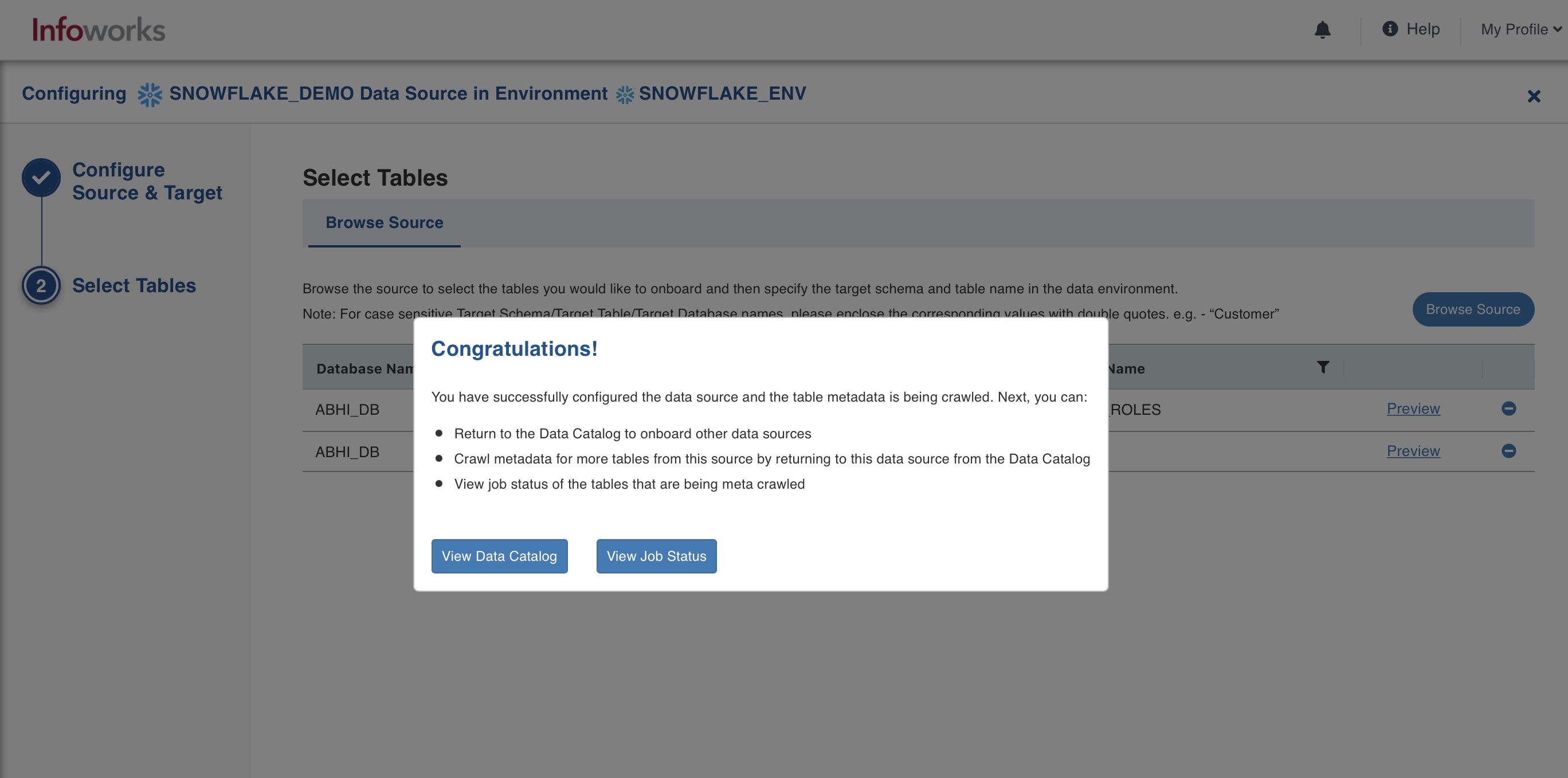
Click Crawl Metadata to proceed. A success message appears.
Metadata crawl has been triggered. To view the job status, click View Job Status.