
The Confluent Cloud™ is a fully-managed streaming data service based on open-source Apache Kafka. With Confluent Cloud, you can now accelerate and build mission-critical streaming applications based on a single source. You can easily deploy a single cloud cluster or a solution that supports and spans multiple cloud providers and CDW as well as data lake deployments.
Features
Ingest data from multiple topics into single or multiple tables through Topic Mapping using Confluent Cloud platform.
Ingest data in Batches or Real Time, using Spark Streaming.
View snapshot of the configured topics under Topic Preview in Raw or Structured format.
Visual Schema Projection to create tables from a subset of data.
Ingestion Flow
Infoworks creates a Confluent Cloud consumer from the topics based on the user provided configurations.
The consumer reads records from topic(s) based on the configuration provided under Topic Mappings.
A configurable number of messages are read, and the schema for those records is crawled.
Messages are crawled using Spark Structured Streaming, which converts messages into dataframe, and are appended continuously.
Based on the configurations like storage format, and path to the output directory, a delta target table is populated.
Prerequisites
Confluent Cloud supports records in JSON, AVRO, and PROTOBUF format only.
Confluent Cloud ingestion cannot be integrated into a workflow as it is a near real time continuously streaming job.
Creating Confluent Cloud Source
For creating a Confluent source, see Creating a Source. Ensure that the Source Type selected is Confluent Cloud.
Configuring the Confluent Cloud Source
Select the Confluent Cloud data source that is created.
The configuration flow is organized into four tabs as follows:
NOTE Ensure to complete configuring the details in each tab. Further, click on the next tab name displayed on the top of the screen, to complete the Confluent Cloud configuration.
LIMITATION For ingestion from Azure Event Hub using OAuth, ingestion job for confluent (while using OAuth) should be submitted to a non interactive cluster.
Set Up Source
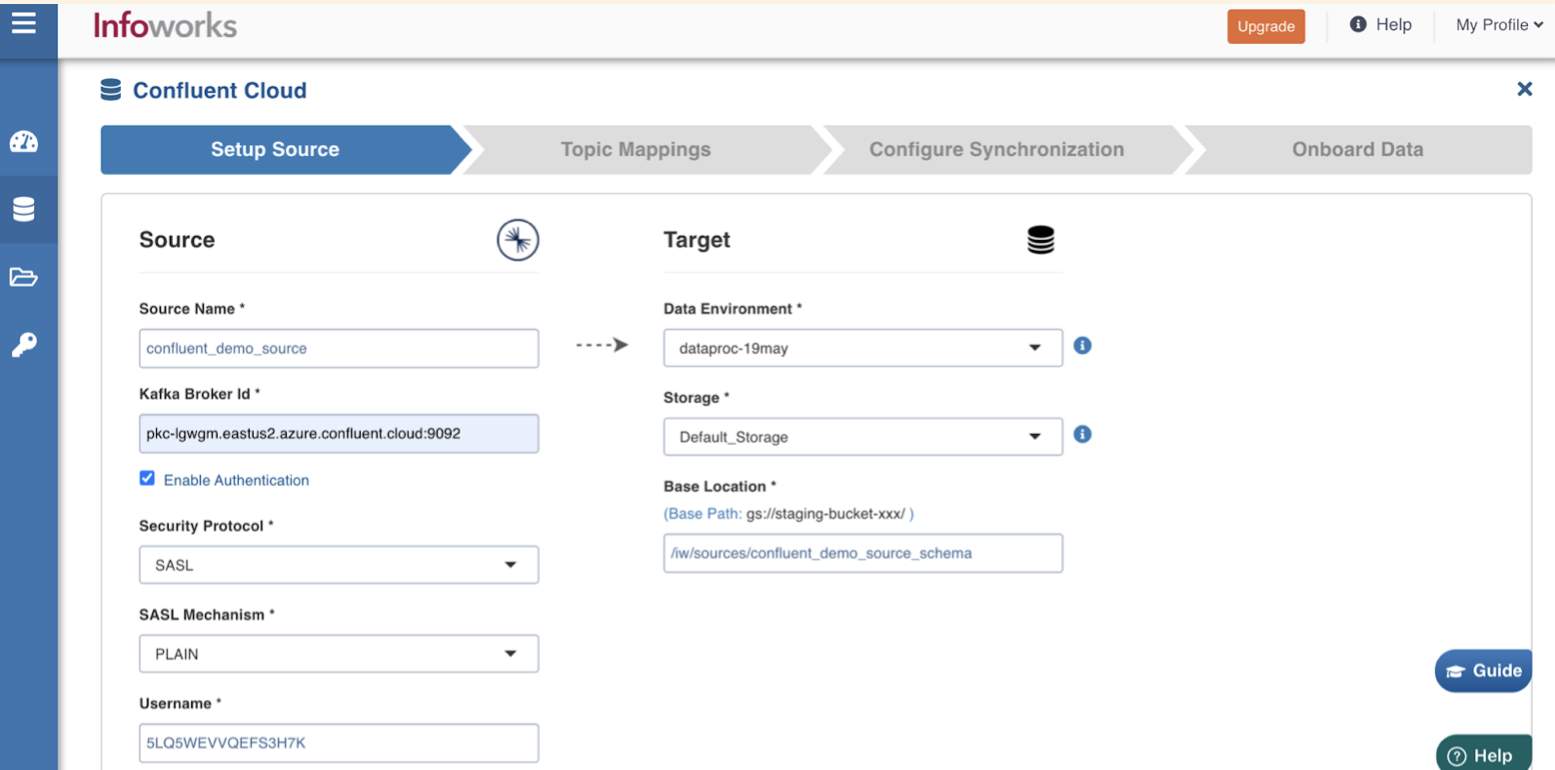
To set up the source for Confluent Cloud, enter the following fields:
Field | Description |
|---|---|
Bootstrap Server | Kafka is run as a cluster of one or more servers that can span multiple data centers or cloud regions. Some of these servers form the storage layer, called the brokers. The identifier for this broker is termed as Kafka Broker ID. Broker ID can be entered in the following syntax: |
Enable Authentication | By default, this check box is selected for SASL authentication. |
Security Protocol | Select SASL authentication. |
SASL Mechanism | Select PLAIN. |
User name | Enter the user name for the Confluent Cloud source connection. |
Authentication Type for Password | Select the authentication type from the dropdown. For example, Infoworks Managed or External Secret Store. If you select Infoworks Managed, then provide Authentication Password for Password. If you select External Secret Store, then select the Secret which contains the password. |
Enable Schema Registry | By default, this check box is unchecked. If you select the check box, then enter the following fields: Schema Registry URL: Specify this field as an additional configuration for the Converter to use Confluent Cloud as the Schema Registry. Schema Registry Authentication: Select either None or HTTP Basic. If you select HTTP Basic, then enter the Username and Password credentials. |
Message Format | Select either JSON, AVRO, or PROTOBUF from the drop-down. |
Snowflake Warehouse | Snowflake warehouse name. Warehouse is pre-filled from the selected snowflake environment and this field is editable. NOTE This field appears only when the Data Environment is snowflake. |
Target Field Descriptions
Field | Description |
|---|---|
Data Environment | Select the data environment from the drop-down list, where the data will be onboarded. NOTE Snowflake environment is not supported. |
Storage | Select from one of the storage options defined in the environment. NOTE This field becomes Temporary Storage when the Data Environment is snowflake. |
Base Location | The path to the base/target directory where all the data should be stored. |
Schema Name | The schema name of the target. NOTE This field becomes Snowflake Schema Name when the Data Environment is snowflake. |
Snowflake Database Name | The database name of the Snowflake target. NOTE This field appears only when the Data Environment is snowflake. |
Staging Schema Name | The name of the schema where all the temporary tables (like CDC, segment tables etc) managed by Infoworks will be created. Ensure that Infoworks has ALL permissions assigned for this schema. This is an optional field. If staging schema name is not provided, Infoworks uses the Target Schema provided. NOTEThis field appears only when the Data Environment is Snowflake. |
Use staging schema for error tables | Click on this checkbox to create error tables in the staging schema. NOTEThis field appears only when the Data Environment is Snowflake. |
Staging Dataset Name | The name of the dataset where all the temporary tables (like CDC, segment tables, and so on) managed by Infoworks will be created. Ensure that Infoworks has ALL permissions assigned for this dataset. This is an optional field. If staging dataset name is not provided, Infoworks uses the Target dataset provided. NOTE This field appears only when the Data Environment is BigQuery. |
Use staging dataset for error tables | Click this checkbox to create error tables in the staging dataset. NOTE This field appears only when the Data Environment is BigQuery. |
Make available in infoworks domains | Select the relevant domain from the dropdown list to make the source available in the selected domain. |
After entering the required details, click the Save and Test Connection button to save the settings and ensure that Infoworks is able to connect to the source system. Clicking on Save and Test Connection button also ensures that the Topics list is populated with the suggestions while configuring Topic Mappings in the next step.
Topic Mappings
Using the Topic Mappings tab, you can map and organize the data in the form of Topics. You can subscribe to required topics using list or regex patterns, and map it to single or multiple tables.
Perform the following steps to configure Topic Mappings:
Click Topic Mapping on the left navigation.
Enter the following fields:
Field | Description |
|---|---|
Mapping Name | Enter the Topic Mapping name to be configured. |
Topic Identifier | List or regex pattern of the topics to be subscribed. Select the required radio button. The List option displays the topic suggestion while entering data in the text box. Start typing in the text box to view the list of available topics. Select the required topic and click +Add. The Regex option allows you to enter the regex pattern to add the required topics. NOTE If you select the Regex pattern, then enter the Regular Expression. If the Topic Identifier box is not populated, please check the connection details under source configuration. If a new producer has been added recently, then click on the Save and Test Connection button to populate the list. |
Crawl Schema Mechanism | Select either Schema Registry or Record Sampling. For AVRO and PROTOBUF, both options are available. For JSON, only Record Sampling is available. |
Subject Name | A subject refers to the name under which the schema is registered. If you are using Schema Registry for Kafka, then a subject refers to either a “<topic>-key” or “<topic>-value” depending on whether you are registering the key schema for that topic or the value schema. NOTE This field is available if the option "Schema Registry" is selected as the Crawl Schema Mechanism. |
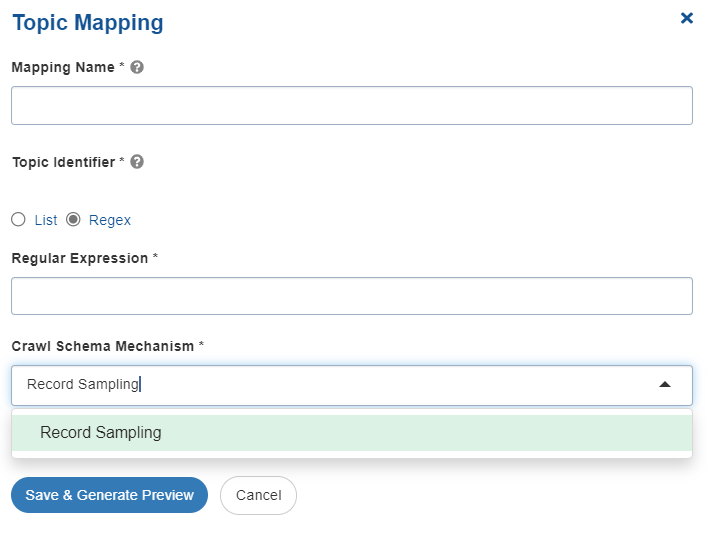
Click Save and Generate Preview to save the configured settings.
The following tabs are displayed in this window:
Topic Preview Tab
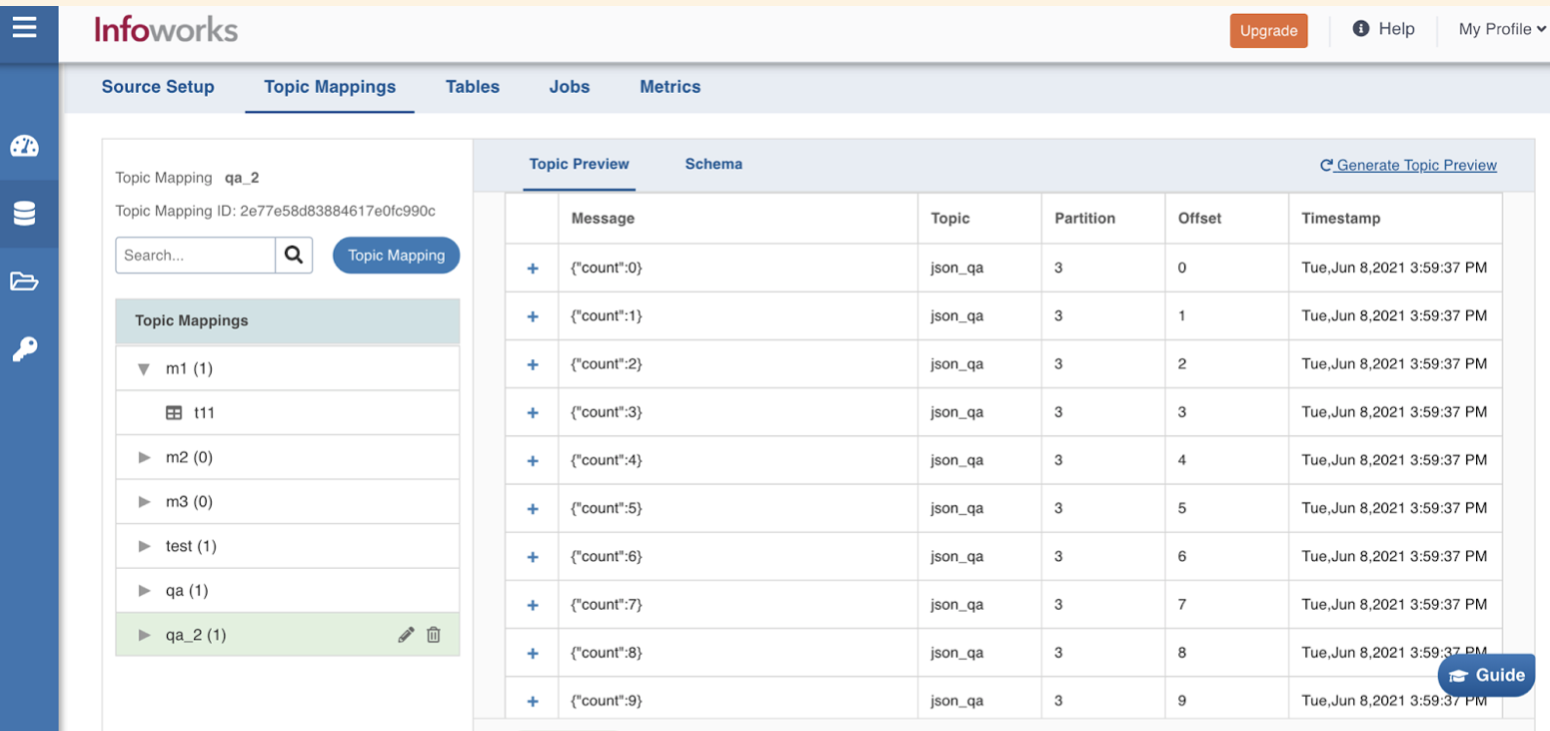
The Topic preview tab allows you to quickly view the snapshot of the topics.
Note If the Topic Preview is not populated, please check the broker connection details under source configuration or check the list or regex entered in the Topics Mapping page.
Click the + icon corresponding to every message displayed, to preview the content, and then click Crawl Schema button.
The maximum number of rows of messages for which preview can be made available can be configured in topic_preview_row_count parameter of the Advanced Configuration section. The default value is 100 rows.
In the topic preview, the following views are available:
Raw: Displays the content as it is read.
Pretty: Displays the content in a structured format.
Schema tab
Select any path to create a table with the corresponding columns in it. Click on the required node. Further, you can also hold the Shift key and click on multiple required nodes. The children nodes of all the parent nodes selected become table columns.
For example, If you select only the address in the example above, the table created will consist of four columns: street address, city, state and postal code.
To manage the nodes in the schema, you may use the Add Node, Edit Node, and Remove Node (same as name suggests) buttons on the top-right corner of the tab. To revert the edits in schema, recrawl it from the Topic Preview tab.
NOTE
The Avro Schema crawl is not supported for Union data types with complex types such as Map and Array.
The Map field for Avro is not supported from Schema crawl using record sampling method. The type will be detected as Struct and so you must manually change the data type to Map from the Edit Schema.
For AVRO data sources, in the “Schema” screen, only the first “struct” can be selected. Creation of a table from the middle of the tree is not allowed.
Create Table Field Description
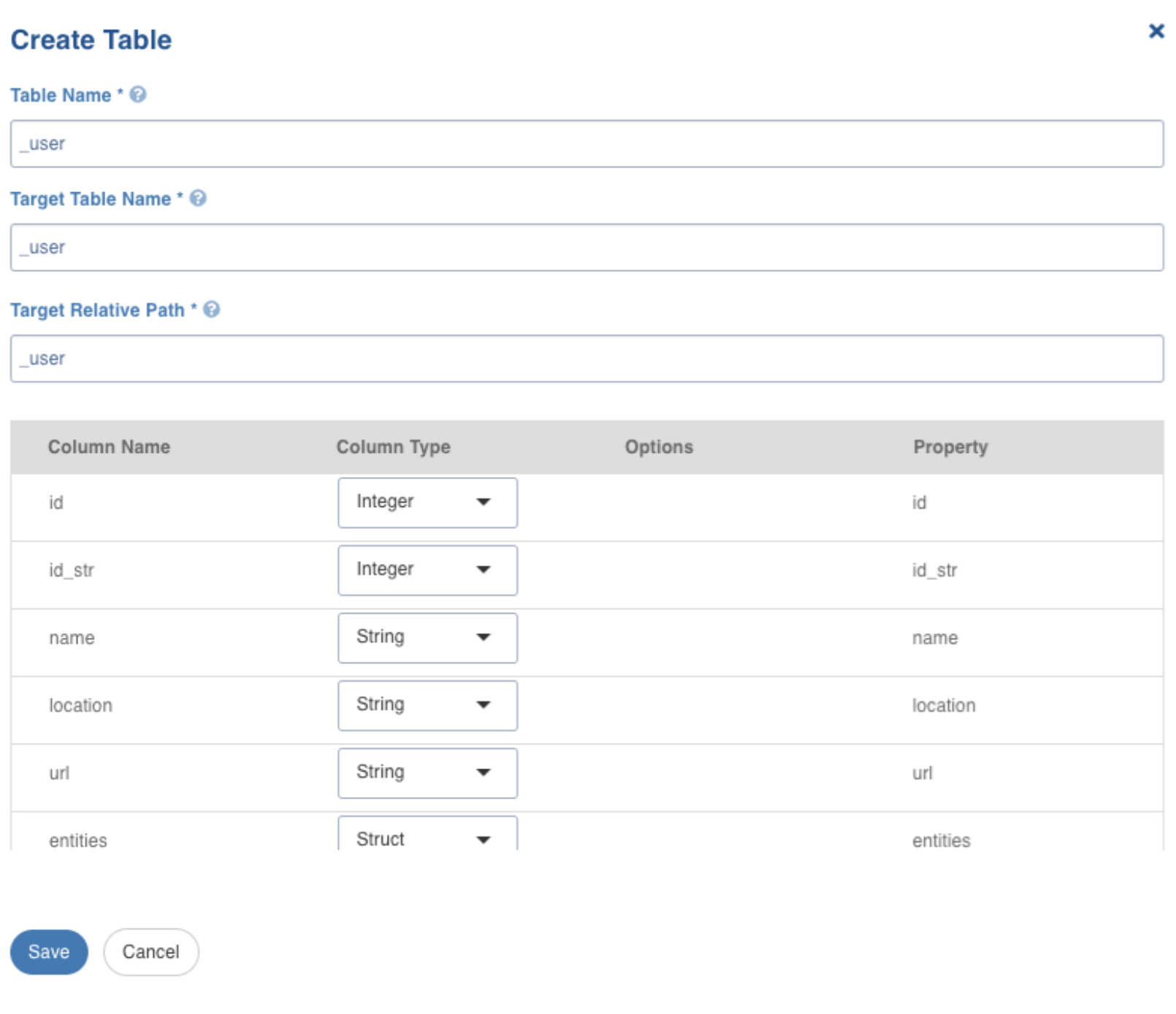
Click Create Table, to create the table with the selected nodes. The following screen appears.
Field | Description |
|---|---|
Table Name | Name for the table that is being configured, as required by the user. |
Target Table Name | Name for the target table to be created in the data lake. |
Target Relative Path | The target directory path (relative to the target base path) to store the crawled output. |
Note In case of CDW onboarding (Snowflake Environment) Table names are converted to upper case once they are saved. In order to create tables with case sensitive names, please enter the table names within quotes.
After configuring the required details, click Save.
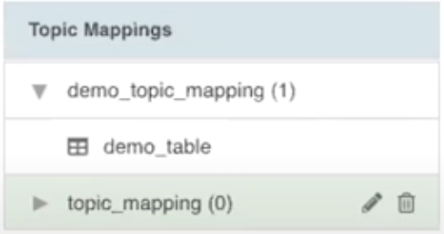
The left panel displays the list of the tables created. Click on the table name, to view/edit the table schema, and to view the sample data. Click the edit icon corresponding to the table name, to edit the table configuration.
Configure Synchronization
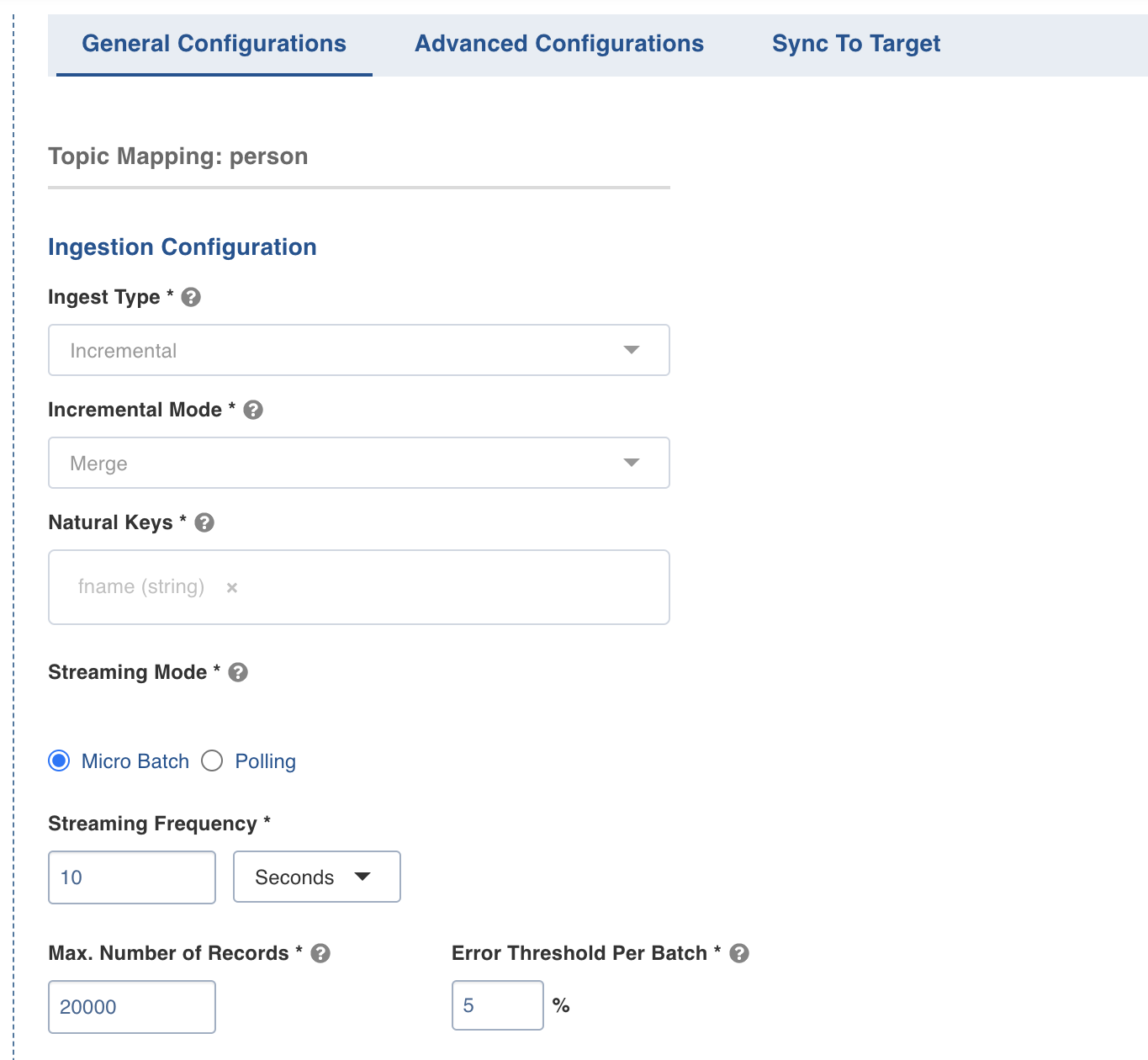
To configure the table, select Configure Synchronization, and enter the following fields under Ingestion Configuration.
Field | Description |
|---|---|
Ingest Type | The type of synchronization for the table. The only available option is incremental. |
Incremental Mode | This option indicates if the ingestion's incremental mode is Append or Merge. If Append is selected then the incoming records will be appended to the base table. If Merge mode is selected, there will be a new table along with the base table. The new table will be a de-duped (with no duplicate records) version of the base table. |
Natural Keys | The combination of keys to uniquely identify the row. This field is mandatory in incremental ingestion tables. It helps in identifying and merging incremental data with the already existing data on target. NOTE At least one of the columns in the natural key must have a non-null value for Infoworks merge to work. |
Streaming Mode | Here are streaming modes available: Micro-batch processing: Reading data in small groups (batches) for processing. Micro batches are read at an interval specified under the Streaming Frequency field. Polling: This option allows near real-time processing of data. Here, the next set of micro-batch is read immediately after the first micro-batch is processed. |
Max. Number of Records | Maximum number of records that must be read in the batch. |
Error Threshold Per Batch | The percentage of threshold for error, beyond which the job shall fail. |
Merge Details
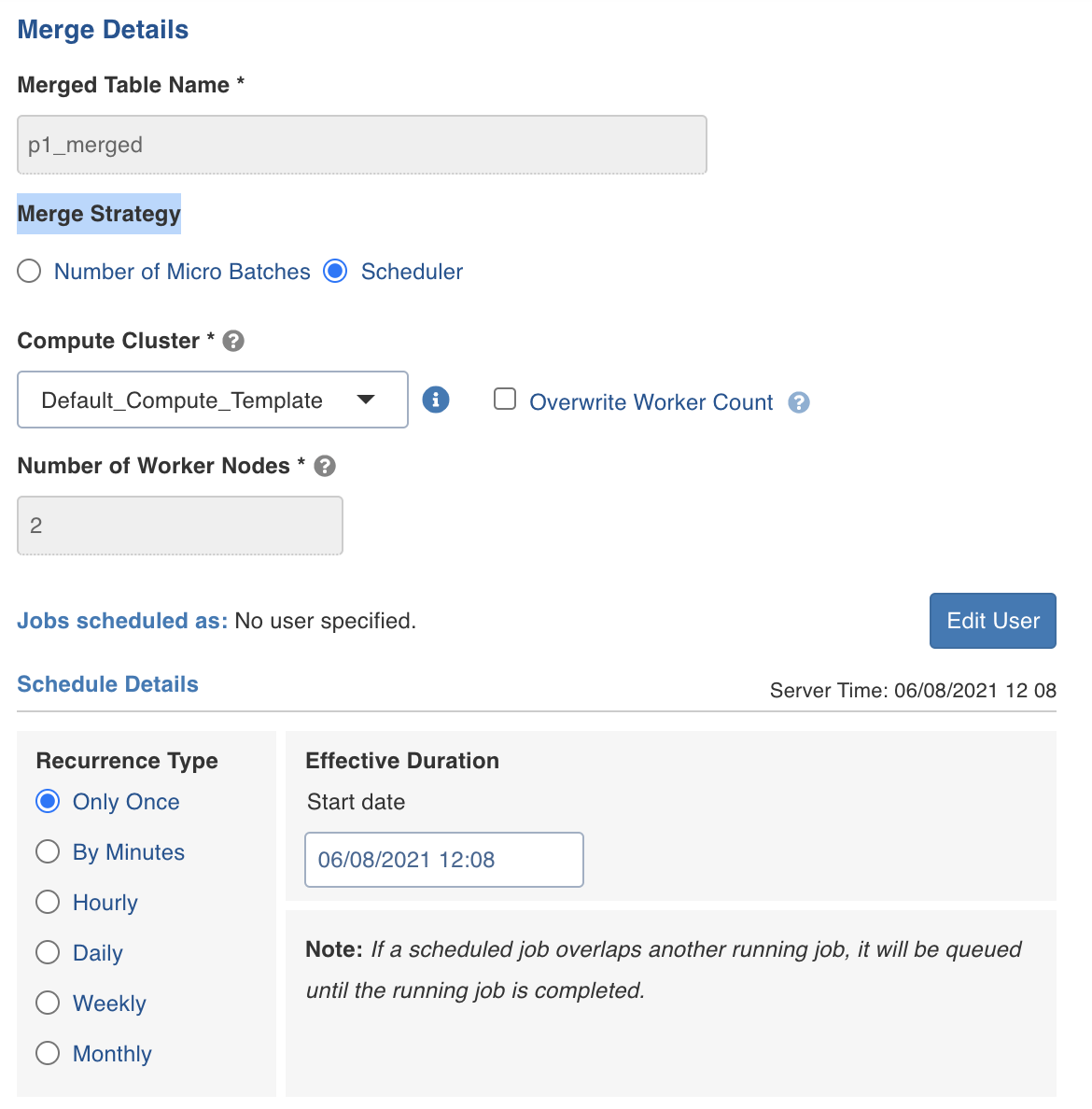
Enter the following fields under Merge Details.
Field | Description |
|---|---|
Merged Table Name | Provide the table name for the table that is maintained separately from base table. This table includes no duplicate records. |
Merge Strategy | Includes the merge strategy. Number of Micro Batches denotes the number of micro batches processed during ingestion job after which the asynchronous merge operation must start. Scheduler denotes the pre-scheduled time when the asynchronous merge operation must occur. NOTE The Merge job under Number of Micro Batches strategy will trigger during ingestion job while Merge job using Scheduler will trigger a separate job. |
Compute Cluster | Denotes the same compute cluster that will be used for ingestion/streaming job. If Scheduler is selected under Merge strategy, then a different Compute cluster is used. |
Number of worker nodes | Denotes the number of worker nodes. |
Overwrite worker count | Denotes if the worker count is to be overwritten. |
Edit User
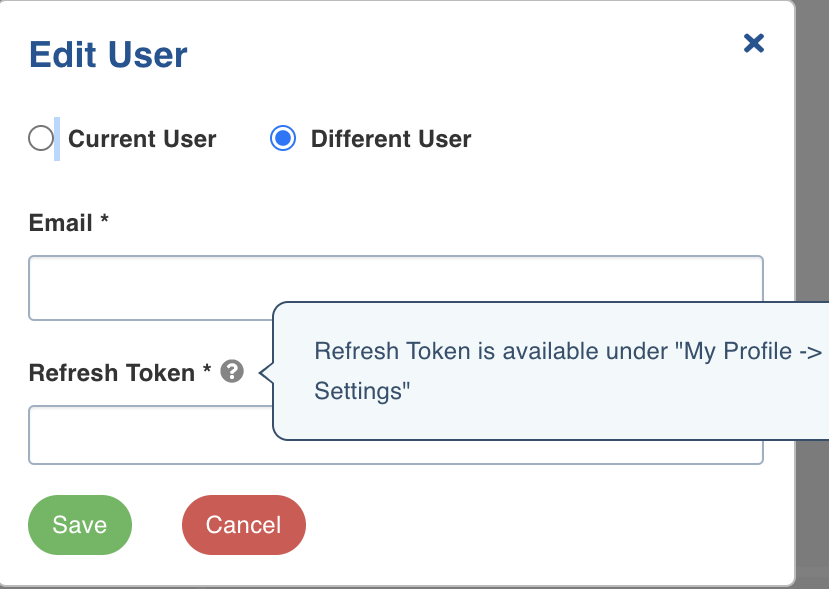
You can either edit the user details for the current user or a new user.
Select either Current User or Different User.
Enter the E-mail.
Enter the refresh Token available under My Profile -> Settings.
Click Save.
Schedule Details
If you select Scheduler under Merge details, then you can set the recurrence details as follows.
Recurrence Type: Select one of the below mentioned recurrence types. By default, the recurrence type is set to Daily.
Only Once
By minutes
Hourly
Daily
Weekly
Monthly
Effective duration: Enter the effective start date of the schedule.
NOTE If a scheduled job overlaps another running job, then it will be queued until the running job is completed.
Target Configuration
Enter the following fields under Target Configuration.
Field | Description |
|---|---|
Target Table Name | The name of the Target table, if the incremental mode selected is Append. |
Database Name | The name of the target database. |
Schema Name | The schema name of the target table. |
Merged Table Name | The name of the merged table. This table is created only in case of Merge mode. This table has the de-duplicated data |
Table Name | The name of the target table maintained in Infoworks UI. |
Storage Format | The format in which the tables must be stored. The options include Read Optimized (Delta), Write Optimized (Avro), and Parquet. Note Selecting the storage format is not supported in Snowflake environments. |
Partition Column | The column used to partition the data in target. Selecting the Create Derived Column option allows you to derive a column from the partition column. This option is enabled only if the partition column datatype is date or timestamp. Provide the Derived Column Function and Derived Column Name. Data will be partitioned based on this derived column. Click Add Partition to add a new partition. NoteThis is not supported in Snowflake environments. |
After configuring the required details, click Save to save the settings.
Adding a column to the table
After metadata crawl is complete, you have the flexibility to add a target column to the table.
Target Column refers to adding a target column if you need any special columns in the target table apart from what is present in that source.
You can select the datatype you want to give for the specific column
You can select either of the following transformation modes: Simple and Advanced
Simple Mode
In this mode, you must add a transformation function that has to be applied for that column. Target Column with no transformation function applied will have null values in the target.
Advanced Mode
In this mode, you can provide the Spark expression in this field. For more information, refer to Adding Transform Derivation.
NOTE When table is in ready state (already ingested), schema editing is disabled.
Onboard Data
Perform the following steps to onboard data from Confluent Cloud:
Click Onboard Data tab.
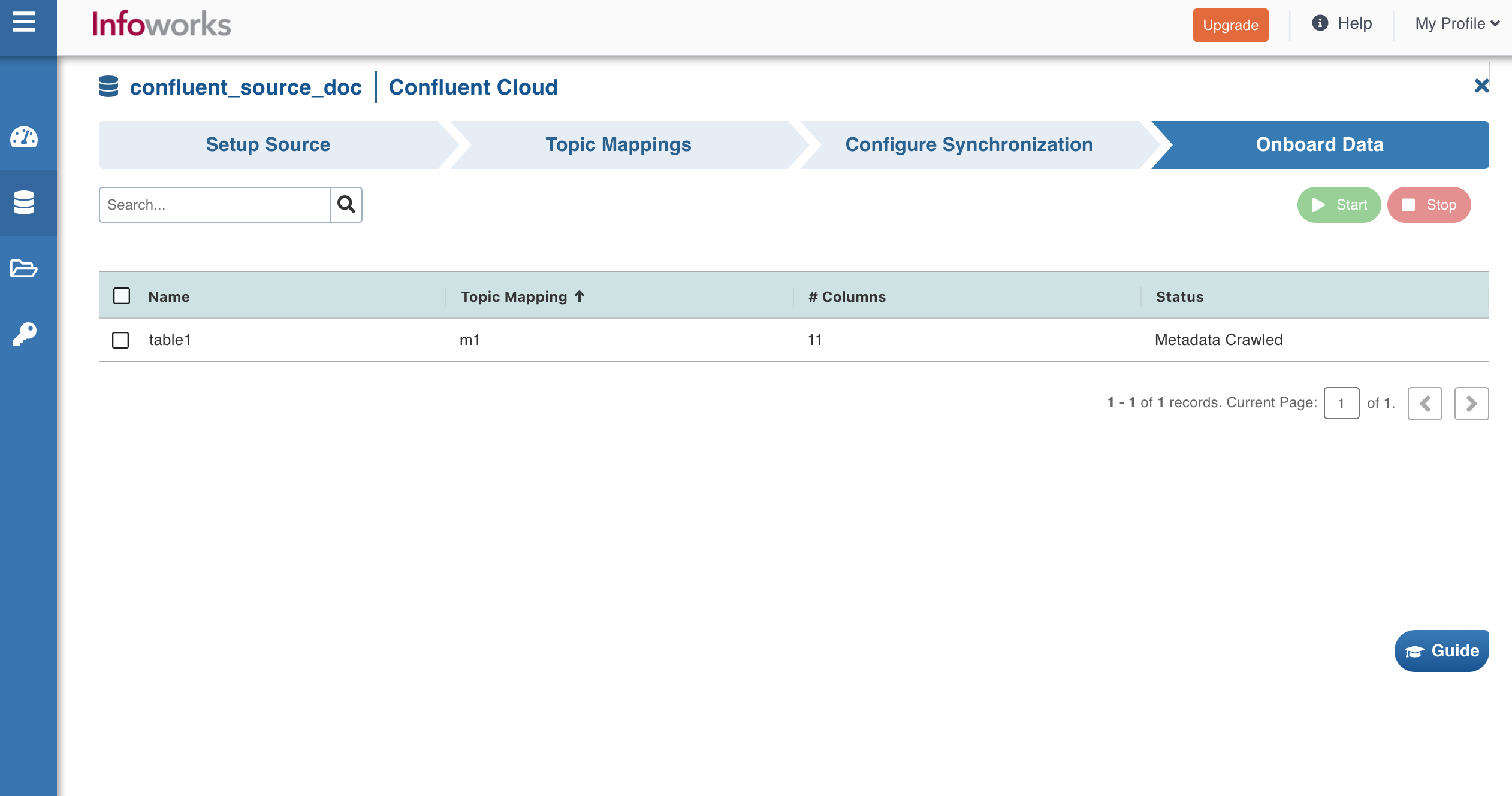
Select the required table(s), and click Start to start streaming the data.
Note: You may also stop the data streaming by clicking the Stop button. The Truncate button allows you to delete a table. On clicking Start, the following screen appears:
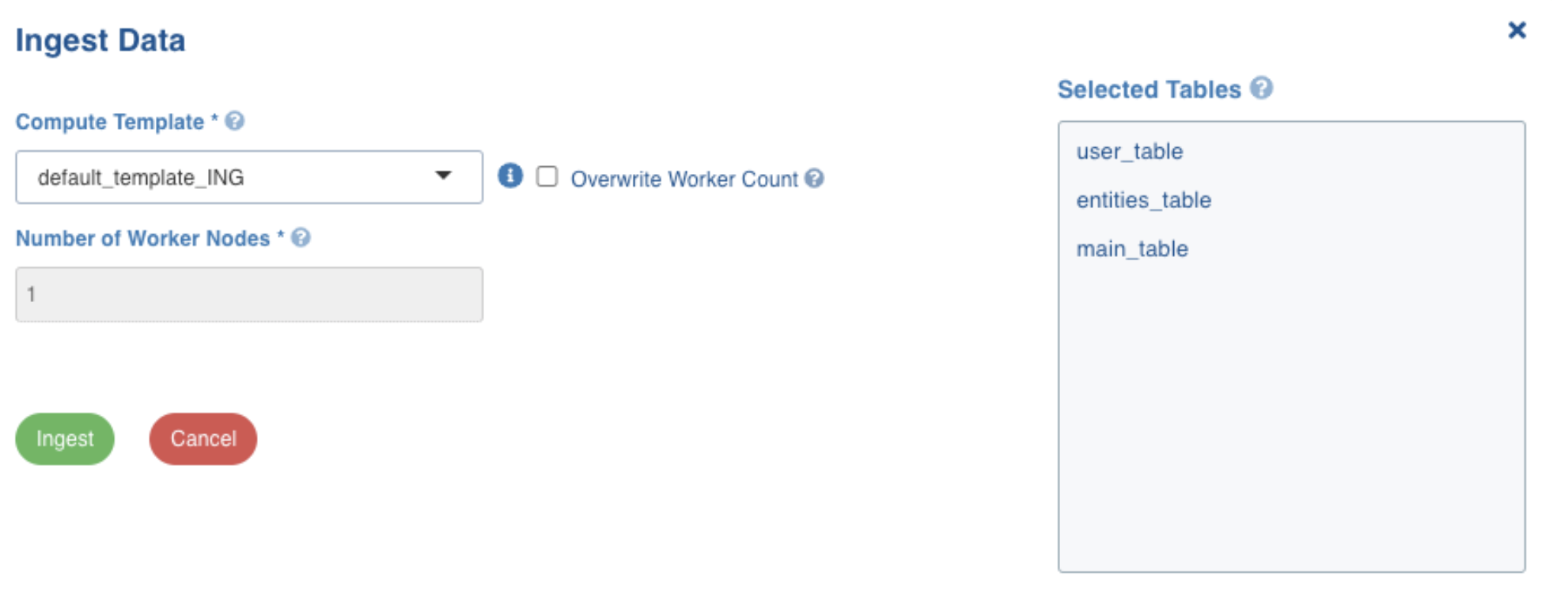
Fill in the required details and then click Ingest. Ensure that the cluster template setup is configured for your source.
Click Click here to track progress link to view the ingestion status. This takes a few minutes. On clicking the link, job status and summary is displayed on the tab.
Click the Ingestion metrics tab to view the in-details summary of the job. This tab is equipped with helpful filters.
NOTE Incase the data plane application remains in RUNNING state after the job is stopped, the data application has likely stopped but the RUNNING status is incorrect. You can verify that the job is stopped by observing the number of batches does not increase in the job status over a short period of time. To mitigate this issue, you can set the following configuration in conf.properties but note that it will affect all jobs: iw_job_cancel_pod_deletion_delay=15
Configuration Migration
NOTE The configuration for the tables that are in ready state, will not be migrated.
For details on configuration migration process, see Configuration Migration.
Advanced Configuration
The configuration fields for Confluent Cloud are as follows:
Field | Configuration Level | Default Level | Description |
| Source | io.infoworks.connectors. streaming.confluent. kafka.utils. ConfluentJson Deserializer | By default this class will be used to deserialize json messages which uses confluent KafkaJsonDeserializer. |
| Source | TRUE | If set, the confluent deserializer class value will be used for json message format. If the json messages are added to confluent topic using string serializer then set this configuration to false. |
| Source | 50 | Maximum number of invalid records after which the sample data will fail. |
`fail_on_data_loss``` | Table | FALSE | This configures whether the query must be failed when there is a possibility that the data is lost (For example, topics are deleted, or offsets are out of range). |
| Table | Null | This configures the desired minimum number of partitions to read from Kafka. By default, Spark has a 1-1 mapping of topic partitions to Spark partitions consuming from Kafka. |
| Table | Null | This configures the Kafka Group ID to be used in the Kafka consumer, while reading data from Kafka. By default, each query generates a UUID for reading data. |
| Table | Earliest | This configures the start point for a query. The "earliest" option (default value) ingests all the messages from the beginning, "latest" option ingests the messages that are pushed to topic after the query has started (which are the latest messages). You can also add a custom offset. |
| Source | 5 | This configures that the schema crawl fails if there are more error records than this configured limit, or more than successful records. |
| Source | 5 | This configures the Confluent consumer retries for metacrawl. |
| Table | YYYY-MM-dd | The format for specifying logical date for Avro messages. |
| Table | HH:mm:ss.SSS | The format for specifying logical time in milliseconds for Avro messages. |
| Table | HH:mm:ss.SSSSSS | The format for specifying logical time in microseconds for Avro messages. |
| Table | yyyy-MM-dd HH:mm:ss | The format for specifying logical timestamp in milliseconds for Avro messages. |
| Table | yyyy-MM-dd HH:mm:ss | The format for specifying logical timestamp in microseconds for Avro messages. |
| Table | yyyy-MM-dd HH:mm:ss | The format for specifying local timestamp in milliseconds for Avro messages. |
| Table | yyyy-MM-dd HH:mm:ss | The format for specifying local timestamp in microseconds for Avro messages. |
| Source | 5 | This configures that the schema crawl fails if there are more error records than this configured limit, or more than successful records. |
| Source | useall_dns_ips | Controls how the client uses DNS lookups. |
| Source | Null | This configures the extra properties required (For example, SSL configuration). Value must be semicolon separated, in the following format: key=value pairs. For example: key1=value1;key2=value2;key3=value3. |
NOTE If it is of format key1=value1;key2=value2;key3=value3 where ';'' can be changed by setting entry_delimiter_streaming and '='' can be changed by setting key_value_delimiter_streaming in the advance configurations.
Subscribers
For more information on subscribers, see Subscribers.