
NOTE If you have not installed Google Kubernetes Engine, refer to [Installing Google Kubernetes Engine (GKE)](/getting-started/installing--gke-545#Installing Google Kuberenetes Engine (GKE)).
Prerequisites
Package Installer | Version Used |
|---|---|
Kubernetes | 1.26.x or above |
Kubectl | 1.25.x or above |
Helm | 3.7.x-3.9.x |
Ingress-Controller | 4.8.1 |
Python | 3.8 |
NOTE
If you are using MAC OS to deploy Infoworks on to cluster, you must install the following package:
Package Installer | Version Used |
|---|---|
GNU-SED | 4.8 or more |
Ensure that GKE Kubernetes cluster is connected to internet.
Set up GKE Kubernetes cluster. For more information, refer to the Google Documentation.
Ensure that Kubernetes version should be 1.25.x or above.
Infoworks recommends creating the GKE Kubernetes cluster with private access and a VM as a Bastion host with Linux-based OS should be created within the VPC.
If INGRESS_CONTROLLER_CLASS is set to nginx, then Infoworks recommends setting up ingress-controller externally with the required configuration. To set up nginx ingress-controller externally, refer to External Setup for Ingress Controller.
If KEDA_ENABLED is set to true, then Infoworks recommends setting up KEDA externally with the required configuration. To set up KEDA externally, refer to External KEDA Setup.
Install gcloud, Helm V3 and Kubectl on the Bastion host. Refer to official documentation for Helm and Kubectl installation instructions.
To install pip module, run
apt install python3-pipcommand.Ensure that the following Python packages are available on the server before starting the installation.
pycryptodomex (version3.15.0)
argparse
If the aforementioned packages are not available, execute the following command
python3 -m pip install argparse pycryptodomex==3.15.0
Verify the following prerequisites
Run
gcloud versionto ensure that gcloud is installed.Run
helm versionto ensure that Helm is installed.Run
kubectl versionto ensure that Kubectl is installed.Run
python3 -Vto ensure that python (with venv) is installed.Run
sudo apt install python3-venvto install python Virtual Environment package.
linkerd is the service mesh currently supported by Infoworks. At the time of setup, the Linkerd latest version is 2.14. To install Linkerd, refer to Linkerd documentation from step 0-3. If you are using private GKE cluster, follow the documentation here to enable api-server communication with linkerd.
Set up Kubernetes Cluster in GKE for connection using gcloud by executing the following command:
NOTE The following procedure is a one-time activity for the user.
Step 1: gcloud auth login--launch-browser
After successful verification, the following confirmation message appears.
Step 2: Identify the cluster name, zone/region, and project you want to connect to. Run the following command with these details:
or
Persistent Storages
NOTE Google Kubernetes Engine RBAC Cluster Admin is required to run Infoworks installation.
Persistence ensures to persist the data even if a pod restarts or fails due to various reasons. Infoworks needs the following persistent storages to be configured:
Databases (MongoDB and Postgres) and RabbitMQ
Infoworks Job Logs and Uploads
Run the following command to fetch the storage classes:
NOTE The storageclass should have the reclaim policy Retain.
Storage Class Category | Comments |
|---|---|
Standard | This is the default storage class category, which comes along with the cluster |
premium-rwo & standard-rwo | Used when the Compute Engine Persistent Disk CSI Driver feature is enabled while creating the GKE Cluster. Check this setting in the Kubernetes cluster created above using Google Cloud Console. NOTE Log in to Google Cloud Console and navigate to Kubernetes Engine > Clusters. Select the cluster you have created and click Details. Go to the Features section and look for “Compute Engine persistent disk CSI Driver”. If the setting is not enabled, enable it and save changes. NOTE This is Infoworks recommended configuration for databases. |
filestore-client | This is a custom name. If Infoworks job logs and uploads are to be persisted. Infoworks installation automates creation of basic Google Filestore and configures the Filestore via NFS Client provisioner for the mounts in the Kubernetes Cluster. NOTE The storage name (filestore-client) used here is an example reference. You can customize the name according to your requirements. However, ensure that the meta-characters that can be used are hyphen (-) and alphabets. IMPORTANT Use the same custom name for NFS_STORAGECLASS_NAME under generic configuration and make sure that FILESTORE_AUTO_PROVISIONER is set to true under Filestore Configurations. If you want to customize the Google Filestore as per your requirement , refer to Google FileStore documentation. To create a Filestore in shared VPC of service projects, refer to Google Filestore on Shared VPC Documentation. NOTE This is Infoworks recommended configuration for files. To automate creation of Filestore, you require Filestore editor permission in GCP. |
Filestore Mount Path
NOTE If you create Google Filestore manually, Infoworks configures the Filestore via NFS Client provisioner for the mounts in the Kubernetes Cluster from the Infoworks installation.
Step 1: Log in to Google Cloud console.
Step 2: Go to top-left of the navigation pane, under the Storage section, select Filestore > Instances.
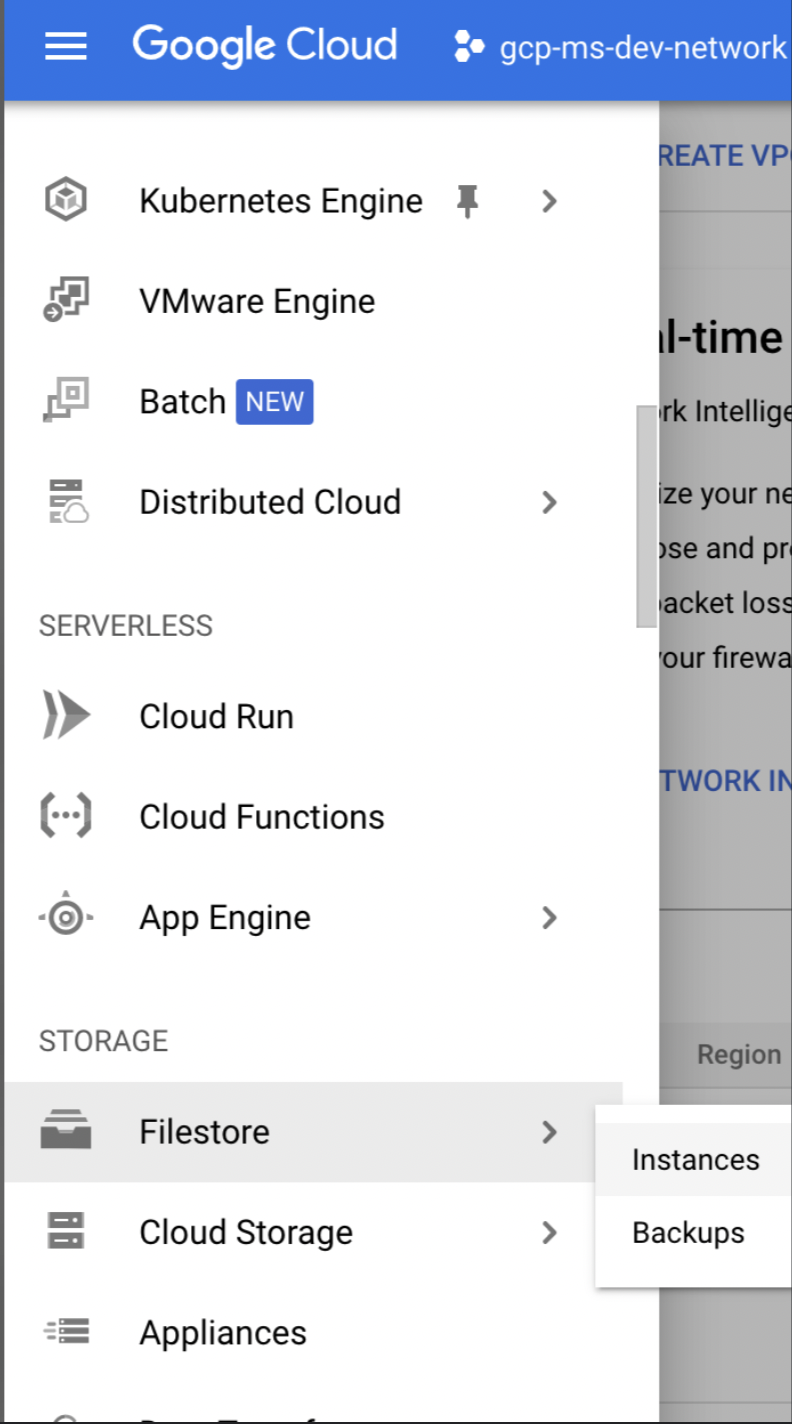
Step 3: Click the Filestore instances you created. Once the server is in READY state. Get the details of the NFS mount point as shown below.
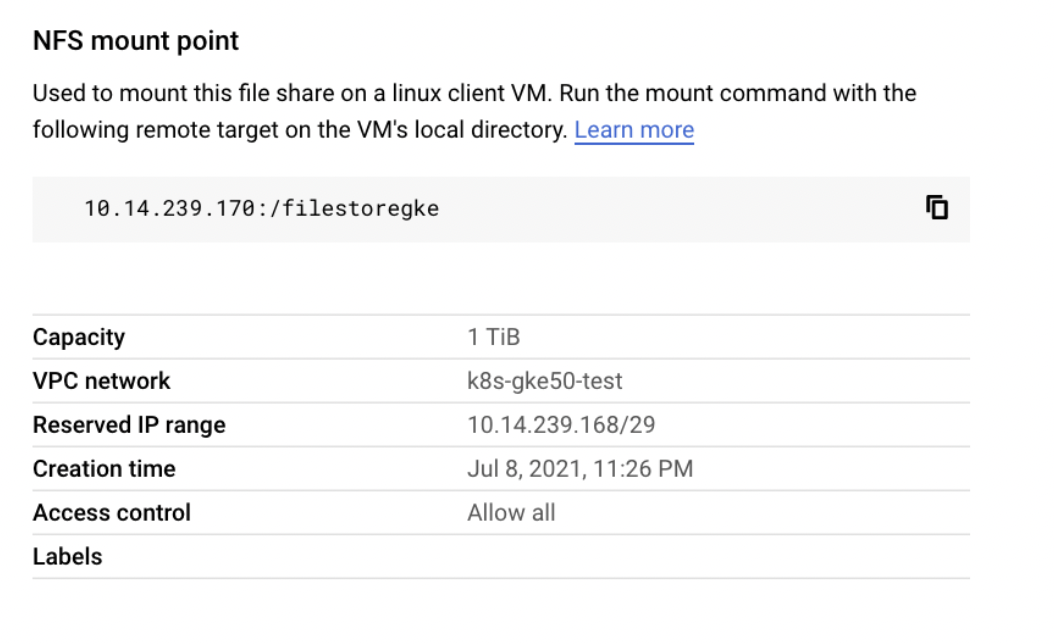
NOTE Keep a note of Filestore IP Address and Filestore Mount Path as they will be required during Infoworks installation.
Installing Infoworks on Kubernetes
Take a backup of values.yaml file before every upgrade.
NOTE Assuming IW_HOME=/opt/infoworks.
NOTE The following steps must be performed by the user who has completed the prerequisites procedure mentioned earlier.
Step 1: Create Infoworks directory under /opt.
sudo mkdir -p /opt/infoworks
Step 2: Change permissions of /opt/infoworks directory
sudo chown -R <user>:<group/user> /opt/infoworks
Step 3: Change the directory path to /opt/infoworks.
cd /opt/infoworks
Step 4: To download Infoworks Kubernetes template, execute the following command:
Step 5: Extract the downloaded file.
Step 6: Navigate to the extracted directory iw-k8s-installer.
Step 7: Open configure.sh file in the directory.
Step 8: Configure the following parameters as described in the table, and then save the file
NOTE Namespace and release names should not contain underscore (_). Release names should not start with numbers.
NOTE If you want to enable SSL before installing Infoworks, refer to Enabling SSL section.
Generic Configuration
Field | Description | Details |
|---|---|---|
IW_NAMESPACE | Namespace of Infoworks Deployment | This field is autofilled. However, you can also customize the namespace as per your requirement. |
IW_RELEASE_NAME | Release Name of Infoworks Deployment | This field is autofilled. However, you can also customize the release name as per your requirement. |
IW_CLOUD_PROVIDER | Name of the cloud provider of Kubernetes cluster | Enter gcp. |
NFS_STORAGECLASS_NAME | Name of the NFS storage class | Enter a valid Storage class name. Ex: filestore-client |
DB_STORAGECLASS_NAME | Name of the Database Storage Class | Enter a valid Storage class name. Ex: premium-rwo |
INGRESS_ENABLED | This field indicates enabling Ingress for Infoworks Deployment | Select true or false. Default: true. Infoworks requires you to select true. |
INGRESS_CONTROLLER_CLASS | Name of the ingress controller class | Default value: nginx. |
INGRESS_TYPE | Name of the ingress type | Two values: external and internal. Default value: internal. external: Infoworks app is exposed to internet. internal: Infoworks app is restricted to internal network. |
INGRESS_AUTO_PROVISIONER | This field indicates installing ingress controller provisioner | Select true or false. Default: true. If ingress-controller is already installed, set this as false. NOTE Infoworks recommends setting up ingress-controller externally with the required configuration. To set up ingress-controller externally, refer to External Setup for Ingress Controller. |
IW_DNS_NAME | DNS hostname of the Infoworks deployment | Enter a valid DNS name. NOTE If ingress is enabled, make sure to create the respective DNS records to the IP address/DNS address of LoadBalancer for DNS to resolve in your Domain service provider. |
IW_SSL_PORT | This field enables port and protocol for SSL communication | Select true or false. Default: true |
IW_HA | This field enables high-availability of Infoworks deployment. | Select true or false. Default value: true. Infoworks recommendation: true i.e. enabling HA. |
IW_HOSTED_REGISTRY | This field indicates if the Container Registry hosted by Infoworks. | Enter true |
USE_GCP_REGISTRY | This field enables separate registry for cloud. GCR is being used by Infoworks by default. To override cloud specific registry images, provide input "false". | Select true or false. Default value: true. |
Autoscaling Configuration
Field | Description | Details |
|---|---|---|
KEDA_ENABLED | This field enables to configure autoscaling to Infoworks deployment using KEDA. | Select true or false. Default value: false. NOTE If the field is set to false, Infoworks is reset to Horizontal Pod Autoscaling (HPA) mode. |
KEDA_AUTO_PROVISIONER | This field enables installing KEDA Kubernetes deployment automatically by Infoworks deployment | Select true or false. Default value: false. NOTE Infoworks recommends setting up KEDA externally with the required configuration. To set up KEDA externally, refer to External KEDA Setup. |
NOTE The total number of concurrent Infoworks jobs that can be submitted by each Hangman instance/pod is configured using num_executors in conf.properties. If the number of Hangman instances changes due to autoscaling, then the total number of jobs Infoworks handles also changes. To fix the total number of concurrent Infoworks jobs, you must disable the autoscaling on the Hangman service and set the number of Hangman replicas manually as described in the Enabling Scalability section.
External Container Registry Configuration
The following table lists the External Container Registry Configuration for Infoworks Setup. These configurations should be set only if the Container Registry used to pull the images is different from the one hosted by Infoworks.
The following fields are valid if IW_HOSTED_REGISTRY set to false
Field | Description | Details |
|---|---|---|
IMAGES_BASE_REGISTRY | The field is about Container Registry Server URL hosted by the user. | Provide the Container Registry Server URL. |
IMAGES_SECRET_NAME | Provide the image secret | Provide the name of the secret created to authorize and authenticate (if any) to access all the Infoworks Images. Use the command below to create the secret in the kubernetes environment. Alternatively, if the service account attached to the node pools in GKE is provided with Artifact Registry Reader role, then no authorization is required and you should keep the value for this field empty. |
Use the Service Account key and the command listed below this table to create a secret in the Kubernetes namespace listed here.
For example:
Field | Description | Details |
|---|---|---|
IW_HOSTED_REGISTRY | This field indicates if the Container Registry hosted by Infoworks. | Select true/false. If the registry is different from the one hosted by Infoworks, set the value to false. |
Service Mesh Configuration for Security
NOTE Infoworks supports linkerd as of now.
Field | Description | Details |
|---|---|---|
SERVICE_MESH_ENABLED | This field enables to configure service mesh to Infoworks deployment | Select true or false. Default value: false. |
SERVICE_MESH_NAME | This field is the name of the service mesh. | Provide the name of the service mesh. Default value: linkerd. |
NOTE Keep the following fields empty in configure.sh: KEYVAULT_GLOBAL_ENABLED, KEYVAULT_ENABLED, KEYVAULT_GLOBAL_ENABLED, KEYVAULT_ENABLED, AZURE_KEYVAULT_URI, FLAG_AZURE_KEYVAULT_AUTH_SP, AZURE_SERVICE_PRINCIPAL_TENANT_ID, AZURE_SERVICE_PRINCIPAL_SUBSCRIPTION_ID, AZURE_SERVICE_PRINCIPAL_CLIENT_ID, AZURE_SERVICE_PRINCIPAL_CLIENT_SECRET, AZURE_MI_TYPE_IS_USER, AZURE_USER_MI_CLIENT_ID, KEYVAULT_FLAG_METADB_HOST, KEYVAULT_FLAG_METADB_USER, KEYVAULT_FLAG_POSTGRESDB_HOST, KEYVAULT_FLAG_POSTGRESDB_USER
MongoDB Configuration
Field | Description | Details |
|---|---|---|
EXTERNAL_MONGO | This field enables external mongoDB support for Infoworks deployment | Select true or false. Default value: false. |
The following fields are applicable if EXTERNAL_MONGO= true.
Fields | Description | Details |
|---|---|---|
MONGO_SRV | This field enables DNS connection string for MongoDB Atlas | Select true or false. Default value: true (If external MongoDB Atlas is enabled) |
MONGODB_HOSTNAME | The Mongo Host URL to connect to | Enter the Mongo Server or Seed DNS hostname (without prefix) |
MONGODB_USERNAME | The Mongo User to authenticate as. | Enter a user that has at least read/write permissions over the databases mentioned. |
MONGODB_USE_SECRET_PASSWORD | This field enables user to configure MongoDB password in the secrets before installing Infoworks. Steps will be documented | Select true or false. Default Value: false. If value is false then we need ENCRYPTED_PASSWORD field to be filled, else secret name is required. (Optional value). |
MONGODB_SECRET_NAME | This is the name of the MongoDB encrypted password stored in secrets. (Manual Creation) | User will create the secret and has to provide the name of the secret. (Optional value) Keep it empty if not sure. For more information, refer to the "For MongoDB" section mentioned below. |
MONGODB_ENCRYPTED_PASSWORD | The Password of the aforementioned MONGODB_USERNAME | Enter the Password of the MONGO_USER |
MONGO_FORCE_DROP | This field delete all the data in the MongoDB Atlas and initialize the data freshly. | Select true or false. Default value: false. Infoworks recommends to keep the value to false always. |
INFOWORKS_MONGODB_DATABASE_NAME | This field indicates the name of the Infoworks MongoDB database in Atlas. | Provide the name of the database for Infoworks setup. |
INFOWORKS_SCHEDULER_MONGODB_DATABASE_NAME | This field indicates the name of the Infoworks scheduler MongoDB database in Atlas | Provide the name of the scheduler database for Infoworks setup. |
PostgresDB Configuration
Field | Description | Details |
|---|---|---|
EXTERNAL_POSTGRESDB | This field enables external PostgresDB support for Infoworks deployment | Select true or false. Default value: false. |
The following fields are applicable if EXTERNAL_POSTGRESDB= true
Field | Description | Details |
|---|---|---|
POSTGRESDB_HOSTNAME | The PostgresDB Host URL to connect to | Enter the PostgresDB Server hostname (without prefix) |
POSTGRESDB_USERNAME | The PostgresDB User to authenticate as. | Enter a user that has at least read/write permissions over the databases mentioned. |
POSTGRESDB_USE_SECRET_PASSWORD | This field enables user to configure Postgres password in the secrets before installing Infoworks. Steps will be documented | Select true or false. Default Value: false. If value is false then we need ENCRYPTED_PASSWORD field to be filled, else secret name is required. (Optional value). |
POSTGRESDB_SECRET_NAME | This is the name of the Postgres encrypted password stored in secrets. (Manual Creation) | User will create the secret and has to provide the name of the secret. (Optional value) Keep it empty if not sure. For more information, refer to the "For Postgres" section mentioned below. |
POSTGRESDB_ENCRYPTED_PASSWORD | The Password of the aforementioned POSTGRESDB_USERNAME | Enter the Password of the POSTGRESDB_USER |
INFOWORKS_POSTGRESDB_DATABASE_NAME | This field indicates the name of the Infoworks Postgres database in the Postgres server. | Provide the name of the database for Infoworks setup. NOTE Hyphens are not allowed. |
Filestore Configuration
Enable the following configuration to set up FileStore automatically using Infoworks installation.
NOTE It is assumed that gcloud is installed, configured, and user has Filestore edit permissions on GCP Cloud.
Field | Description | Details |
|---|---|---|
FILESTORE_CREATION | This field automatically enables the Filestore setup. | Select true or false. Default value: true. |
FILESTORE_AUTO_PROVISIONER | This field indicates installing NFS provisioner. | Select true or false. Default value: true |
FILESTORE_INSTANCE_MOUNTPATH | Mount Path of the Filestore instance | If FILESTORE_CREATION=true, this field is autofilled. However, you can also customize the mountpath as per your requirement. If FILESTORE_CREATION=false and FILESTORE_AUTO_PROVISIONER=true, this has to be set as the filestore mountpath. NOTE Applicable only if FILESTORE_AUTO_PROVISIONER or FILESTORE_CREATION is true. |
If FILESTORE_CREATION is set to true, then the below mentioned fields become valid.
Field | Description | Details |
|---|---|---|
FILESTORE_NAME | Name of the Filestore instance | This field is autofilled. However, you can also customize the Filestore as per your requirement. Use lowercase letters, numbers, and hyphens. Start with a letter. |
FILESTORE_PROJECT | Name of the GCP Project ID to create Filestore instance | Provide Project ID. To locate Project ID, refer to Locating Project ID. |
FILESTORE_ZONE | Name of the GCP zone to create Filestore instance | Provide zone name. |
FILESTORE_NETWORK | Name of the GCP network to create FIlestore instance. | Provide the network detail. NOTE Ensure this network is similar to Kubernetes cluster. |
If FILESTORE_CREATION is false and FILESTORE_AUTO_PROVISIONER is true.
Field | Description | Details |
|---|---|---|
FILESTORE_INSTANCE_IP | IP Address of the Filestore instance | Provide a valid IP Address |
Step 9 (Optional): Enable NodeSelector/Toleration and Custom annotations etc. by editing values.yaml file manually before deploying Infoworks deployment.
Step 10 (Optional): To run Infoworks jobs on separate workloads, edit values.yaml file under infoworks folder. Specifically, you need to edit jobnodeSelector and jobtolerations fields based on the node pool you created in the Node Pools
NOTE If you want to run Infoworks services on other node pools, you can edit nodeSelector and tolerations fields.
NOTE To run Infoworks Orchestrator workers on other node pools, you can edit workernodeSelector andworkertolerations fields.
Step 11 (Optional): To define the PaaS passwords, there are two methods:
First method
The password must be put in pre-existing secrets in the same namespace.
For MongoDB
(i) Set MONGODB_USE_SECRET_PASSWORD=true
(ii) To create the custom secret resource, run the following commands from the iw-k8s-installer directory.
NOTE Set the MONGODB_SECRET_NAME and IW_NAMESPACE according to the inputs given to the automated script. <mongo-password> is the plaintext password.
For Postgres
(i) Set POSTGRESDB_USE_SECRET_PASSWORD=true
(ii) To create the custom secret resource, run the following commands from the iw-k8s-installer directory.
NOTE Set the POSTGRESDB_SECRET_NAME and IW_NAMESPACE according to the inputs given to the automated script. postgres-password is the plaintext password.
Second Method
You can give the password to the Automated Script, which will encrypt it to store it in the templates.
Step 12: To run the script, you must provide execute permission beforehand by running the following command.
Step 13: Run the script
NOTE If you see this error, "INSTALLATION FAILED: failed post-install: timed out waiting for the condition", you can ignore this as it does not affect Infoworks installation.
Since the above installation was configured for ingress-controller, run the following command to get the domain mapping done.
NOTE Make sure to enable DNS mapping for IP address as per the above sample output.
Get the application URL by running these commands: http://sample.infoworks.technology.
Enabling SSL
If you set INGRESS_CONTROLLER_CLASS to nginx, add SSL Termination in the TLS section of values.yaml file either before running the automated script or after the deployment.
Step 1: Log in to Linux machine on the latest Debian-based OS.
Step 2: Ensure libssl-dev package is installed.
Step 3: Provide DNS Name for Infoworks deployment
Generating Self-Signed SSL Certificate:
To generate SSL, run the following commands:
NOTE Refer the following commands to replace "Infoworks.domain" and "subdomain.infoworks.domain" keywords with required domain and subdomain name.
Keep a note of server.crt and server.key files for self-signed certificates for Nginx SSL Termination and provide the valid values for ingress_tls_secret_name and namespace_of_infoworks.
Run the following command to add the tls certificates to the Kubernetes cluster.
Edit values.yaml file to look similar to the following sample file.
It is suggested to make changes in the values.yaml file and add the below parameters as annotations in the ingress block, replacing <URL> to the DNS of your deployment, as defined in IW_DNS_NAME.
After adding the annotations, the values.yaml file should look as shown below.
NOTE If you have already performed the deployment and edit the values.yaml file, then run helm upgrade command.
Custom Infoworks Configurations
Email Configuration
The following table lists the Custom Email Configuration for Infoworks Setup using custom email attributes.
Name | Description | Default Values | |
|---|---|---|---|
Email configuration | smtpHost | The SMTP host URL to connect to | smtp.gmail.com |
smtpPort | SMTP port | 587 | |
smtpUsername | The SMTP User to authenticate as | email address | |
smtpPassword | The Password for the SMTP user | Encrypted password | |
sslEnabled | The SSL flag | true |
Step 1: Update Email Configs as necessary.
Navigate to the directory
IW_HOME/iw-k8s-installer/infoworks.Edit the
values.yamlfile.Email configurations can be found under
customiwConfigssection followed byemailSettingssub-section in values.yaml
Step 2: The structure and indentation of your values.yaml file should mirror the example provided below. Note that the actual values and entries may vary.
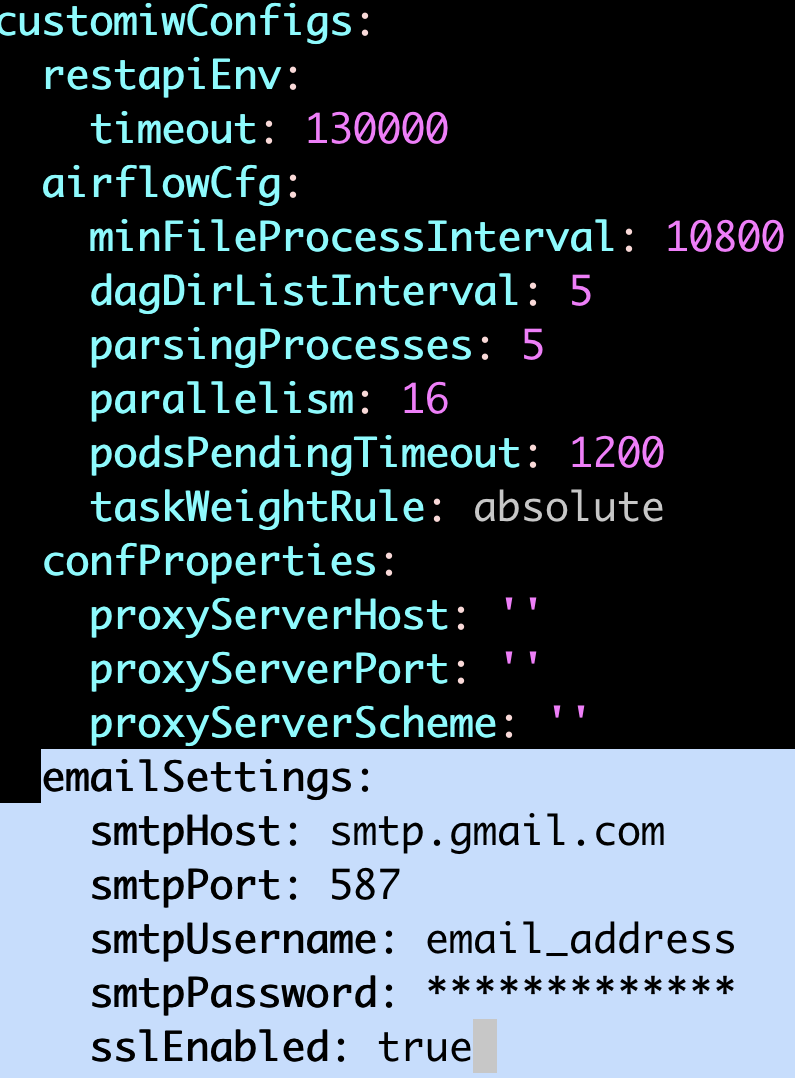
Update the values and save the file.
Step 3: Navigate to the directory IW_HOME/iw-k8s-installer. And Run the iw_deploy script.
NOTE During the above command's execution, when it prompts if we need to override, type y and press Enter.
Step 4: Restart all the deployments
Airflow Configurations
The following table lists the airflow configurations for Infoworks setup. Follow below instructions to update them as necessary.
Name | Description | Default Values |
|---|---|---|
minFileProcessInterval | The number of seconds after which a DAG file is parsed. The DAG file is parsed every min_file_process_interval number of seconds | 10800 |
dagDirListInterval | How often (in seconds) to scan the DAGs directory for new files | 5 |
parsingProcesses | The number of processes the Airflow scheduler can use for parsing DAG files | 5 |
parallelism | Parallelism is the maximum number of tasks across all the workers and DAGs | 16 |
podsPendingTimeout | Seconds scheduler waits before killing pods stuck in pending state | 1200 |
taskWeightRule | default priority assignment of tasks based on the position of the task in dag (ie number of dependencies of task) | absolute |
Step 1: Update Airflow Configs as necessary.
Navigate to the directory
IW_HOME/iw-k8s-installer/infoworks.Edit the
values.yamlfile.Airflow configurations can be found under
customiwConfigssection followed byairflowCfgsub-section in values.yaml
Step 2: The structure and indentation of your values.yaml file should mirror the example provided below. Note that the actual values and entries may vary.
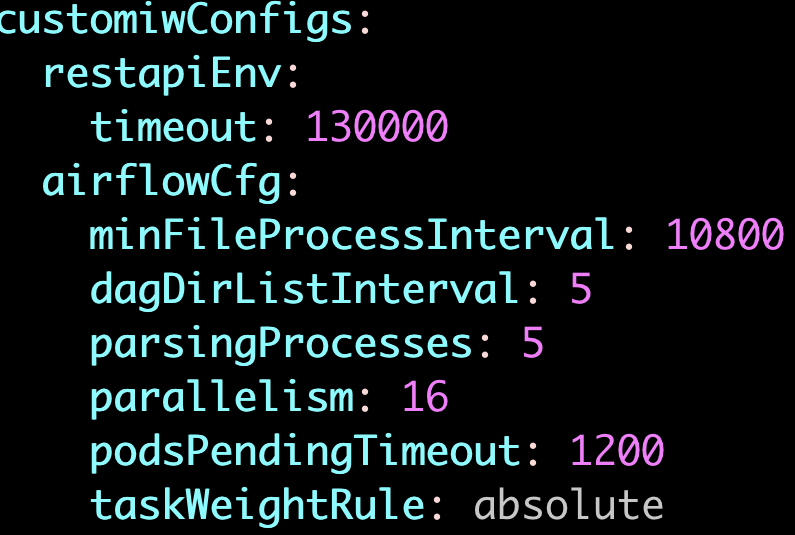
Update the values and save the file.
Step 3: Navigate to the directory IW_HOME/iw-k8s-installer. And Run the iw_deploy script.
NOTE During the above command's execution, when it prompts if we need to override, type y and press Enter.
Step 4: Restart all the deployments
Dataproc Configurations
The following table lists the global Dataproc configurations for Infoworks setup. Follow below instructions to update them as necessary.
Name | Description | Default Values |
|---|---|---|
masterDiskSize | The default disk size (in GB) of the master node in the Dataproc clusters created by Infoworks | 50 |
workerDiskSize | The default disk size (in GB) of each worker node in the Dataproc clusters created by Infoworks | 50 |
gcpDataprocInitScripts | Array of scripts that are executed during the initialization phase of the Dataproc cluster. Each element in the array is an object with a |
Step 1: Update Dataproc Configs as necessary.
Navigate to the directory
IW_HOME/iw-k8s-installer/infoworks.Edit the
values.yamlfile.Dataproc configurations can be found under
gcpDataprocsection in values.yaml
Step 2: The structure and indentation of your values.yaml file should mirror the example provided below. Note that the actual values and entries may vary.
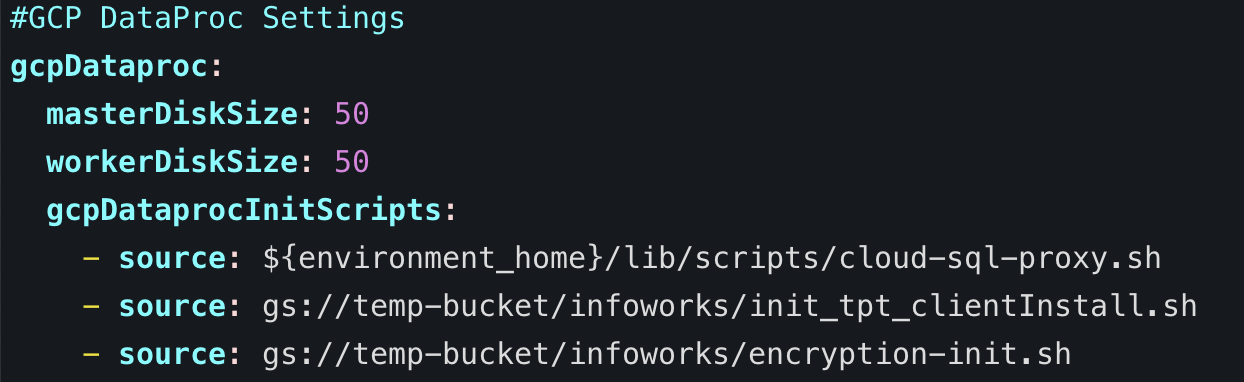
Update the values and save the file.
Step 3: Navigate to the directory IW_HOME/iw-k8s-installer. And Run the iw_deploy script.
NOTE During the above command's execution, when it prompts if we need to override, type y and press Enter.
Step 4: Restart all the deployments
Enabling High-Availability and Scalability
Enabling High-Availability
Infoworks installation enables high-availability configuration while setting up Infoworks in Kubernetes. You can enable high-availability by editing the helm file called values.yaml.
Step 1: To edit values.yaml file, perform the action given in the following snippet.
Step 2: Run HELM upgrade command.
This enables the high availability for Infoworks.
Limitation For Kubernetes HA setup, local Postgres database is not completely HA compliant. In certain conditions, if the Postgres containers crash, it might result in workflow failures.
Enabling Scalability
Infoworks installation supports auto-scaling of pods.
For a scalable solution:
There must be a minimum of two replicas, if HA is enabled.
They can be scaled to any number based on available resources (CPU and memory).
Infoworks supports scalability of source, pipeline, and workflow jobs out of the box. Ensure that there are available resources in the Kubernetes cluster.
Infoworks services will scale automatically based on the workloads and resource utilization for the running pods.
To modify any autoscaling configuration, edit the horizontalPodScaling sub-section under global section in the values.yaml file.
Property | Details |
|---|---|
hpaEnabled | By default, hpa is enabled for the install/upgrade. Set the value to false to disable hpa. |
hpaMaxReplicas | This field indicates the number of maximum replicas the pod can scale out horizontally. |
scalingUpWindowSeconds | This field indicates the duration a pod must wait before scaling out activity. |
hpaScaleUpFreq | This field indicates the duration HPA must wait before scaling out. |
scalingDownWindowSeconds | This field indicates the duration a pod should wait before scaling in the activity. |
However, there are three pods which require manual scaling based on workload increase, namely platform-dispatcher, hangman, and orchestrator-scheduler.
There are two ways to enable scalability:
1. By editing the values.yaml file.
Step 1: Edit the values.yaml file.
NOTE The “deploymentname” mentioned in the above parenthesis is given just for the ease of understanding. This deployment name can be a platform-dispatcher, hangman, or orchestrator-scheduler with actual name.
For example:
Step 2: To increase the scalability manually, run HELM upgrade command:
2. Using Kubectl
NOTE The “deploymentname” mentioned in the above parenthesis is given just for the ease of understanding. This deployment name can be a “releasename-platform-id” with the actual name.
For example:
Optional Configuration
NOTE The following optional configurations hold true only when HA is enabled.
For setting up Pod Disruption Budget
A Pod Disruption Budget (PDB) defines the budget for voluntary disruption. In essence, a human operator is letting the cluster be aware of a minimum threshold in terms of available pods that the cluster needs to guarantee in order to ensure a baseline availability or performance. For more information, refer to the PDB documentation.
To set up PDB:
Step 1: Navigate to the directory IW_HOME/iw-k8s-installer .
Step 2: Edit the values.yaml file.
Step 3: Under the global section and pdb sub-section, set the enabled field to true.
Step 4: Run HELM upgrade command.
For setting up PodAntiAffinity
If the anti-affinity requirements specified by this field are not met at the scheduling time, the pod will not be scheduled onto the node. If the anti-affinity requirements specified by this field cease to be met at some point during pod execution (e.g. due to a pod label update), the system may or may not try to eventually evict the pod from its node. For more information, refer to the PodAntiAffinity documentation.
To set up PodAntiAffinity:
Step 1: Navigate to the directory IW_HOME/iw-k8s-installer .
Step 2: Edit the values.yaml file.
Step 3: Under the global section, set the podAntiAffinity field to true.
Step 4: Run HELM upgrade command.
LIMITATIONS If PodAntiAffinity is set to true, then node count = replicas+1. For example, let's assume that HA is enabled with two replicas, then we need to configure minimum three nodes running for the Infoworks Service Node Pool in GCP.
Increasing the Size of PVCs
To scale the size of PVCs attached to the pods:
Step 1: Note the storage class of the PVCs to be scaled.
Step 2: Ensure allowVolumeExpansion is set to true in the storageClass.
Step 3: Delete the managing statefulset without deleting the pods.
Step 4: For each PVC, upscale the size (ensure all PVCs attached managed by a single statefulset have the same size. For example, all Postgres managed PVCs must have the same size).
Step 5: Navigate to the helm chart used for Infoworks deployment.
Step 6: Edit the values.yaml file to update the size of the corresponding database to the new value.
Step 7: Run the helm upgrade command.
Warning
Above upgrade command will recreate all pods with the same PVCs.
Updating the MongoDB and PostgresDB Credentials
To update the MongoDB and/or PostgresDB credentials in the Infoworks deployment, follow the below given procedure.
Updating the MongoDB Credentials
Updating Encrypted Passwords Stored in values.yaml
There are two methods to update password:
Method 1
To update MongoDB encrypted passwords that are stored in values.yaml file, with the existing configure.sh file, use the IW_DEPLOY script to populate values.yaml:
Step 1: Download and untar the Infoworks kubernetes template, if not already present, according to the iwx-version in your existing deployment.
Step 2: If a new template was downloaded, replace the iw-k8s-installer/configure.sh as well as iw-k8s-installer/infoworks/values.yaml with the older file.
Step 3: Change the directory path to iw-k8s-installer.
Step 4: Replace the following values with a blank string in the configure.sh file.
Step 5: Run iw_deploy.sh. Once you receive "Seems like you have already configured Infoworks once. Do you want to override? y/n Default: n", enter “Y”. This will prompt the user to provide input for the values that were blank in the previous step. The script will then replace the infoworks/values.yaml file with the updated values.
Step 6: Run the following command to upgrade by specifying your namespace and helm release name according to the values given in the configure.sh file.
Method 2
To update MongoDB encrypted passwords, you can directly modify the values.yaml file.
Step 1: Download and untar the Infoworks Kubernetes Template, if not already present, according to the iwx-version in your existing deployment.
Step 2: If a new template was downloaded, replace the iw-k8s-installer/infoworks/values.yaml with the older file.
Step 3: Change the directory path to iw-k8s-installer directory.
Step 4: Generate the encrypted passwords as needed. To generate any encrypted string, execute the following command.
This generates your passwords in a secure encrypted format, which has to be provided in the following steps.
Step 5: Replace the following yaml keys with the new values in the infoworks/values.yaml file, if needed.
Step 6: Run the following command to upgrade by specifying your namespace and helm release name according to the installed kubernetes deployment specifications.
Updating Encrypted Passwords Stored as a Separate Secret
To update the MongoDB password:
Step 1: Run the following commands from the iw-k8s-installer directory.
Step 2: Restart all pods except the databases.
Updating the PostgresDB Credentials
Updating Encrypted Passwords Stored in values.yaml
There are two methods to update password:
Method 1
To update PostgresDB passwords that are stored in values.yaml file, with the existing configure.sh file, use the IW_DEPLOY script to populate values.yaml.
Step 1: Download and untar the Infoworks Kubernetes Template, if not already present, according to the iwx-version in your existing deployment.
Step 2: If a new template was downloaded, replace the iw-k8s-installer/configure.sh as well as iw-k8s-installer/infoworks/values.yaml with the older file.
Step 3: Change the directory path to iw-k8s-installer.
Step 4: Replace the following values with a blank string in the configure.sh file.
Step 5: Run iw_deploy.sh. Once you receive "Seems like you have already configured Infoworks once. Do you want to override? y/n Default: n", enter “Y”. This will prompt the user to provide input for the values that were blank in the previous step. The script will then replace the infoworks/values.yaml file with the updated values.
Step 6: Run the following command to upgrade by specifying your namespace and helm release name according to the values given in the configure.sh file.
Method 2
To update PostgresDB encrypted passwords, you can directly modify the values.yaml file.
Step 1: Download and untar the Infoworks Kubernetes Template, if not already present, according to the iwx-version in your existing deployment.
Step 2: If a new template was downloaded, replace the iw-k8s-installer/infoworks/values.yaml with the older file.
Step 3: Change the directory path to iw-k8s-installer.
Step 4: Generate the encrypted passwords as needed. To generate any encrypted string, execute the following command.
This generates your passwords in a secure encrypted format, which has to be provided in the following steps.
Step 5: Replace the following yaml keys with the new values in the infoworks/values.yaml file, if needed.
Step 6: Run the following command to upgrade by specifying your namespace and helm release name according to the installed kubernetes deployment specifications.
Updating Encrypted Passwords Stored as a Separate Secret
To update the PostgresDB password:
Step 1: Run the following commands from the iw-k8s-installer directory.
Step 2: Restart the orchestrator and orchestrator-scheduler pods.
Limitations
MongoDB Limitations
With HA enabled, scaling the pods from higher to lower has the following limitations:
Pods need to be manually deleted from replication configuration.
Disabling HA to Non-HA is not supported once HA is enabled.
Database Limitations
Applicable to PostgresDB, MongoDB, and RabbitMQ.
PVC’s size can’t be decreased.
Increasing a PVC’s size requires downtime.
After downscaling pods, the extra PVCs needs to be manually deleted.
PostgresDB Limitations
In the current HA architecture, on Postgres connection disruption, airflow is unable to reconnect via new connection. Furthermore, the current Postgres proxy is too simplistic to handle connection pools. Hence, if a Postgres master goes down, all running workflows will fail.