
Following are the steps to set advanced configurations for pipeline:
Navigate to the pipeline Design page.
Click Settings icon on the left menu.
On the pipeline Settings page, scroll down to locate Advanced Configurations section as follows:

4. Click Add Configuration.
Enter the Key and Value.
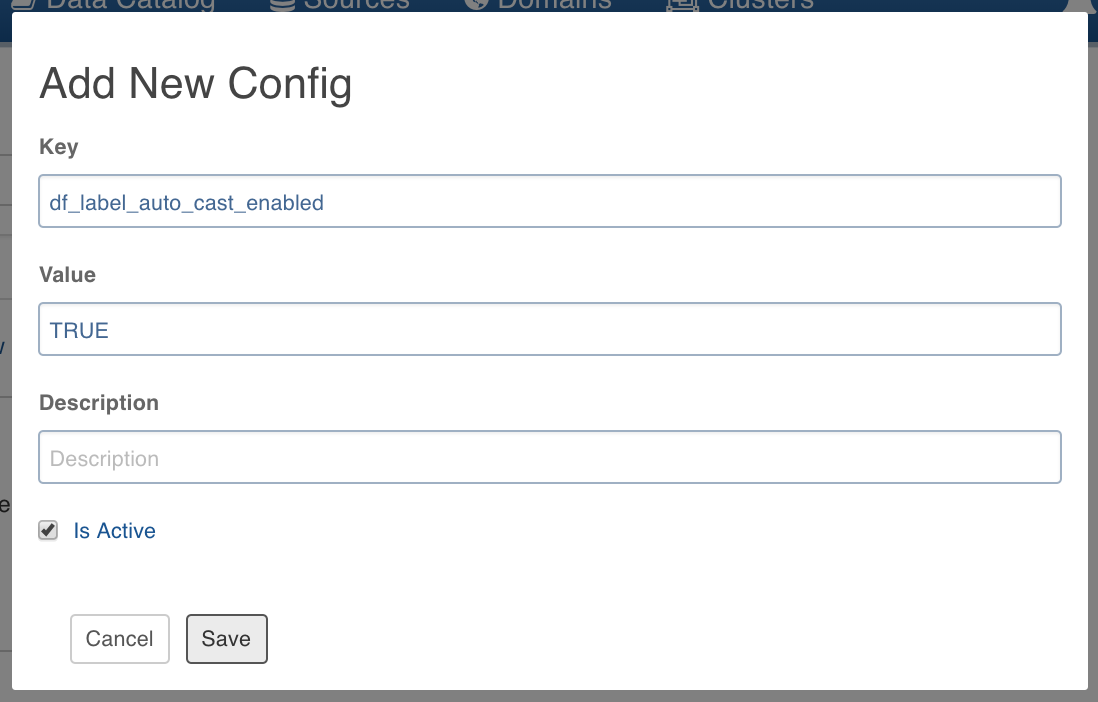
NOTE This setting overwrites the admin and domain configurations.
Following are the steps to add/edit configuration on the domain level:
NOTE These configurations will be applicable to pipelines in that domain.
Click Domains and click the required domain to modify configuration.
Click Settings icon and click Add Configuration.
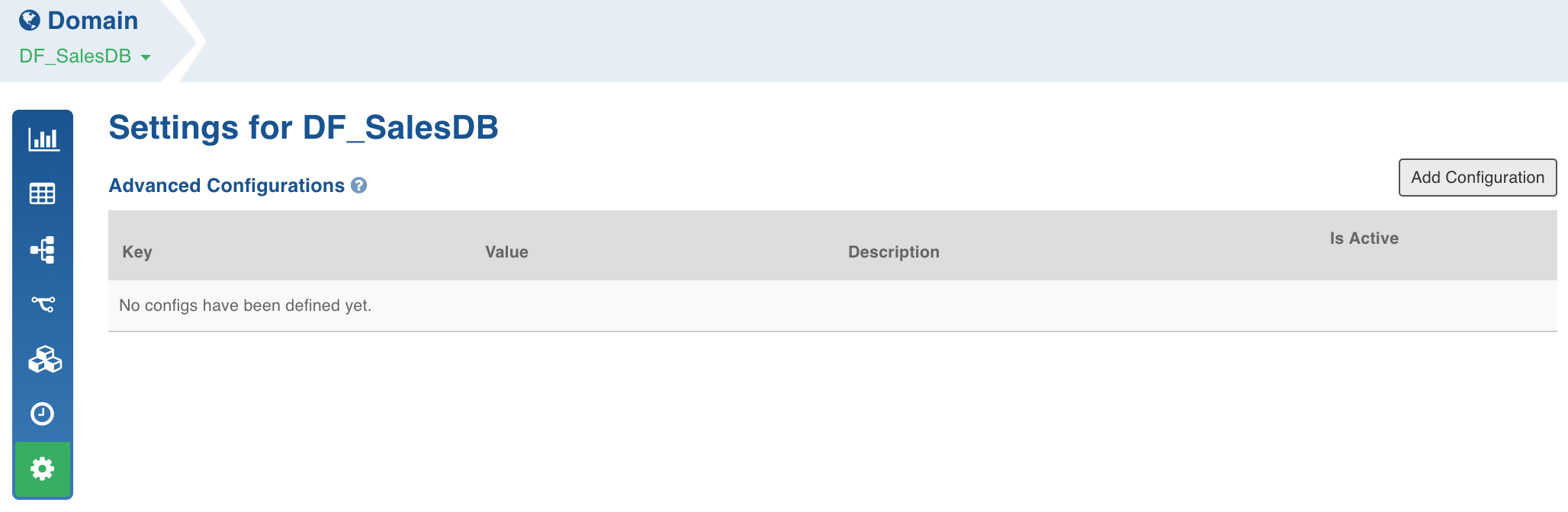
Enter the required Key and Value and click Save.
Configuring Data Validation in Node Properties
After you set the node properties and click Preview Data, there are certain instances where you do not see the required data being fetched, or it takes an unusually long time to fetch the data. This is mainly due to resource availability issues in the Hadoop cluster.
Configurations to Disable Sample Job
To disable Sample Job after pipeline build, set the dt_disable_sample_job configuration to true from Admin or Pipeline level configurations.
Configurations to Disable Cache Job
To disable Cache Job after pipeline build, set the dt_disable_cache_job configuration to true from Admin or Pipeline level configurations.
Configuring Compute Project ID for BigQuery Pipelines
If you want to configure Project ID for transformation jobs in BigQuery pipelines, set the dt_parent_project_id configuration to the Project ID present in the GCP Cloud.
NOTE You can perform this task either at the time of pipeline creation or for an existing pipeline.