
Segmentation allows you to segment a large table into multiple smaller segments. This helps users ingest a large amount of data with a lesser load on the server.
IMPORTANT Segmentation is applicable for the following sources:
Native RDBMS (except log-based tables)
Salesforce
Generic JDBC
CDATA
NOTE Segmented load can only be performed if at least one table in the specific source has been submitted for ingestion.
Following are the steps to perform segmented load on a table:
Navigate to the required source.
Click the Tables tab.
Click the icon near the Details option for the required table and click the Start Segmentation option. This option will be available only for the tables with Not Loaded status.
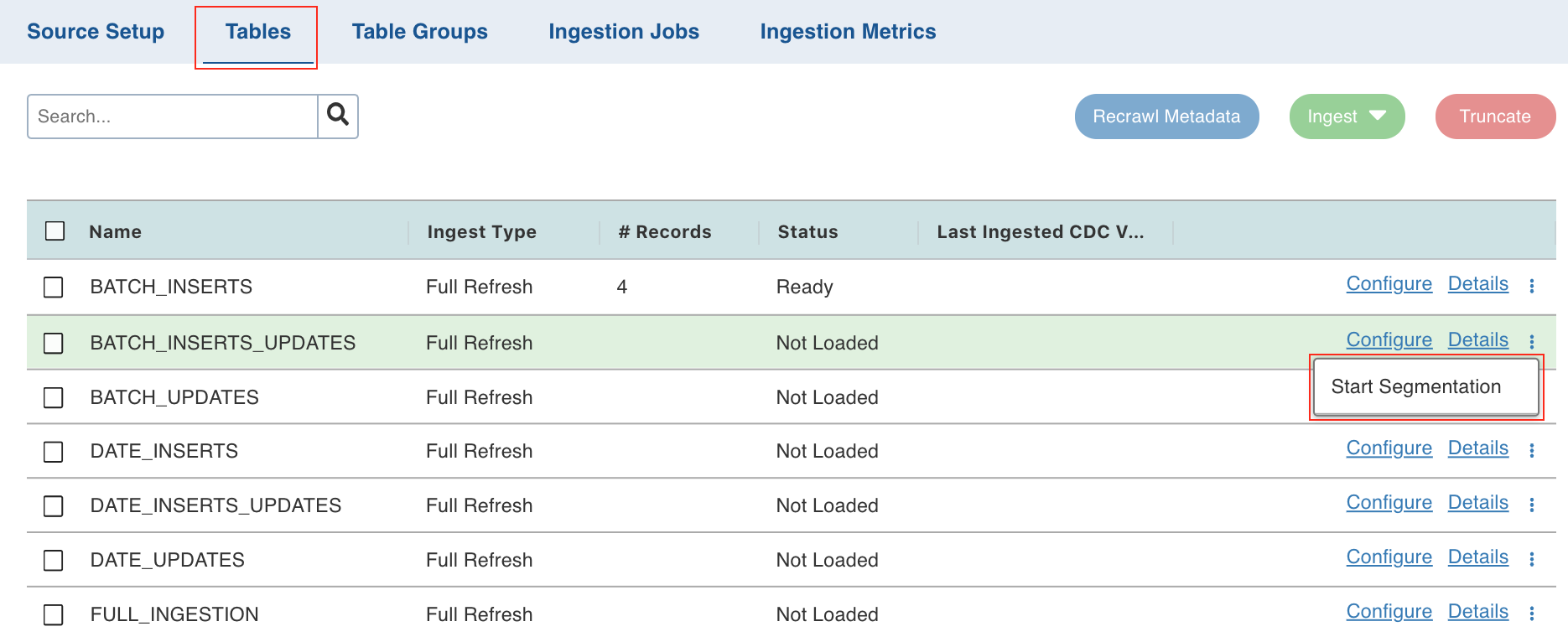
4. In the Start Segmentation window, click the Add Column button.
Select the following details:
Field | Description |
|---|---|
Segment Column | The column on which the load segmentation will be performed. The corresponding values of these columns will be displayed as rows. You can select the required records and ingest them. |
Create Derived Column | The option to derive a column from the segment column to perform load segmentation on. This option is available only for columns of the date and timestamp datatype. |
Derived Column Function | The derived column function. This option is enabled if the Create Derived Column box is checked. The options include day num in month, month, year, year month, month day, and year month day. NOTE: This function is not available for Salesforce, Generic JDBC, and CDATA sources. |
Actions | The option to remove a segmentation column. |
You can click the Add Column button to add more columns for segmentation. For example, in this use case, you can select the required records of the firstname and last_modified columns and ingest them.
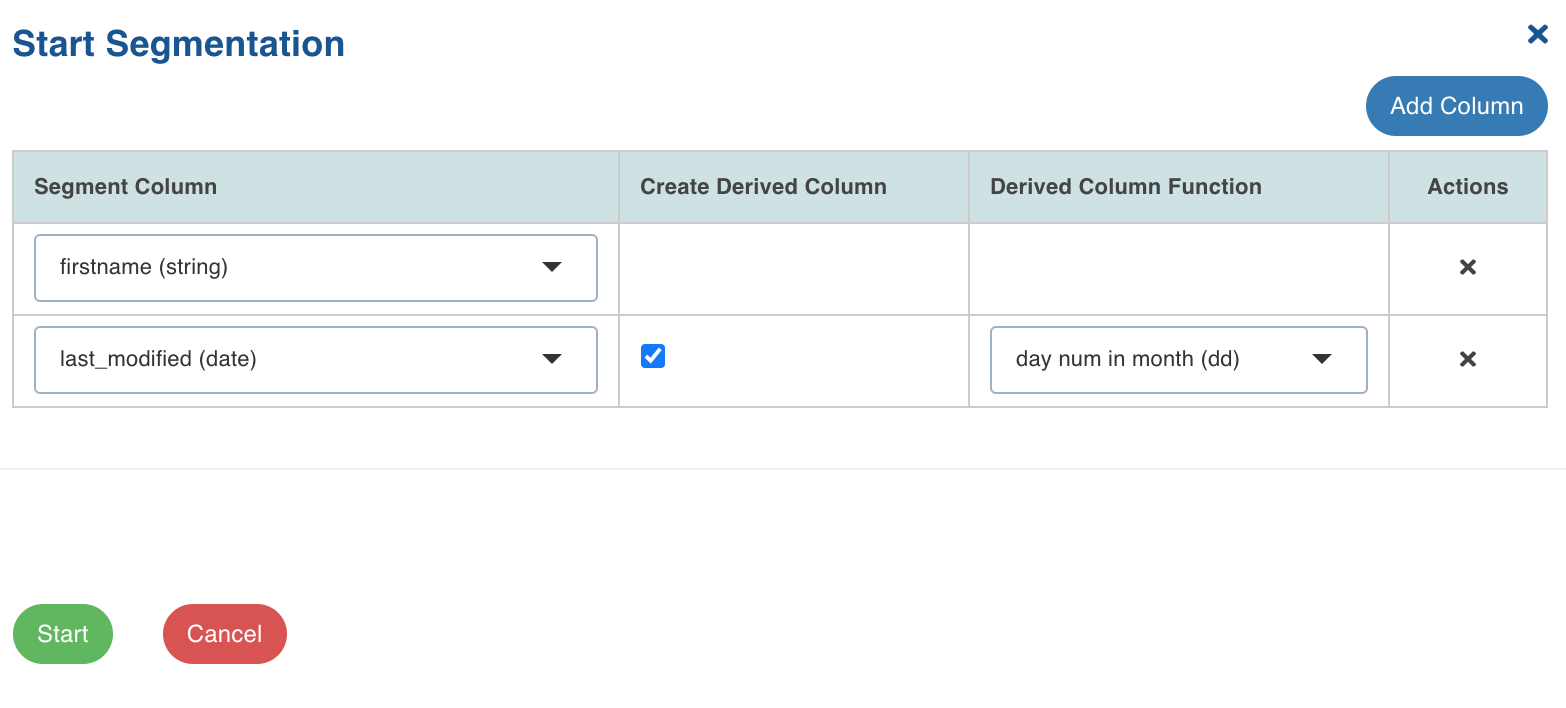
Click Start. The segmentation details will be displayed.
Field | Description |
|---|---|
Column Names | The name and values of the columns selected for segmentation. |
Count | The count of records present for the corresponding set of values. For example, if two records with the same values are present, the count will be displayed as 2. |
Records Ingested Count | The count of the successfully ingested records for the corresponding set of values. |
Status | The status of the segmentation process for the record. |
Last Successful Job Time | The timestamp when the last segmentation was successful. |
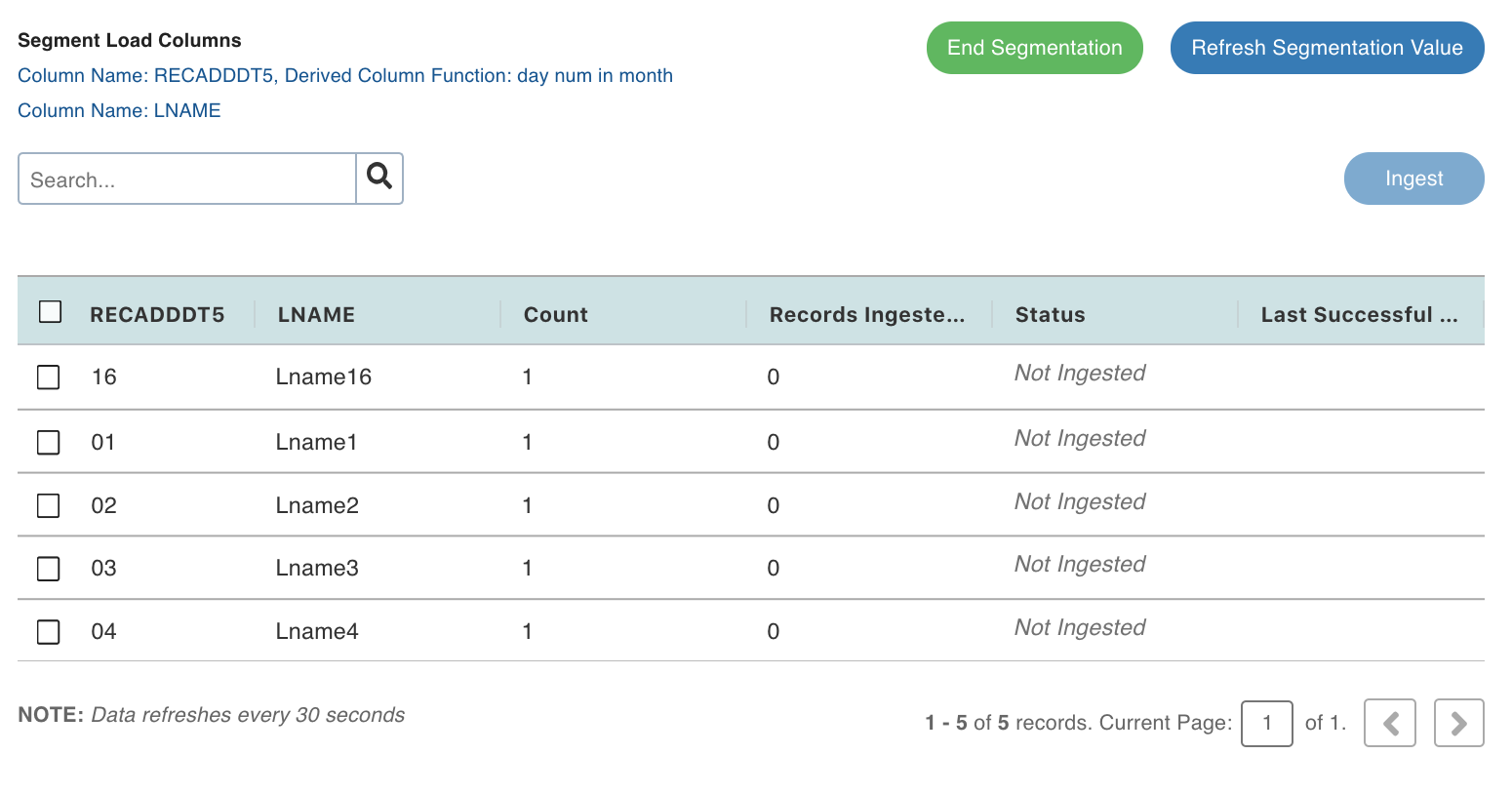
Select the required records and click Ingest.
In the Ingest Data page, provide the ingestion details and click Ingest. For details, see Onboarding Data. The status of segmentation will be displayed in the Status column.
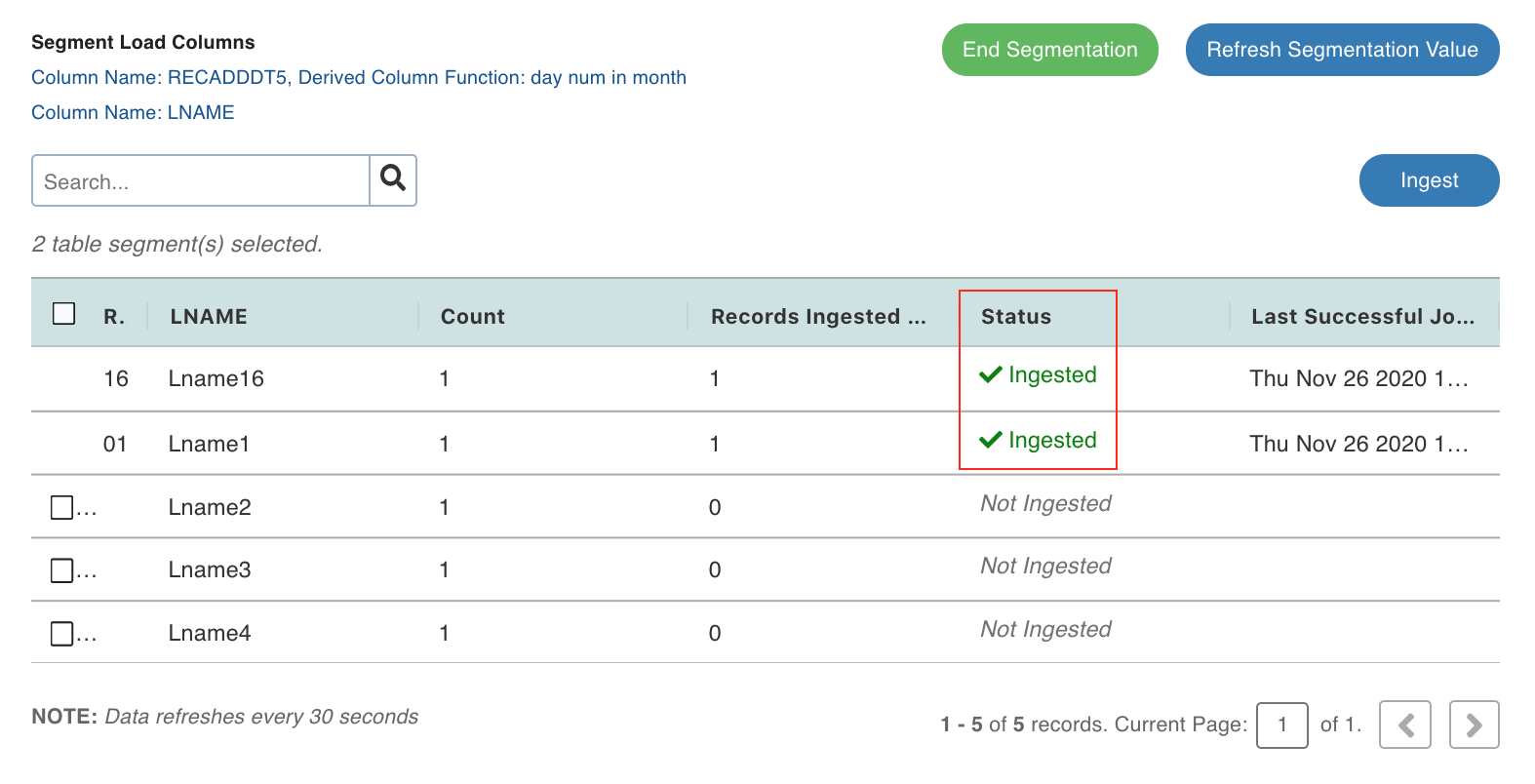
You can click End Segmentation to stop the segmentation in progress or click Refresh Segmentation Value to refresh the page with the latest segmentation configurations.
When all the segments have been crawled, the message, all the table segments have been loaded. You can proceed with End Segmentation, will be displayed.
If the table includes segments that have not been ingested, you can continue the segmentation by clicking icon near the Details option and clicking Continue Segmentation.
Advanced Configurations
sfdcSegDateFormat: The date format for SFDC segment load. The default value is E MMM dd HH:mm:ss z uuuu. This is a source-level configuration.max_number_of_chunks_default: The maximum number of unique segments for segmentation. The default value is 2000. This is a table-level configuration.
Limitations
For Salesforce sources, the segments selected must not have carriage return values.
In Teradata source, for TPT tables, segment load is supported only if all segments are run as a single job.